

 AhsayCBS
Ahsay Go Backup Sets - Continuous Backup Overview
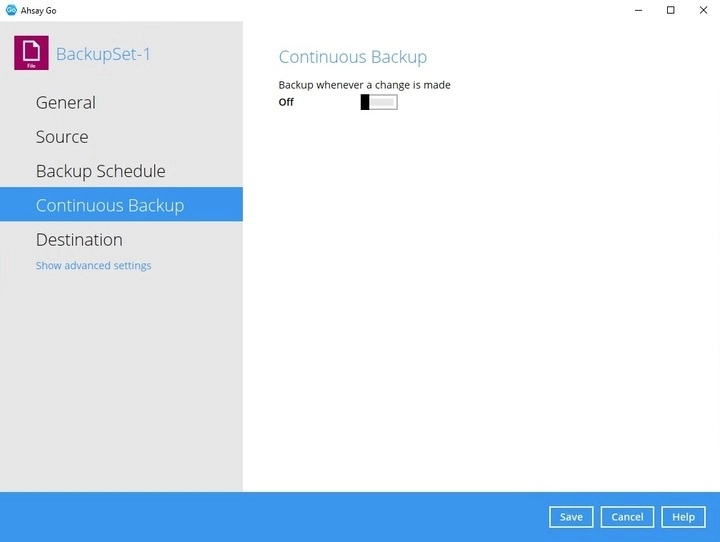
This feature provides backup for selective data whenever a change is made. This feature is disabled by default.
-
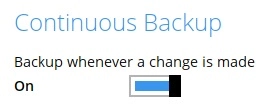
Swipe the lever to the right to turn on the "Continuous Backup" setting.
-
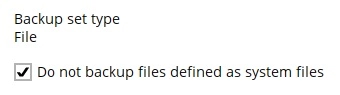
It is recommended to select this option to avoid backing up files that are marked as system files.
-
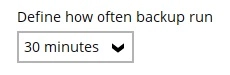
Click the drop-down button to define how often the continuous backup job will run. The backup time interval can be set from 1 minute to 12 hours.
-
This option applies the continuous backup on small regular update files. The choices for the file size ranges from 25MB to unlimited MB. You may directly input the file size instead of selecting from the dropdown list.
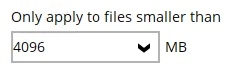 For large file size, the continuous backup may not run with a short time interval. You may need to adjust the continuous backup time interval (in step 3).
 -
This allows the user to create an exclude filter to exclude files and/or folders from the backup job. Click the + button to create an exclude filter.
-
If an exclude filter is created, click the OK button to save the created exclude filter, then click the Save button to save the configured continuous backup settings.
Only File backup sets on Windows operating system will support Continuous Backup Schedule.