AhsayCBS
Register Device using Microsoft Authenticator for AhsayOBM
Using Microsoft Authenticator
-
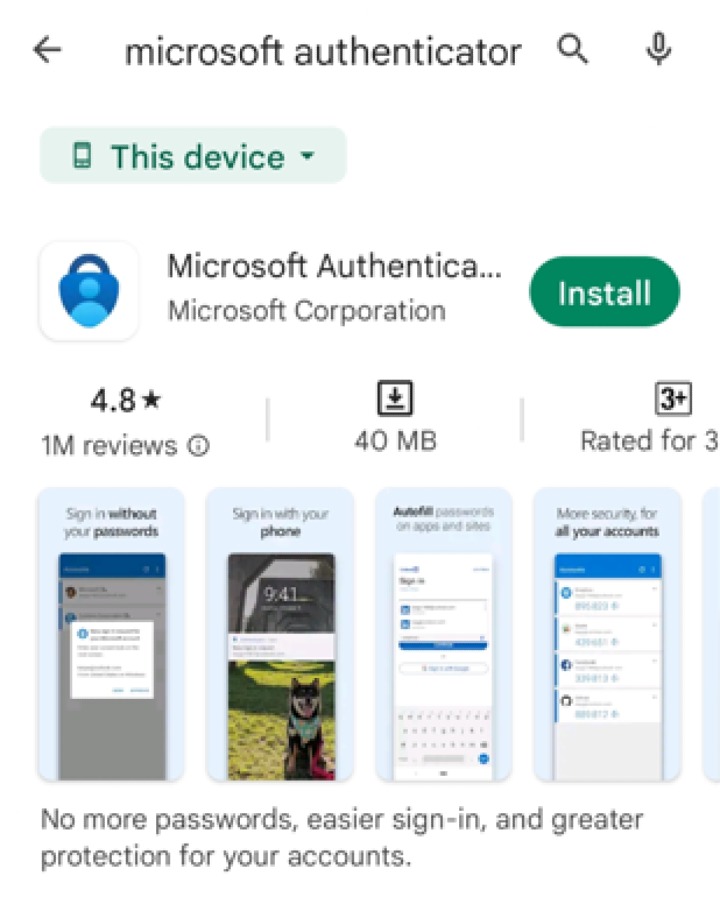
Download and install the Microsoft Authenticator from the Play Store for Android devices or the App Store for iOS devices.
-
Launch the Microsoft Authenticator app.
-
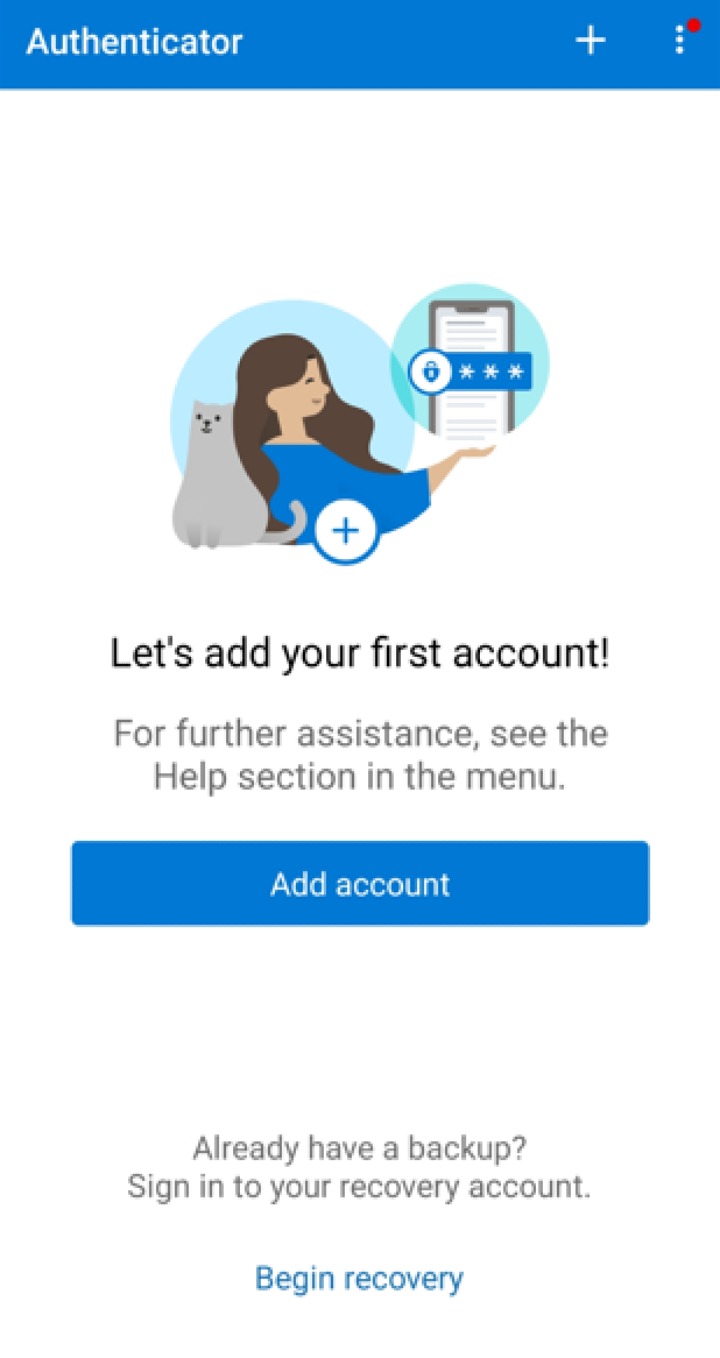
Tap Add account
-
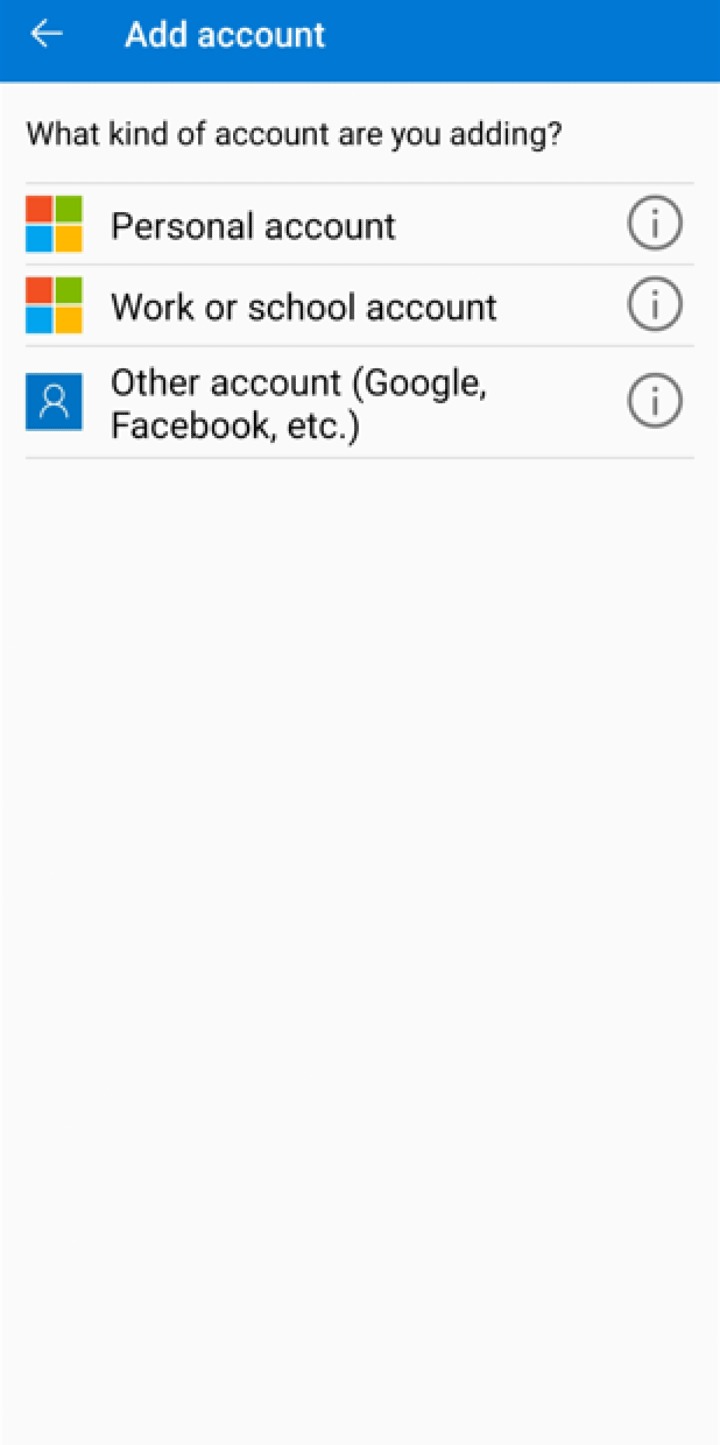
Select Other account (Google,Facebook, etc.)
-
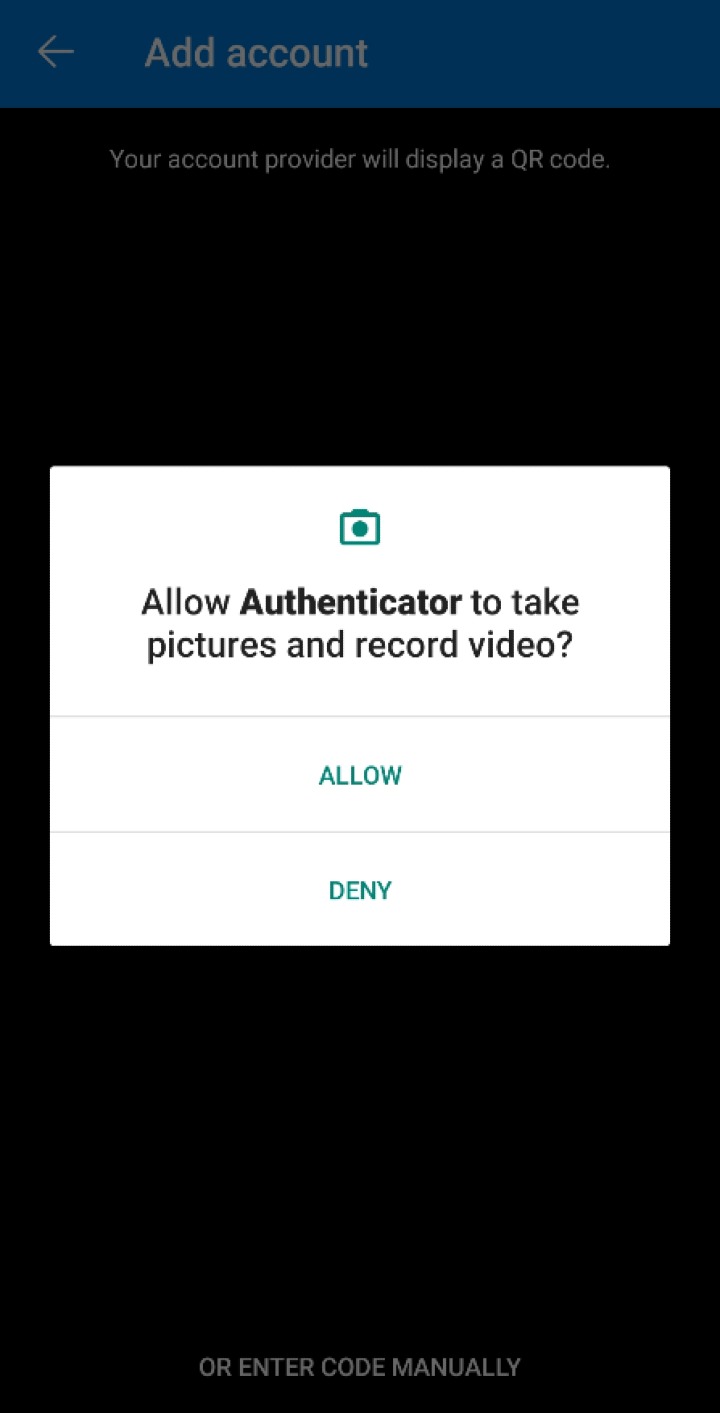
Allow permission to take pictures and record video.
-
Select the account by selecting from the following methods:
Scan the QR Code
-
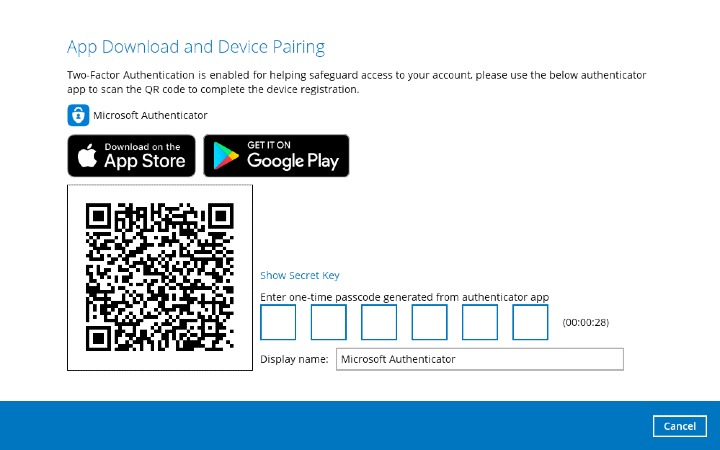
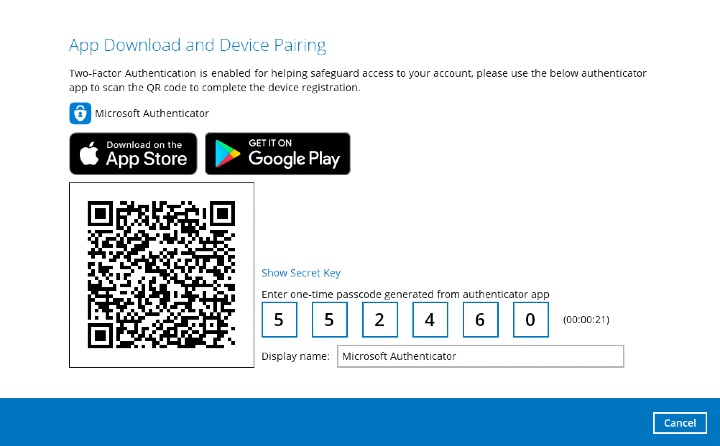
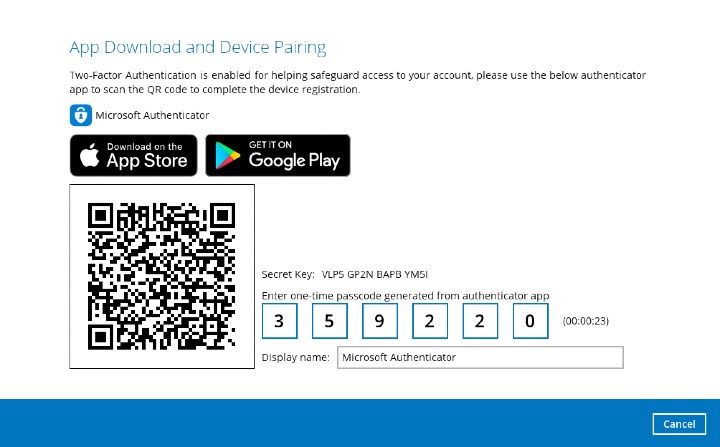
Scan the QR code on AhsayOBM
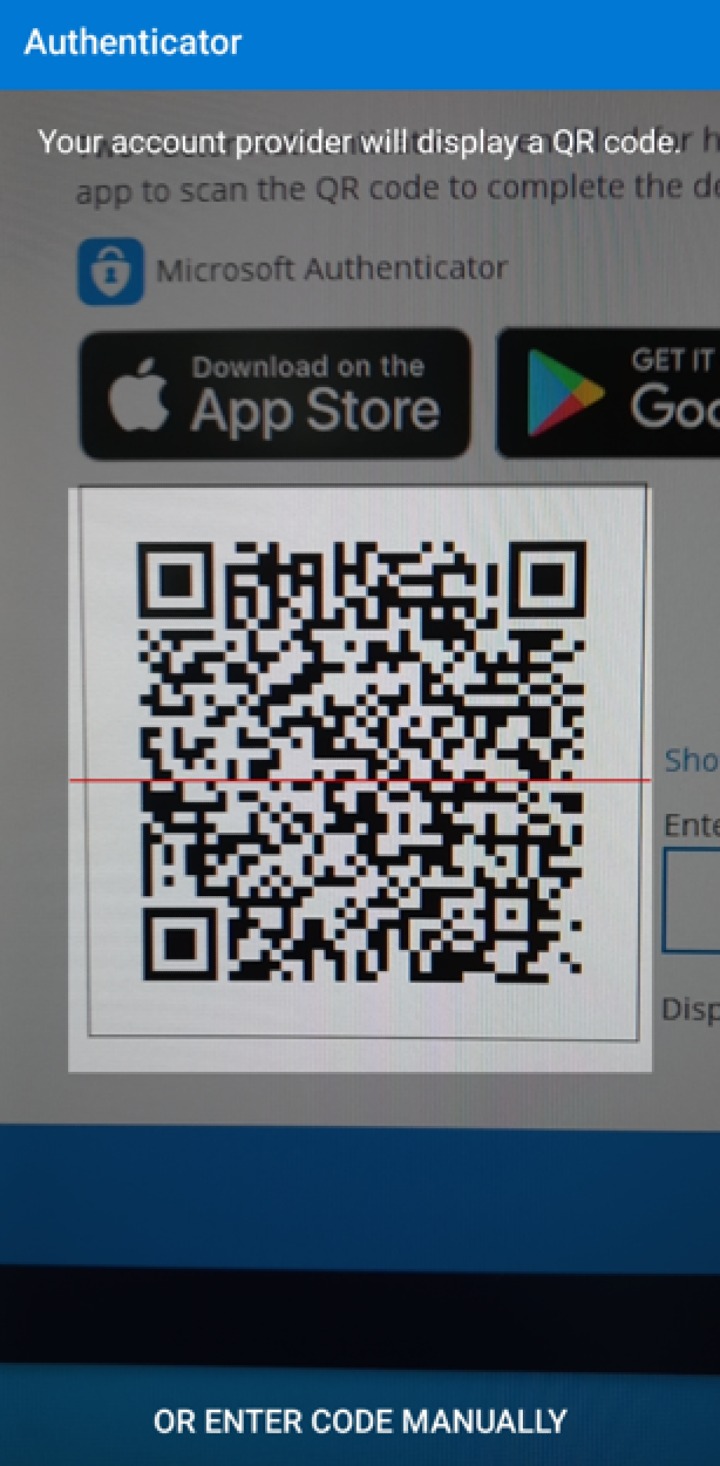
Example of the displayed QR code:
-
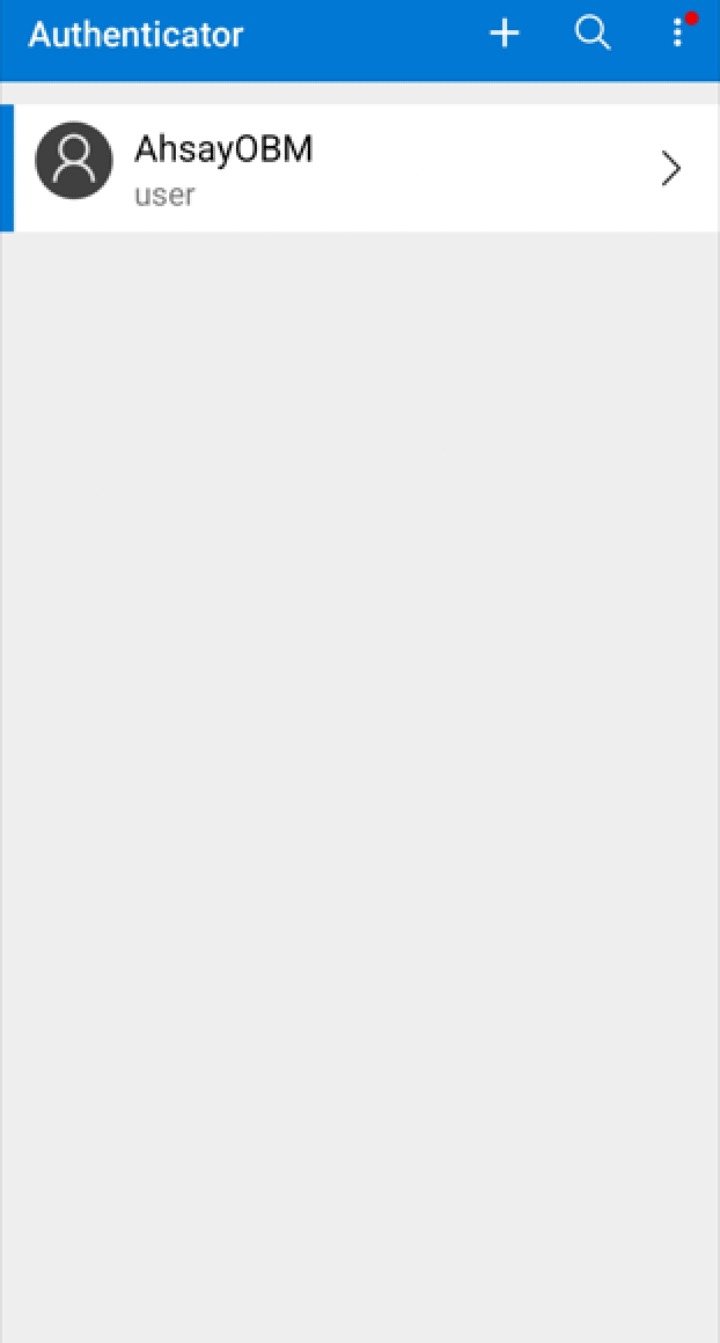
The AhsayOBM account is successfully added to Microsoft Authenticator and the mobile device is registered in AhsayOBM.
-
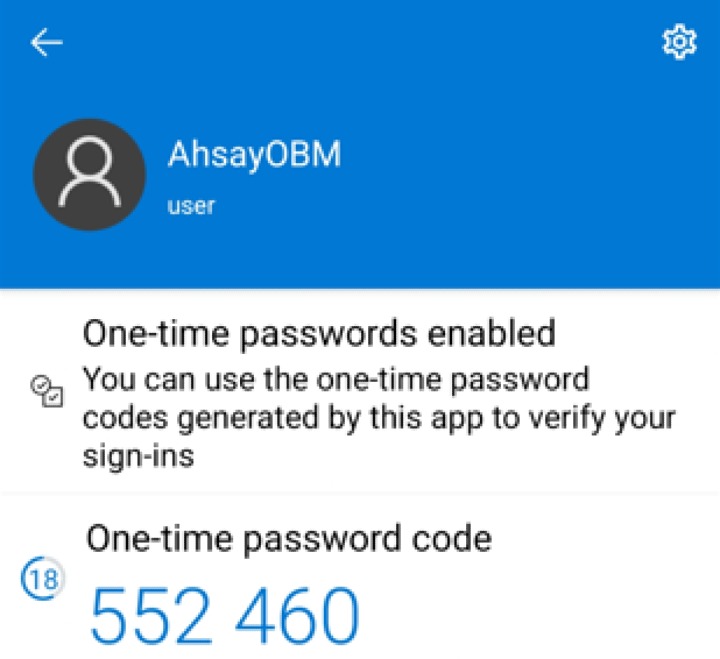
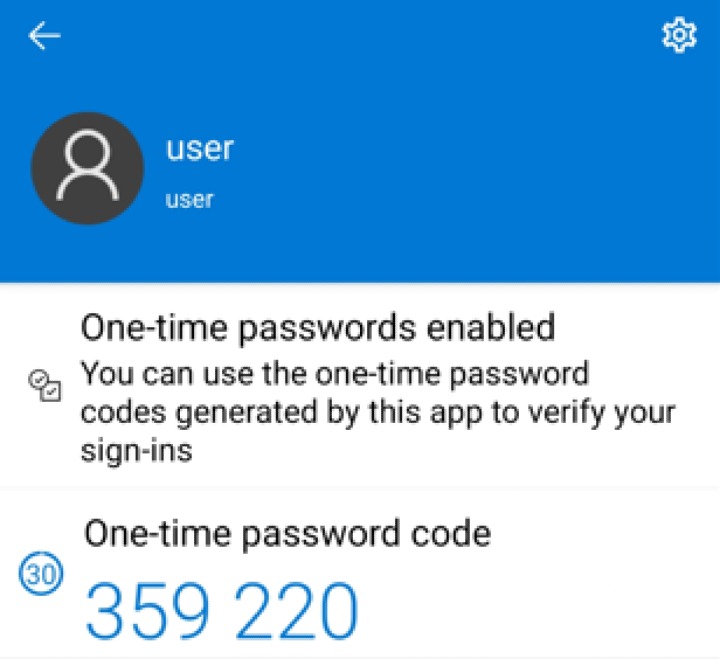
Once the account is added to Microsoft Authenticator, enter the one-time passcode generated from the authenticator app on AhsayOBM.
Example of the one-time passcode generated:
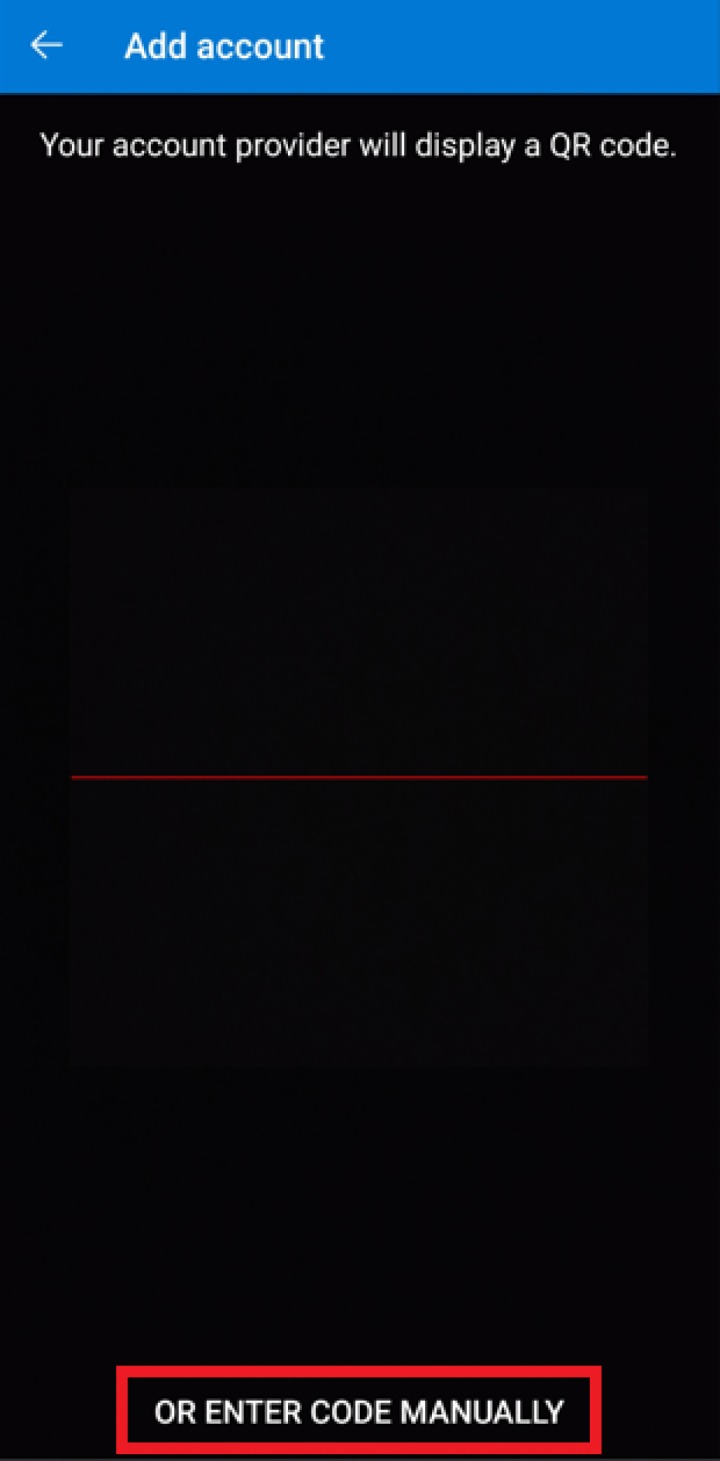
Enter code manually
-
Tap OR ENTER CODE MANUALLY
-
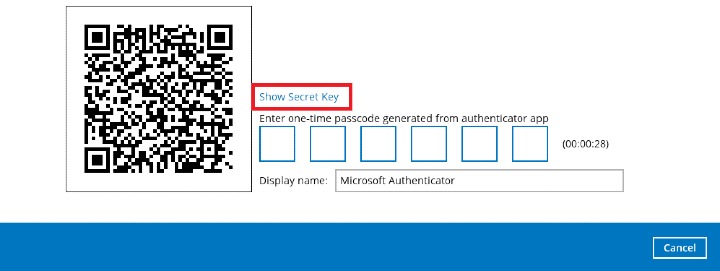
Click the Show Secret key link in the AhsayOBM to display the "Secret Key" which must be entered manually in the Microsoft Authenticator.
-
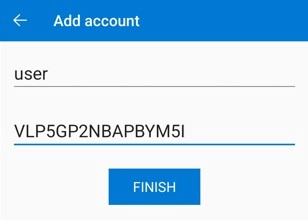
On the Microsoft Authenticator app, input the account name, then enter the displayed Secret Key in AhsayOBM. Tap FINISH to proceed.
-
Once the account is added to Microsoft Authenticator, enter the one-time passcode generated from the authenticator app on AhsayOBM.
Example of the one-time passcode generated:
-
-
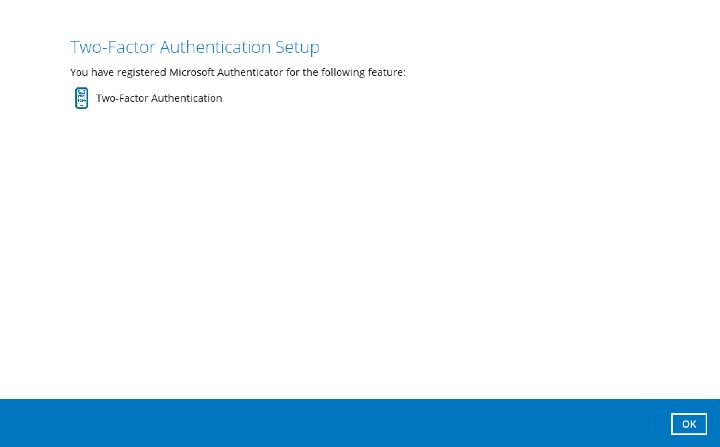
The device is successfully registered for 2FA in AhsayOBM using Microsoft Authenticator. Click OK to continue.