AhsayCBS
Idle Lock (Authentication) Overview for AhsayOBM
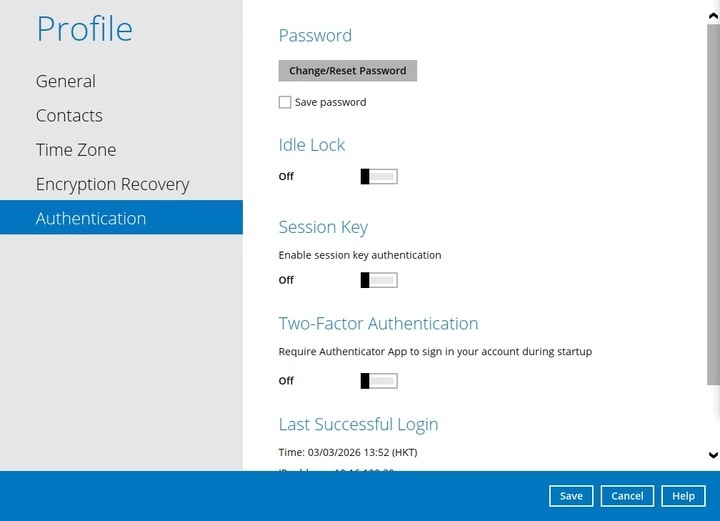
The Idle Lock feature has been added starting with version 10.3, this prevents the session from timing out if the application has been idle for a specific time. By default this is enabled with 30 mins set as the idle time.
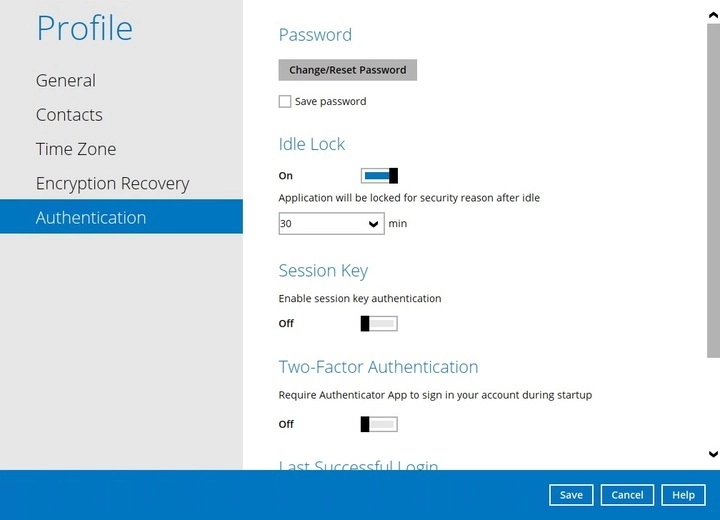
This is a sample of the screen that will be displayed after 30 minutes of inactivity.

Setup Idle Lock Feature
-
Go to Profile > Authentication > Idle Lock.
-
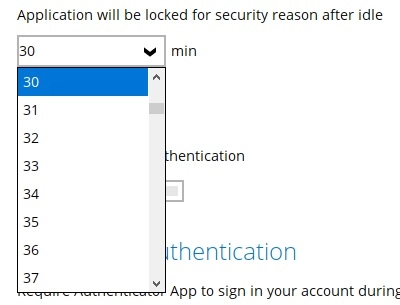
Select the minutes from the dropdown box or you may enter it directly.
-
Click Save to store the settings.
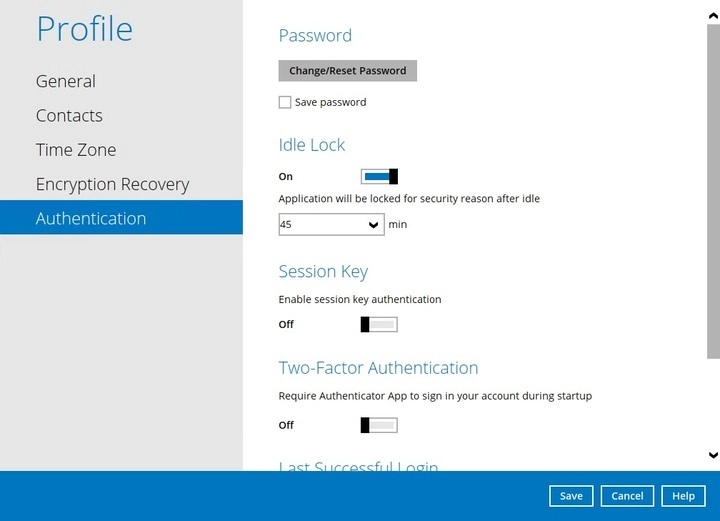
If you try to enable "Idle Lock" while the "Save password" checkbox is ticked, this will be the message displayed.

Disable Idle Lock Feature
-
Go to Profile > Authentication > Idle Lock.
-
Swipe the lever to the left to turn it off then click Save.