AhsayCBS
Microsoft 365 Restore on AhsayOBM
Before performing the restoration, it is best to be knowledgeable about the options that AhsayOBM can offer. Below are brief descriptions of the said features for you to be familiar with and utilize each function. After this quick walkthrough, you will see the step-by-step instructions with corresponding screenshots on how to restore your data using the following options below.
For Microsoft 365, you can restore items from:
-
Users
This is composed of data from Outlook, OneDrive, Personal Site, and Teams Chat.
-
Teams
This is composed of data from Group Mail, Group Site, and Teams Channel.
-
SharePoint Sites
This is composed of one Top-level site, List and Libraries and Subsites.
-
Public Folders
This is composed of one Top-level site and Public Folders.
Those items can be restored to:
-
Original
Restore your data to the original Microsoft 365 account.
-
Alternate
Restore your data to an alternate location on the same Microsoft 365 domain. Alternate location depends on the source of the items. It can be from Users, Teams, SharePoint Sites or Public Folders.
Example #1:
Restore Items from Users
Microsoft 365 Account: Test AccountABC@onecompany Alternate Users: TestUserAccount01@onecompany TestUserAccount02@onecompany TestUserAccount03@onecompany TestUserAccount04@onecompany TestUserAccount05@onecompany Explanation:
For the example above, we have TestAccountABC@onecompany as our Microsoft 365 account. For the alternate user, a list will be available, and from there you can choose from the following Microsoft 365 accounts:
- TestUserAccount01@onecompany
- TestUserAccount02@onecompany
- TestUserAccount03@onecompany
- TestUserAccount04@onecompany
- TestUserAccount05@onecompany
Example #2:
Restore Items from Teams
Teams Group: SampleTeamsGroupAccountXYZ Alternate Groups: SampleTeamsGroup01 SampleTeamsGroup02 SampleTeamsGroup03 SampleTeamsGroup04 SampleTeamsGroup05 Explanation:
For the example above, we have SampleTeamsGroupAccountXYZ as our Teams group. For the alternate group, a list will be available, and from there you can choose from the following Teams group:
- SampleTeamsGroup01
- SampleTeamsGroup02
- SampleTeamsGroup03
- SampleTeamsGroup04
- SampleTeamsGroup05
Example #3:
Restore Items from SharePoint Sites
SharePoint Sites: blackbox.sharepoint.com/sites/OriginalSite Alternate Sites: blackbox.sharepoint.com/sites/NewSite1 blackbox.sharepoint.com/sites/NewSite2 blackbox.sharepoint.com/sites/NewSite3 blackbox.sharepoint.com/sites/NewSite4 blackbox.sharepoint.com/sites/NewSite5 Explanation:
For the example above, we have blackbox.sharepoint.com/sites/OriginalSite as our site. For the alternate site, a list will be available, and from there you can choose from the following SharePoint Sites:
- blackbox.sharepoint.com/sites/NewSite1
- blackbox.sharepoint.com/sites/NewSite2
- blackbox.sharepoint.com/sites/NewSite3
- blackbox.sharepoint.com/sites/NewSite4
- blackbox.sharepoint.com/sites/NewSite5
-
Alternate Microsoft 365 organization
You can restore your data to an alternate Microsoft 365 organization that has a different domain.
Example:
Original Microsoft 365 Account: TestAccountABC@onecompany
Alternate Microsoft 365 Account: SampleAccountXYZ@twosquaretower
Explanation:
As you can see in the above example, we have two (2) Microsoft 365 accounts with different domains. The Original Microsoft 365 account is what we used as the source of our backup and can also use as the original location for restoration. For the alternate Microsoft 365 account, we need to use another Microsoft 365 account that has a different domain.
-
Local Computer
Restore your data as an archive file to your local computer where AhsayOBM is running. Data will be exported in the following format:
- MS Teams Chat/Channel will be exported as HTML
- Emails will be exported as PST
- SharePoint Sites will be exported as CSV
-
OneDrive of Original Microsoft 365 organization
Restore your data as an archive file to the OneDrive of a user on the same Microsoft 365 domain. Data will be exported in the same format as in a local computer.
-
OneDrive of Alternate Microsoft 365 organization
Restore your data as an archive file to the OneDrive of a user on a different Microsoft 365 domain. Data will be exported in the same format as in a local computer.
-
Microsoft 365 Restore
In case you also want to know how to restore a Microsoft 365 backup using the AhsayCBS Web Console, please refer to this page: Run on Server Restore for Microsoft 365.
Restore Items
-
Log in to AhsayOBM.
For instructions on how to do this, please refer to the AhsayOBM Login page.
-
Click the Restore icon on the main interface of AhsayOBM.
-
Select the backup set and destination.
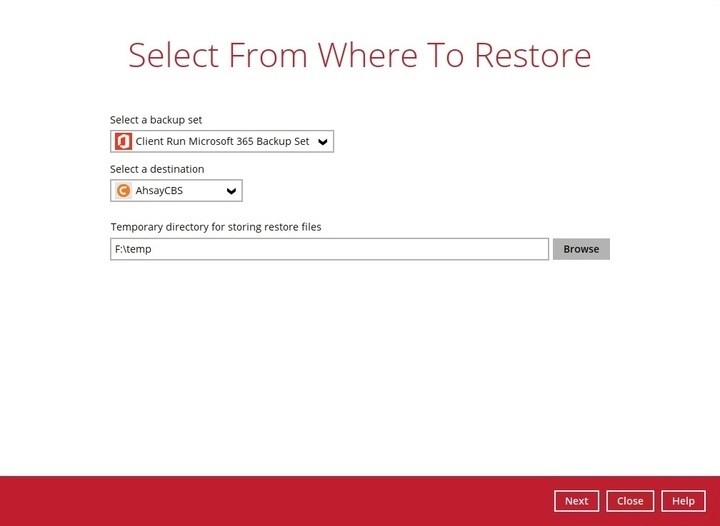
You may configure the "Temporary directory for storing restore files" by clicking Browse. This will allow you to select the directory that will be used to store temporary files.

-
The screen that will be displayed will depend on the type of account used during authentication, either business or personal account:
-
If a business account is used, select to restore from Users, Teams, SharePoint Sites or Public Folders.
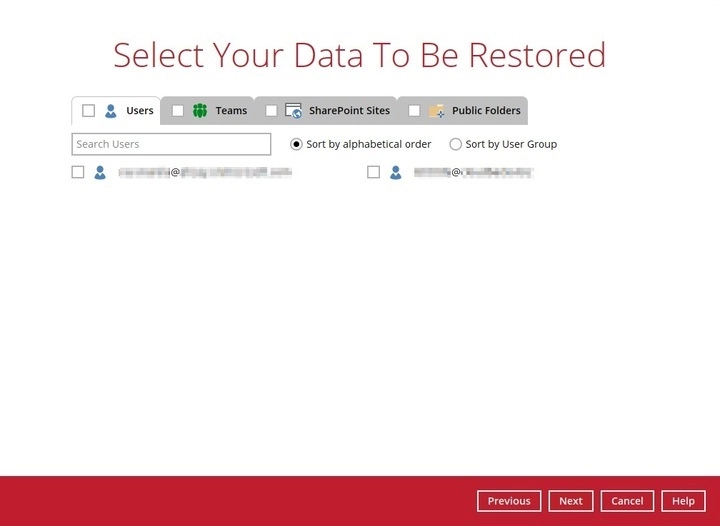
Choices for data to be restored will depend on the data that was backed up. Starting with v10.3, all types of data can be restored at the same time.
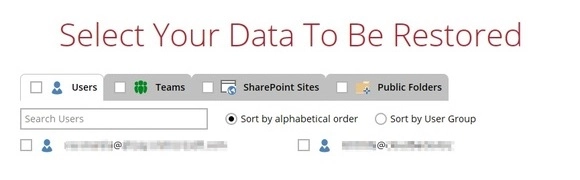
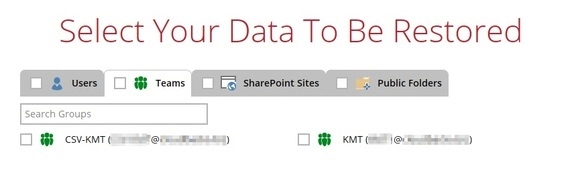
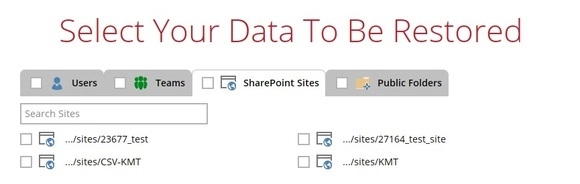
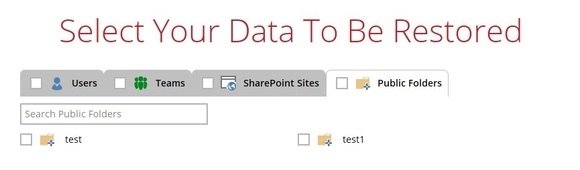
Here are samples of the screen that will be displayed for each data:
-
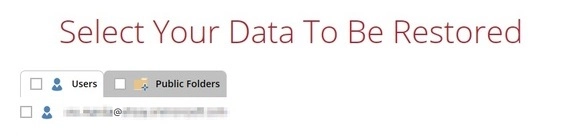
Users can be sorted alphabetically or by User Group. You may tick the checkbox beside "Users" if you want all the users to be selected or you may select individual users to be restored.
-
You may tick the checkbox beside "Teams" if you want all the groups to be selected or you may select individual groups to be restored.
-
You may tick the checkbox beside "SharePoint Sites" if you want all the sites to be selected or you may select individual sites to be restored.
-
You may tick the checkbox beside "Public Folders" if you want all the folders to be selected or you may select individual folders to be restored.
-
-
If personal account is used, only Users and Public Folders will be available for restore.
-
-
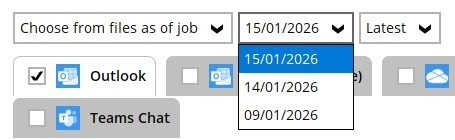
Select the item(s) you would like to restore. You can also choose to restore backed up items from a specific backup job.
The screen that will be displayed for each data will be different:
Users
-
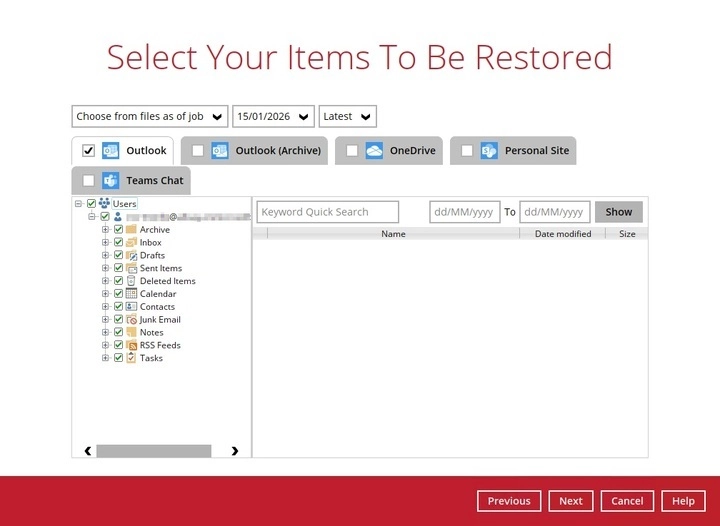
If the checkbox beside Outlook is ticked, then all the items under "Outlook" will be restored.
-
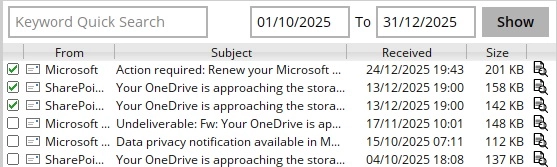
Items can be filtered according to keyword and/or received date. Set the From and To dates of the items, then click the Show button.
-
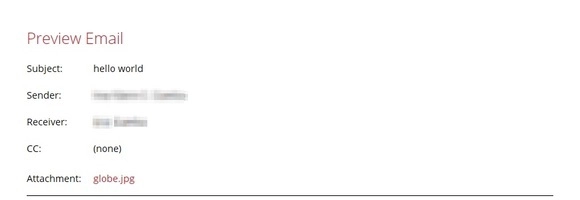
Specific items can be selected to be restored. There is a preview function that allows you to view the content so you can check if you want to restore it.
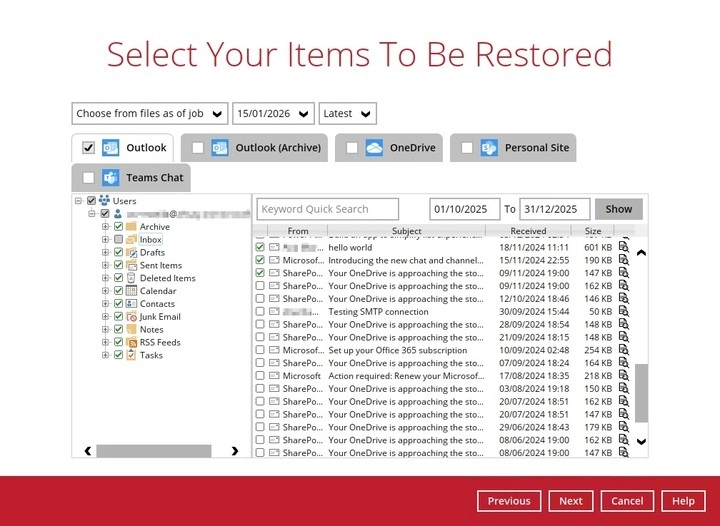
To do this, click the "magnify" button. In the "Preview Email" window, you can restore and download the email by clicking Quick Download.
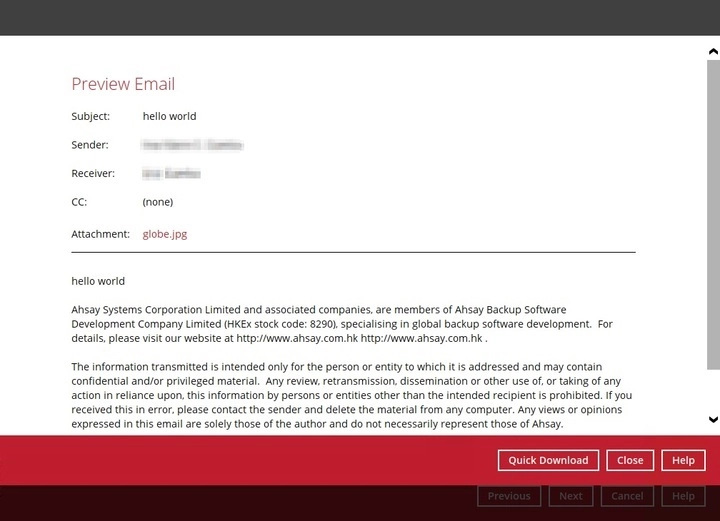
-
Click Browse to select the path where the email will be restored.
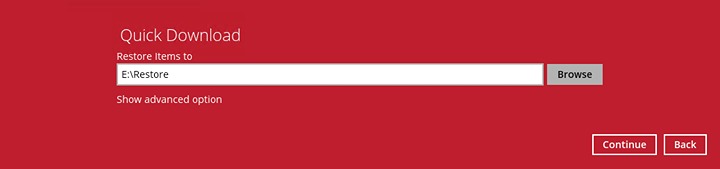
-
Click the Show advanced option if you want to change the path of the temporary directory. Click Continue to proceed. Click Close once done.
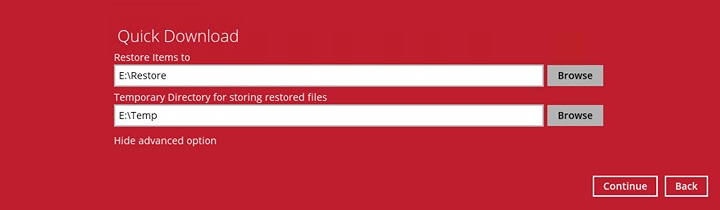
You can also download just the attachment by clicking on the attachment itself.
-
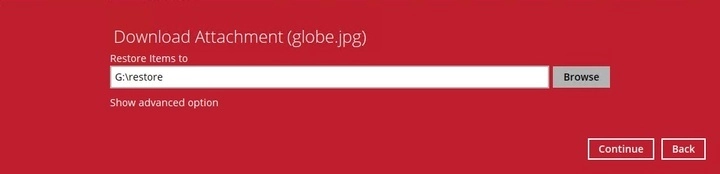
Click Browse to select the path where the attachment will be restored.
-
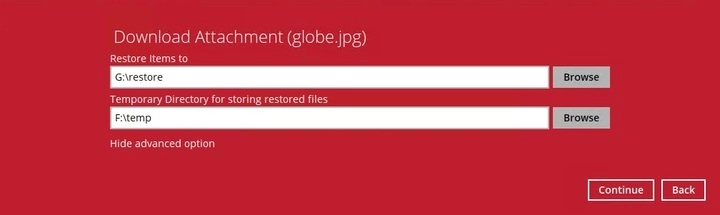
Click the Show advanced option if you want to change the path of the temporary directory. Click Continue to proceed.
-
- Click Close once done.
-
-
If the checkbox beside Outlook (Archive) is ticked, then all the items under "Outlook (Archive)" will be restored.
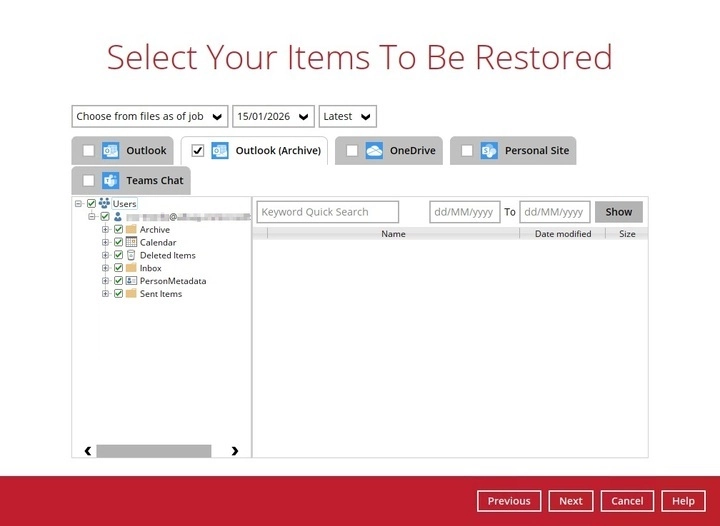
Please refer to the Outlook section for more detailed instructions.
-
If the checkbox beside OneDrive is ticked, then all the items under "OneDrive" will be restored.
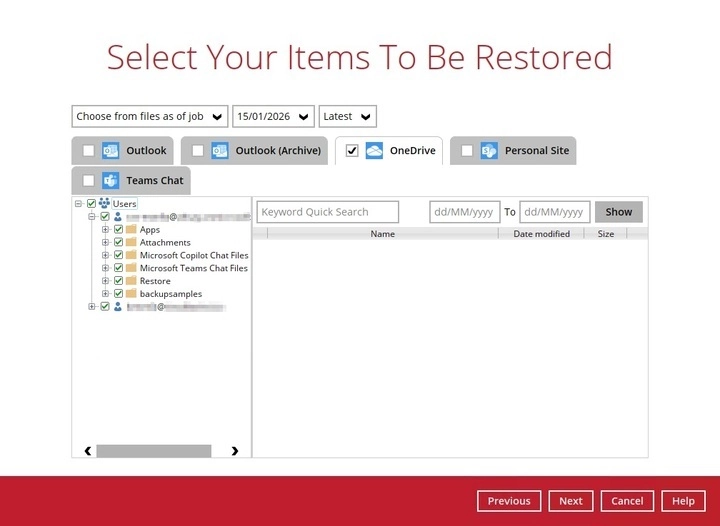
-
Specific items can be selected. There is a download function that will let you download the item directly.
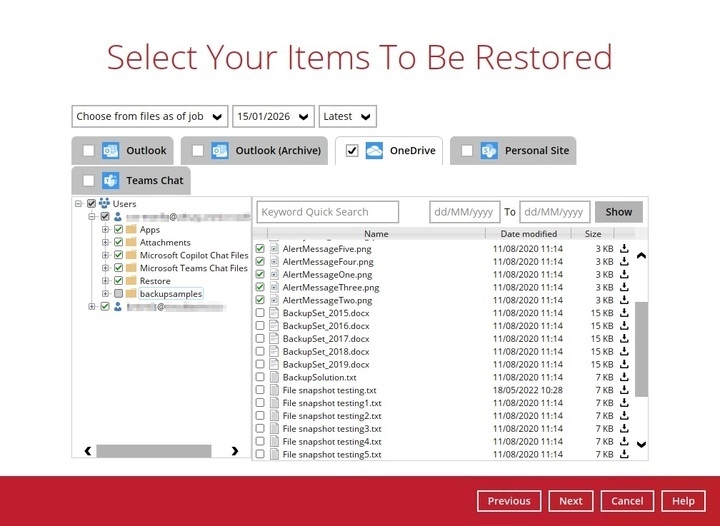
-
Click the "download" button to download the item. Click on Browse to select a location where to restore the items, then click Continue to start the download and restore. Click Close once done.
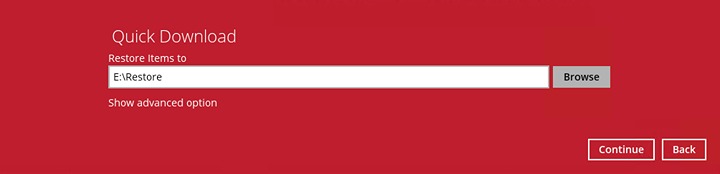
-
-
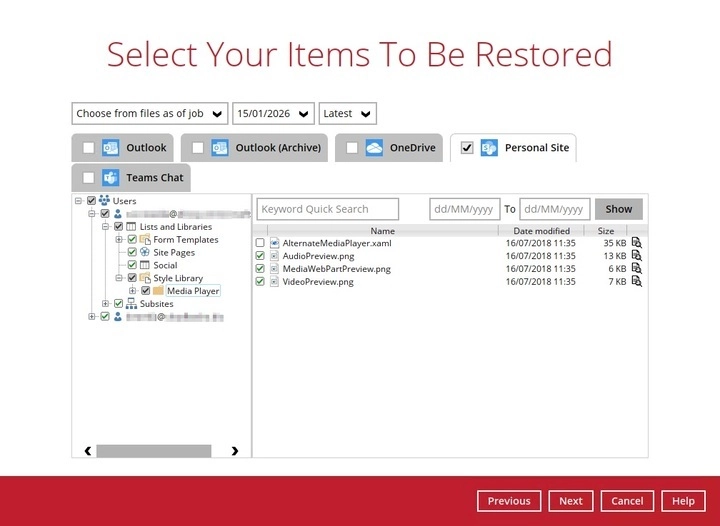
If the checkbox beside Personal Site is ticked, then all the items under "Personal Site" will be restored.
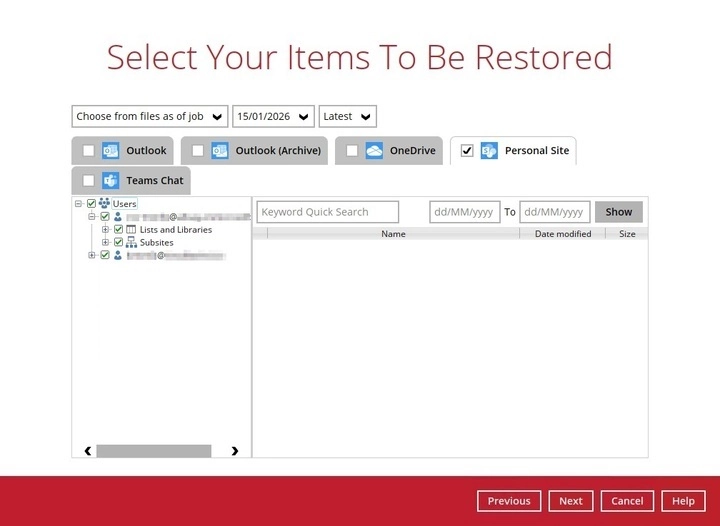
Specific items can also be selected to be restored. There is a preview function that will let you see the content so you can check if you want to restore the item. For instructions on how to use the preview function please refer to the instructions discussed above.
-
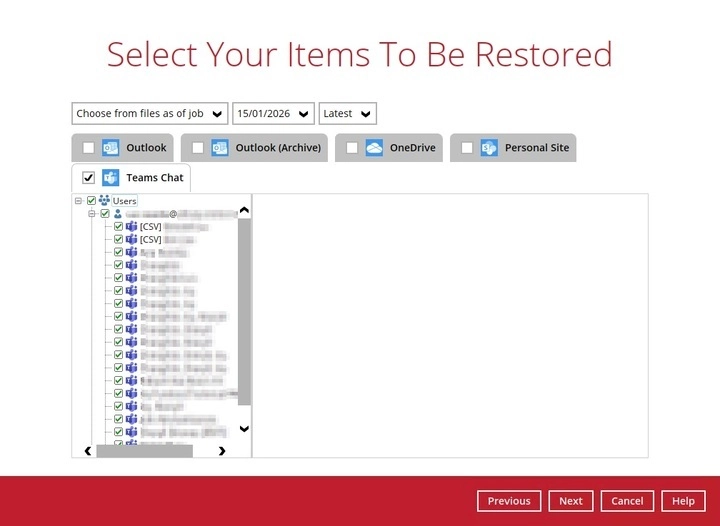
If the checkbox beside Teams Chat is ticked, then all the items under "Teams Chat" will be restored.
-
Specific items can also be selected to be restored. There is a download function that will let you download the item directly. Click the Quick Download (HTML) link.
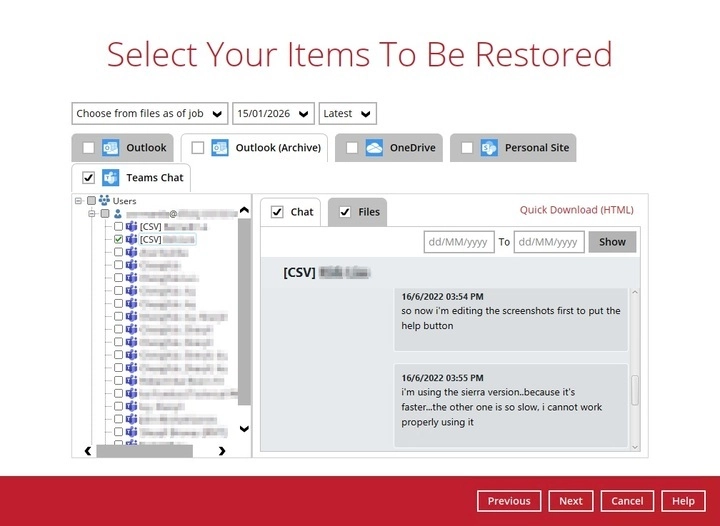
Teams Chat will not be restored to the original thread. Instead, it will only be restored as data export in HTML format stored in the local machine or OneDrive.
-
Click Continue to start the download and restore.
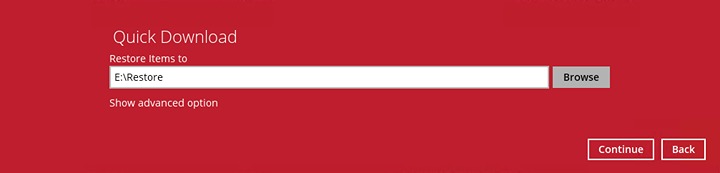
- Click Close once done.
- Click Next to proceed.
-
Teams
-
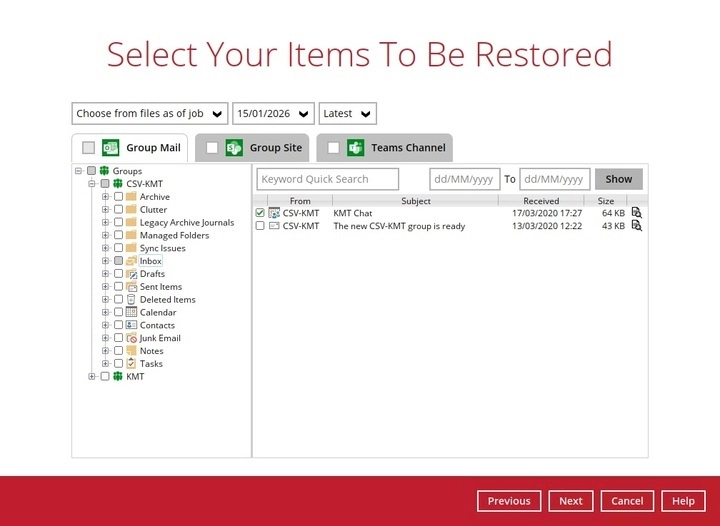
If the checkbox beside Group Mail is ticked, then all the items under "Group Mail" will be restored.
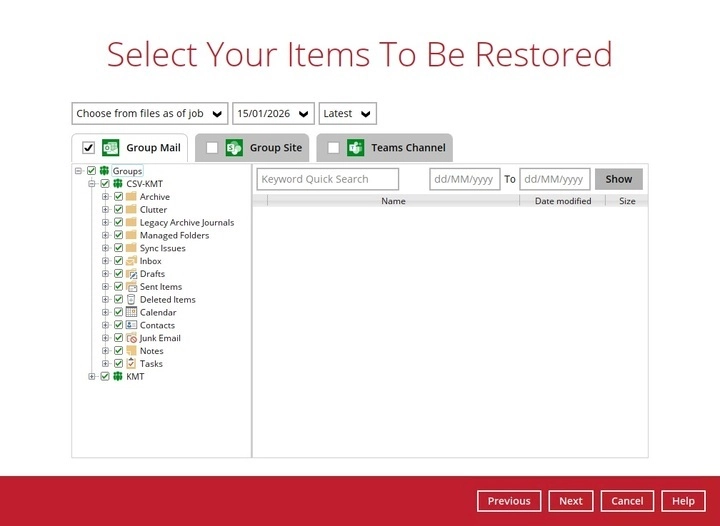
Specific items can be selected to be restored. There is a preview function that will let you see the content so you can check if you want to restore the item. For instructions on how to use the preview function please refer to the instructions discussed above.
-
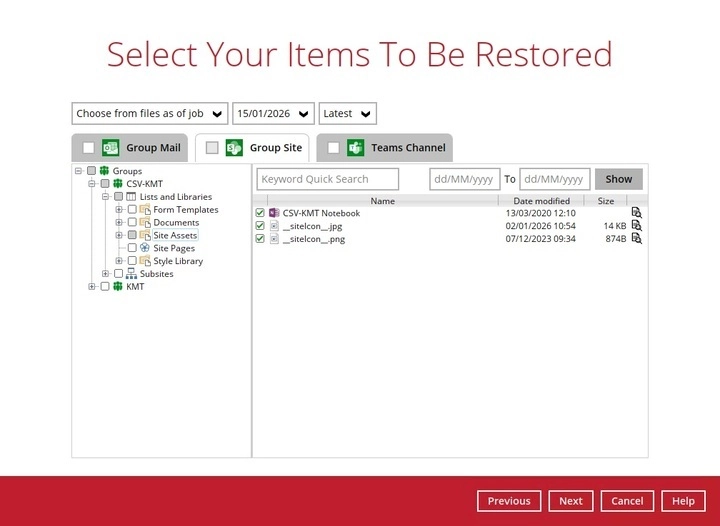
If the checkbox beside Group Site is ticked, then all the items under "Group Site" will be restored.
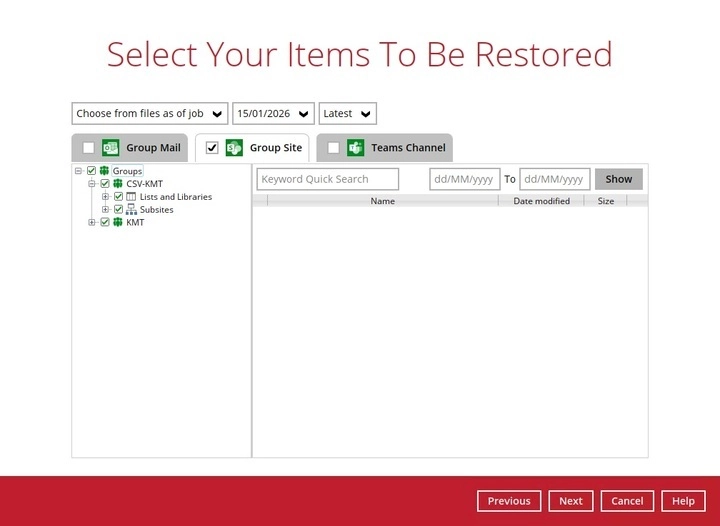
Specific items can be selected to be restored. There is a preview function that will let you see the content so you can check if you want to restore the item. For instructions on how to use the preview function please refer to the instructions discussed above.
-
If the checkbox beside Teams Channel is ticked, then all the items under "Teams Channel" will be restored.
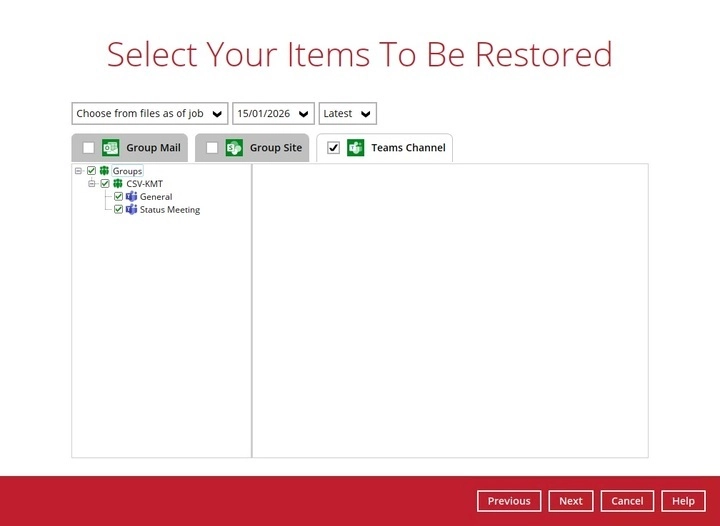
Specific items can also be selected to be restored. There is a download function that will let you download the item directly. For instructions on how to use the download function please refer to the instructions discussed above.
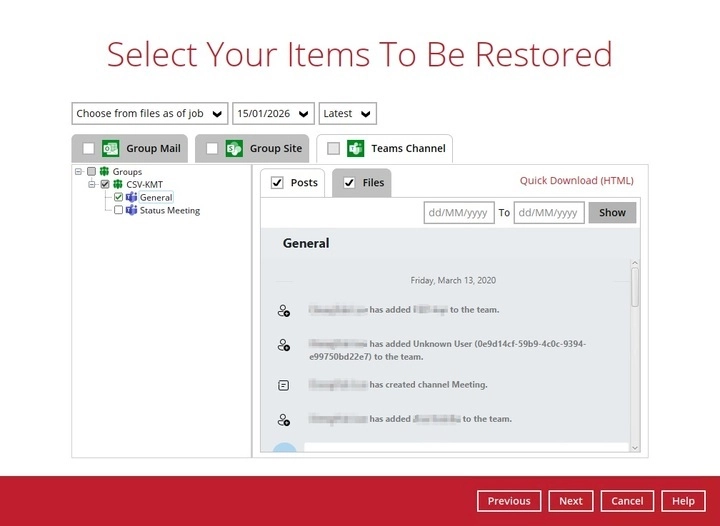
Posts in Teams Channel will not be restored to the original thread. Instead, it will only be restored as data export in HTML format stored in the local machine or OneDrive.
SharePoint
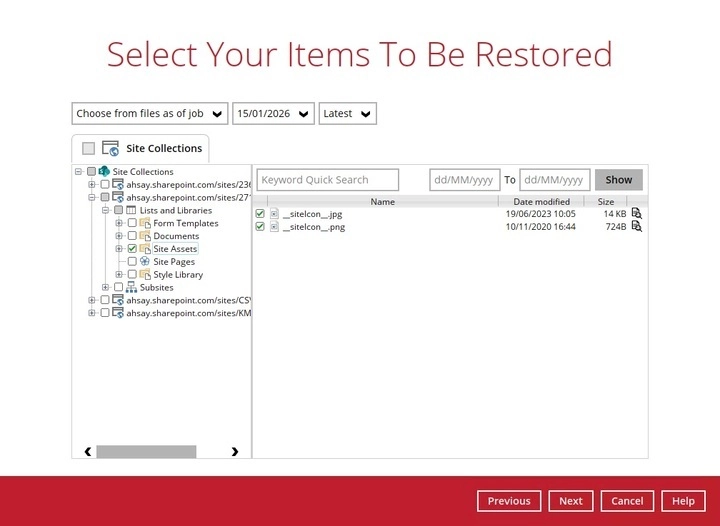
If the checkbox beside Site Collections is ticked, then all the items under "Site Collections" will be restored.
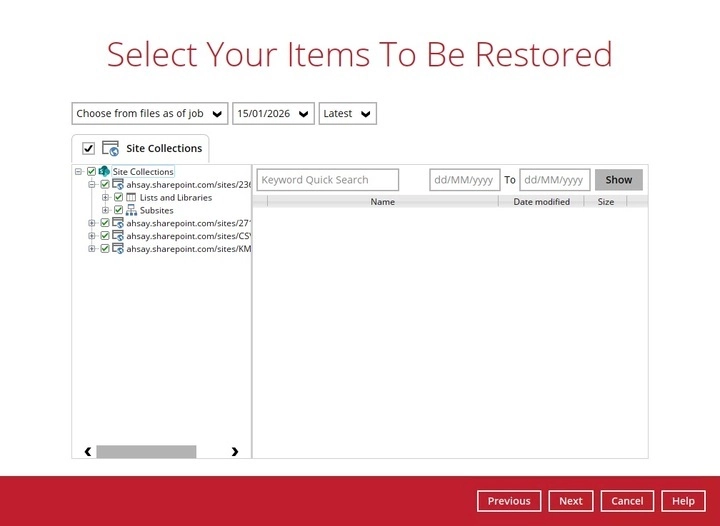
Specific items can also be selected to be restored. There is a preview function that will let you see the content so you can check if you want to restore the item. For instructions on how to use the preview function please refer to the instructions discussed above.
Public Folders
If the checkbox beside Public Folders is ticked, then all the items under "Public Folders" will be restored.
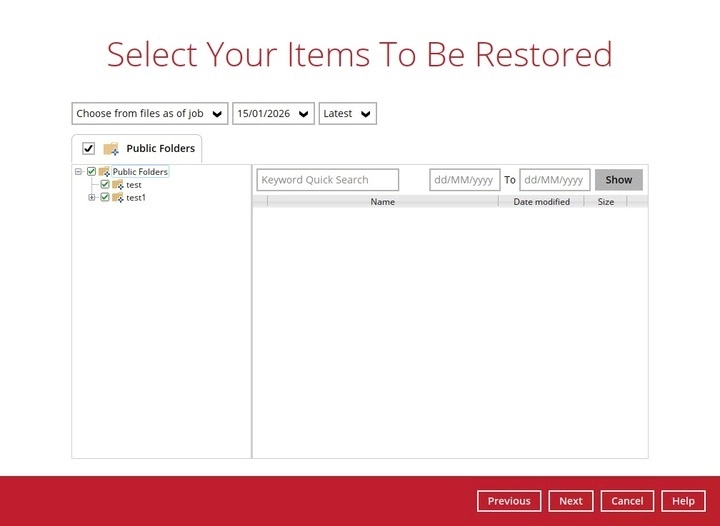
Select the items to be restored. There is a download function that will let you directly download the item. For instructions on how to use the download function please refer to the instructions discussed above.
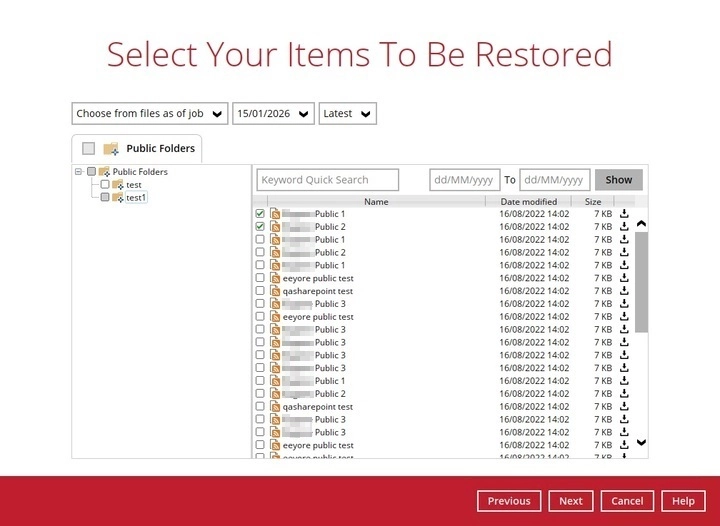
Click Next to proceed when you are done with the selection.
If all the data types are selected to be restored, then all the tabs will be available for selection.
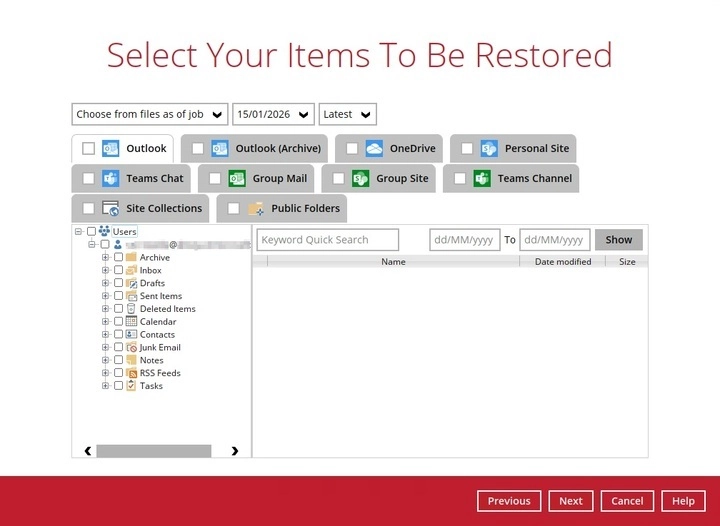
-
-
Select the location where the items will be restored.
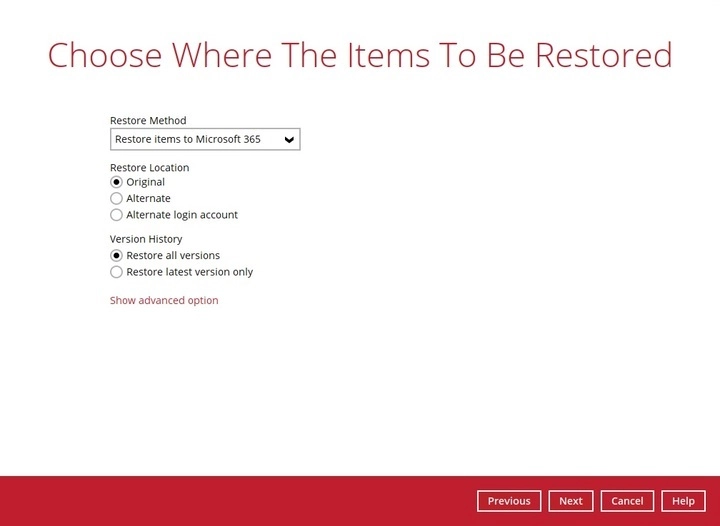
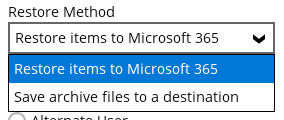
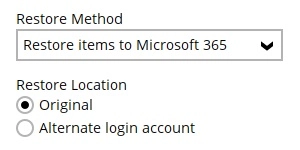
The choices for the restore location that will be displayed depends on the account type used during authentication, data and restore method selected. There are two restore methods available: Restore items to Microsoft 365 and Save archive files to a destination.
-
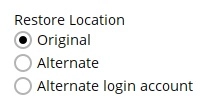
If Restore items to Microsoft 365 is selected, there are three options for the restore location:
Original
-
To restore to original location, select Original.
-
Select the version history, whether Restore all versions or Restore latest version only.
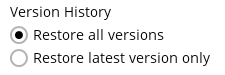
Version History will only be available if restoring data from OneDrive, Personal Site, Group Site and Site Collections.
-
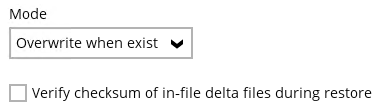
Click Show advanced option to configure other restore settings.
-
Mode
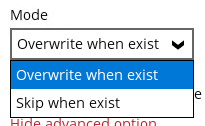
There are two choices for the mode:
-
Overwrite when exist
If the data that you will restore is already available in the Microsoft 365 account, then you have a choice to overwrite the existing data.
-
Skip when exist
If the data that you will restore is already available in the Microsoft 365 account, then you have a choice to skip and move to the next one.
-
-
Verify checksum of in-file delta files during restore
By enabling this option, the checksum of in-file delta files will be verified during the restore process. This will check the data for errors during the restore process and create a data summary of the in-file delta files which will be included in the report.

-
-
Click Next to proceed.
For backup sets where personal account is used for authentication, there will only be two restore locations available for selection. These are: Original and Alternate login account.
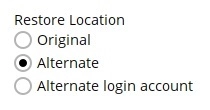
Alternate
-
Select Alternate to restore to an alternate location.
To configure other restore settings please refer to the instructions discussed above.
- Click Next to proceed.
-
Select the target folder.
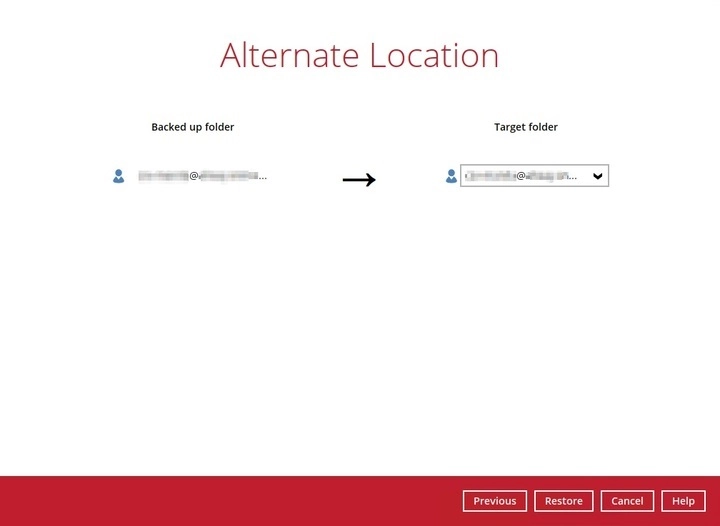
Alternate Login Account
-
To restore to an alternate login account, select Alternate login account.
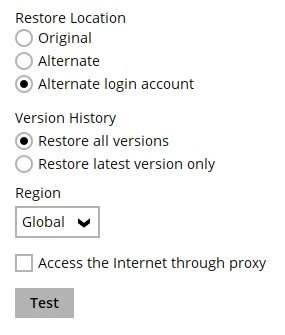
- Click Test.
-
Click Authorize.

-
Login to your Microsoft 365 account then copy and paste the authorization code then click OK.

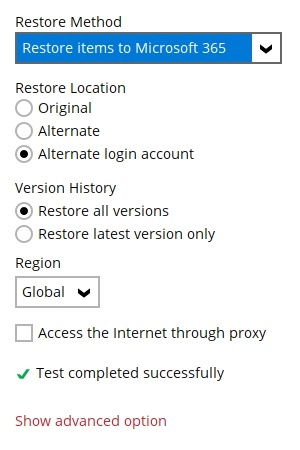
To configure other restore settings please refer to the instructions discussed above.
Click Next to proceed.
-
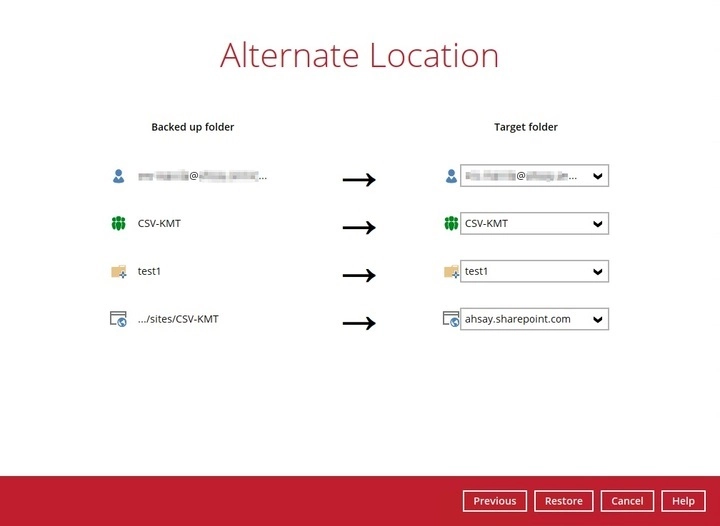
Select the target folder.
-
-
If Save archive files to a destination is selected, there are three options for the restore location:
- Local
- OneDrive of Original Microsoft 365 organization
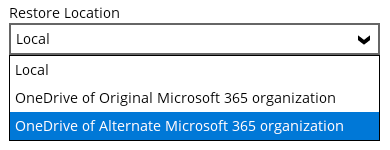
- OneDrive of Alternate Microsoft 365 organization
For SharePoint Sites and Public Folders, the only restore location that will be available for selection is Local.
While for Teams Chat and Teams Channel, the only restore method that will be available is Save archive files to a destination.
Local
-
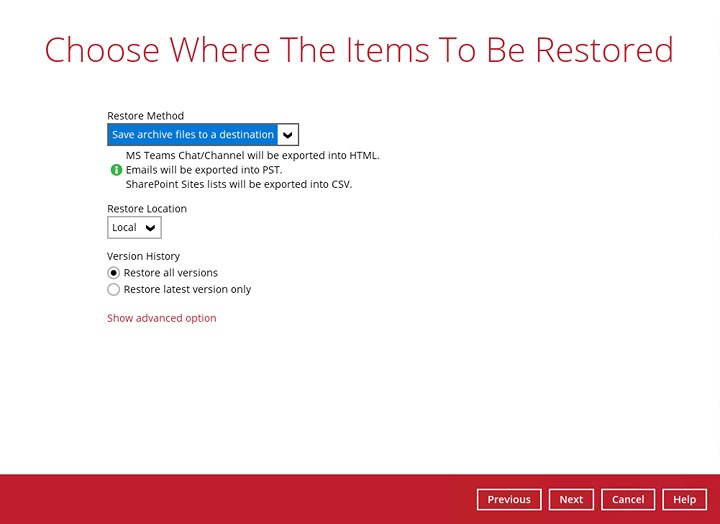
Restore to local is available for all data types. To restore to local, select Local.
-
Select the version history, whether Restore all versions or Restore latest version only.
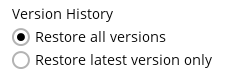
Version History will only be available if restoring data from OneDrive, Personal Site, Group Site and Site Collections.
-
To configure other restore settings click Show advanced option.

Verify checksum of in-file delta files during restore
By enabling this option, the checksum of in-file delta files will be verified during the restore process. This will check the data for errors during the restore process and create a data summary of the in-file delta files which will be included in the report.
- Click Next to proceed.
-
Select the path where the archive file will be restored to by clicking the Browse button.
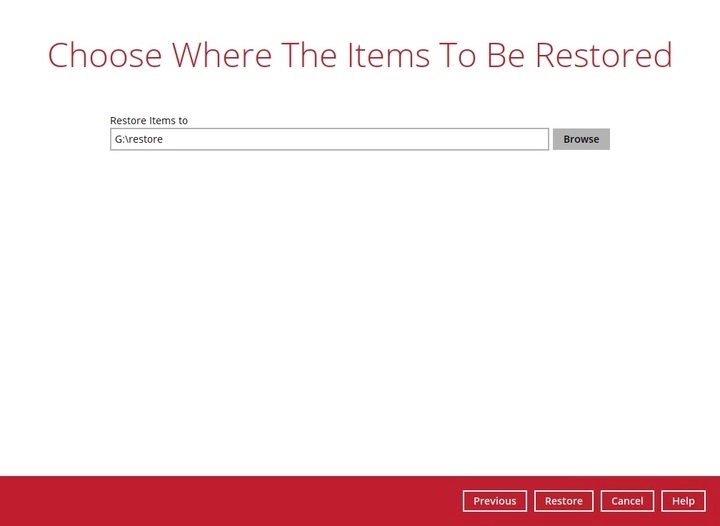
- Click Restore to start the restoration process.
OneDrive of Original Microsoft 365 Organization
Restore to OneDrive of Original Microsoft 365 organization is only available for the following data types: Users, Teams, and Public Folders.
-
Select OneDrive of Original Microsoft 365 organization from the dropdown menu.
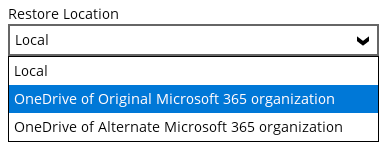
Users can be notified if an item is restored to their OneDrive. You can opt to send the notification message by email and/or to Teams Chat.

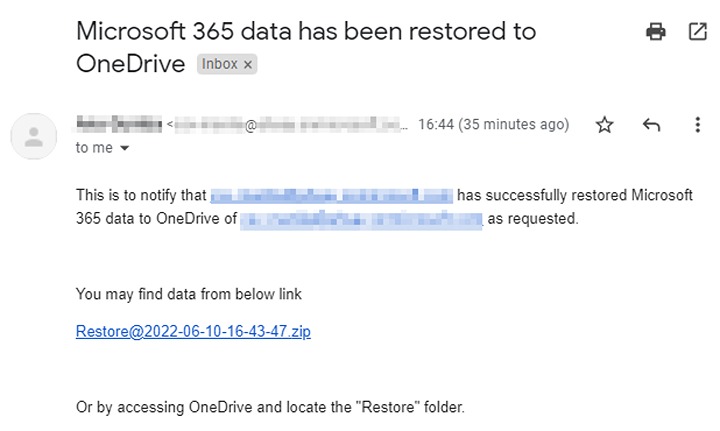
If you prefer to send the notification by email, provide the email address where it will be sent. You can provide several email address(es) by separating it with a comma.

Here is a sample of the email notification that will be sent.
- To configure other restore settings please refer to the instructions above.
- Click Next to proceed.
-
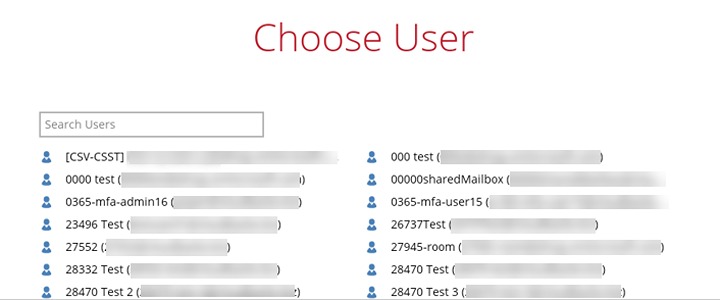
Select the user.
OneDrive of Alternate Microsoft 365 Organization
Restore to OneDrive of alternate Microsoft 365 organization is only available for the following data types: Users, Teams, and Public Folders.
-
Select OneDrive of Alternate Microsoft 365 organization from the dropdown menu.
- To configure notification settings please see instructions above.
- Click Test.
- Click Authorize.
- Login to your Microsoft 365 account then copy and paste the authorization code, then click OK.
- Click Next to proceed.
-
Select the user from the alternate Microsoft 365 organization.
-
-
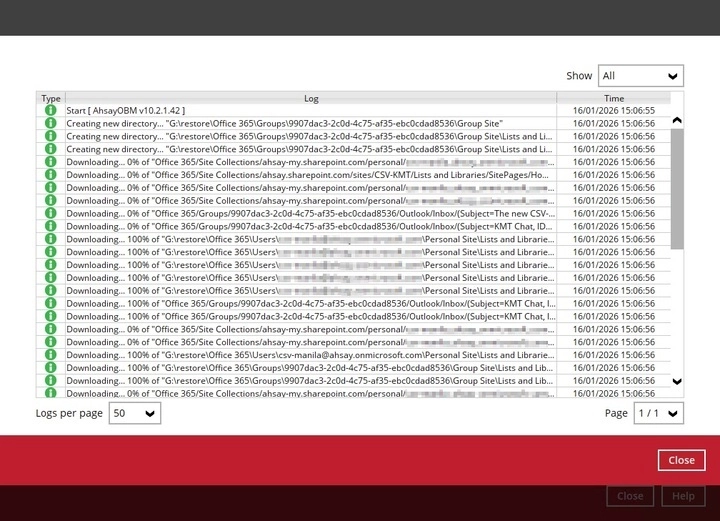
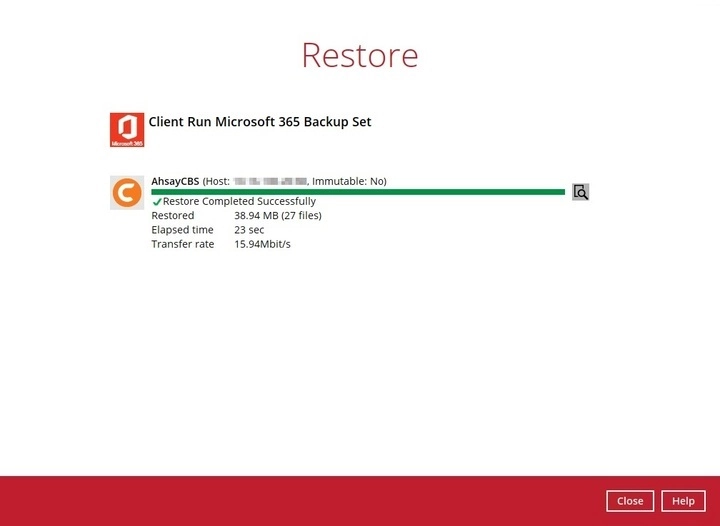
The following screne will be displayed after the restore process is complete.
-
Click the "magnify" button to show the restoration log.