

 AhsayCBS
Google Workspace Restore on AhsayACB
Google Workspace Restore
-
Log in to AhsayACB.
For instructions on how to do this, please refer to the Login page.
-
Click the Restore icon on the main interface of AhsayACB.
-
Select the backup set, destination, and document copy destination.
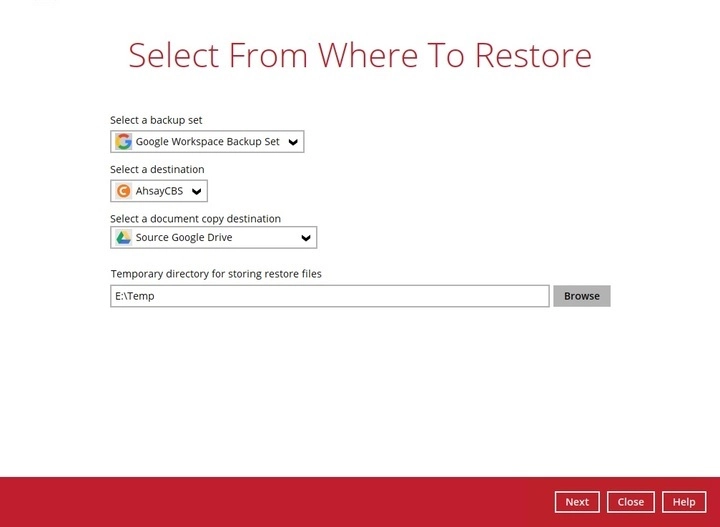
The document copy destination is where AhsayACB will restore data from Google services such as Google Docs which have been backed up. Restoring from this destination will also restore Google-specific features attached with these backed up files.
Otherwise, you may choose Restore from normal destination only from the drop-down menu (AhsayCBS, etc.)
You may configure the "Temporary directory for storing restore files". This will allow you to select the directory that will be used to store temporary files. Click Next to continue.

-
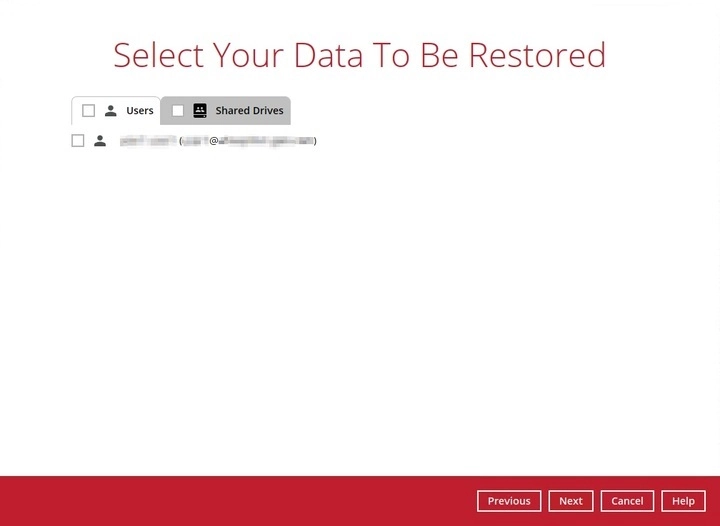
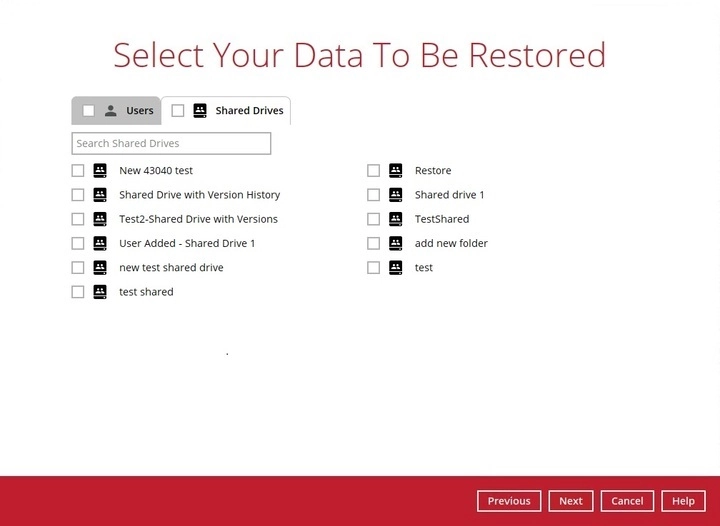
Select whether to restore from Users and/or Shared Drives.
Unlike AhsayOBM, which allows you to restore data from other backed up users within the Google Workspace organization (if you used an Admin account during the creation of the backup set), AhsayACB will only let you backup and restore files from your own Google Workspace account and any Shared Drive made available to that account.
Here are some sample screenshots of both categories:
Users
Shared Drives
-
The screen that will be displayed will depend on the category you selected.
Users
If Users was the chosen category to be restored, the following screen will be displayed:
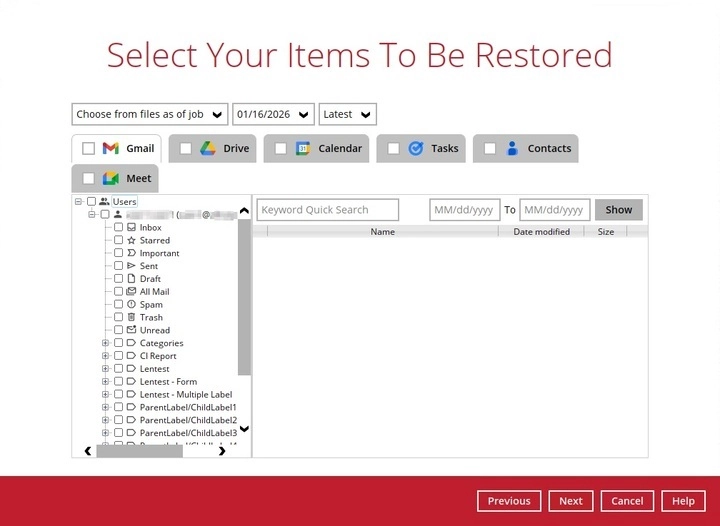
Gmail, Drive, Calendar, Tasks, Contacts, and Meet will be the Google Services available for restore.
-
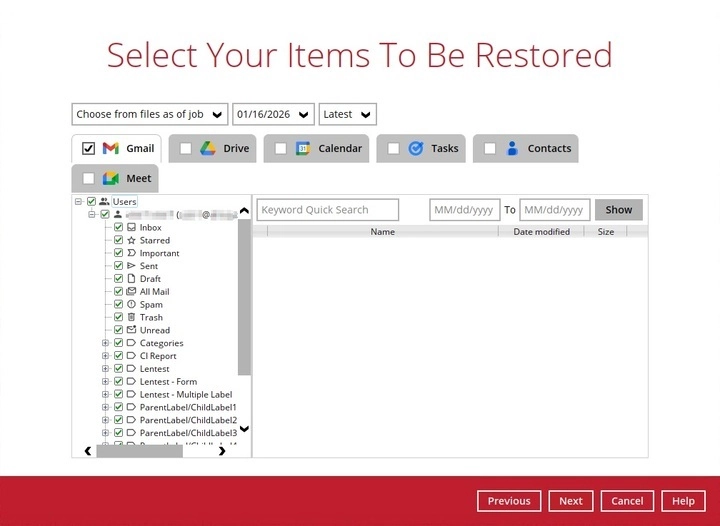
If the checkbox beside Gmail is ticked, then all items under "Gmail" will be restored.
-
Items can be filtered according to keyword and/or received date. Set the From and To dates of the items, then click Show.
-
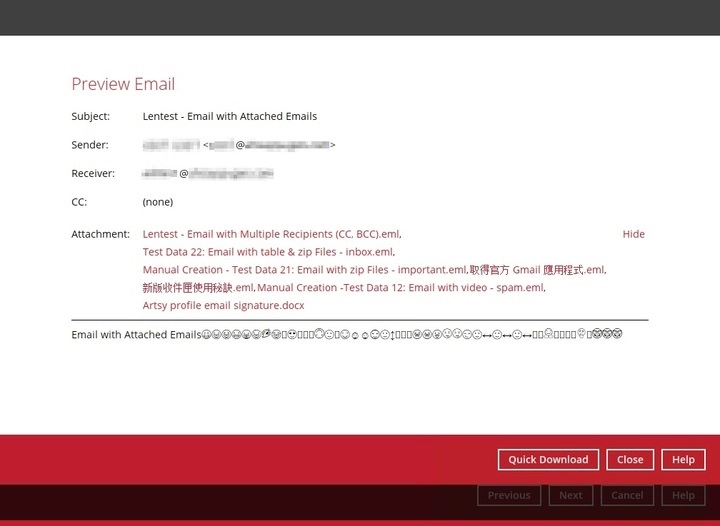
Specific items can be selected to be restored. There is a preview function that allows you to view the content to check if you wish for it to be restored.
To do this, click the "magnify" button at the right side of the item. The "Preview Email" window will open. Here, you can restore and download the email by clicking Quick Download.
-
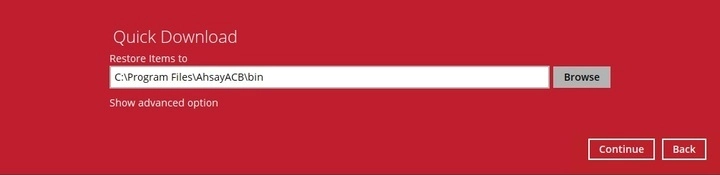
Click the Browse button to select the path where the email will be restored.
-
Click Show advanced option if you wish to change the path of the temporary directory. Click Continue to proceed. Click Close once done.
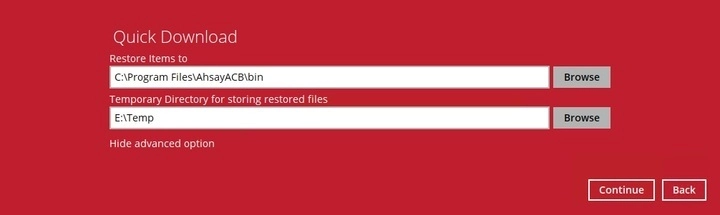
For items with attachments, you can download just the attachment itself by clicking on its name in the "Preview Email" window. Follow the Quick Download steps above to download the attachment.
-
-
-
If the checkbox beside Drive is ticked, then all items under "Drive" will be restored.
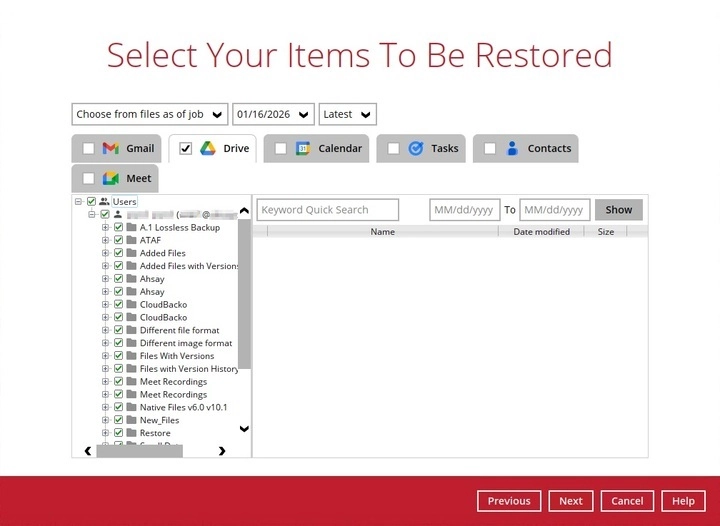
Items can be filtered according to keyword and/or modified date. Set the From and To dates of the items, then click Show.
-
Specific items can be selected. There is a download function that will let you download items directly.
-
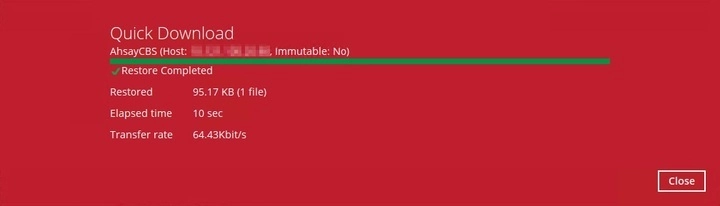
Click the "download" button to download the item. Click on Browse to select a location where to restore the items. You may also click on Show advanced option to change the temporary directory. Click Continue to start the download and restore. Click Close once done.
-
-
If the checkbox beside Calendar is ticked, then all items under "Calendar" will be restored.
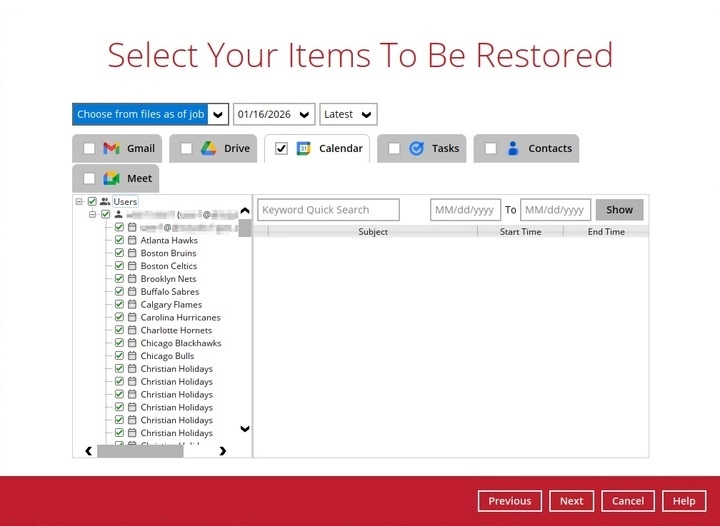
Items can be filtered according to keyword and/or start time and end time. Set the From and To dates of the items, then click Show.
-
If the Tasks checkbox is ticked, then all items under "Tasks" will be restored.
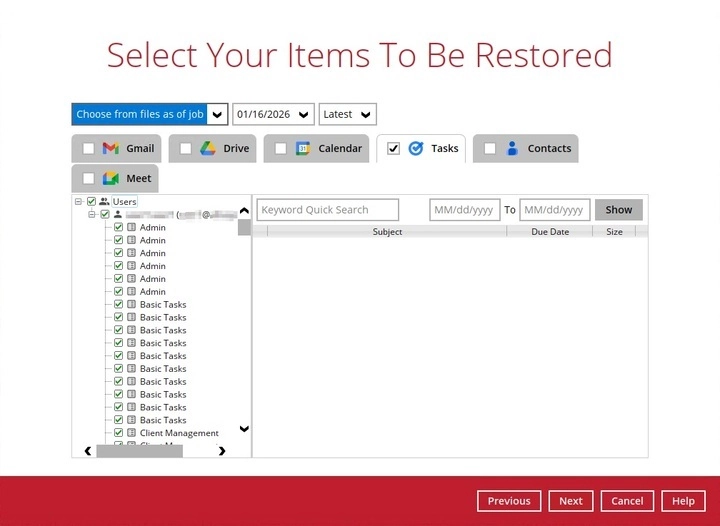
Items can be filtered according to keyword and/or due date. Set the From and To dates of the items, then click Show.
-
If the Contacts checkbox is ticked, then all items under "Contacts" will be restored.
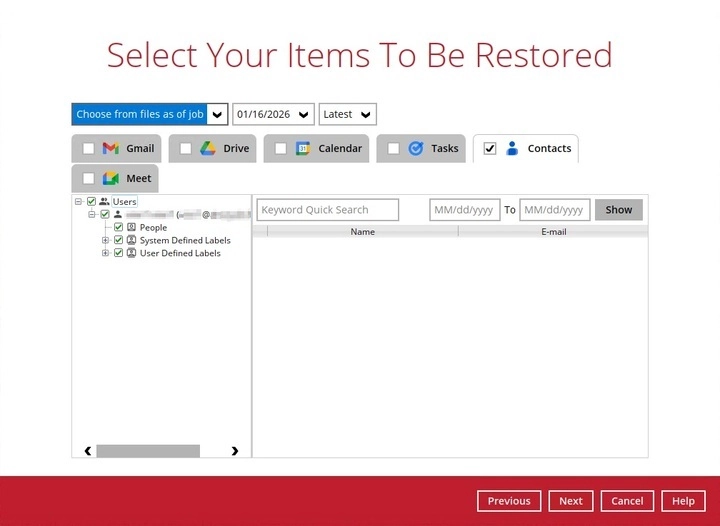
-
If the Meet checkbox is ticked, then all items under "Meet" will be restored.
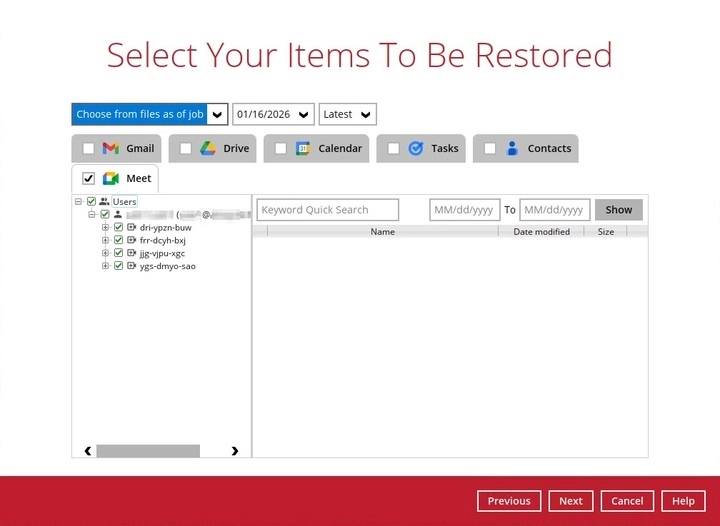
Click Next to continue.
Shared Drives
If Shared Drives was the chosen category to be restored, the following screen will be displayed:
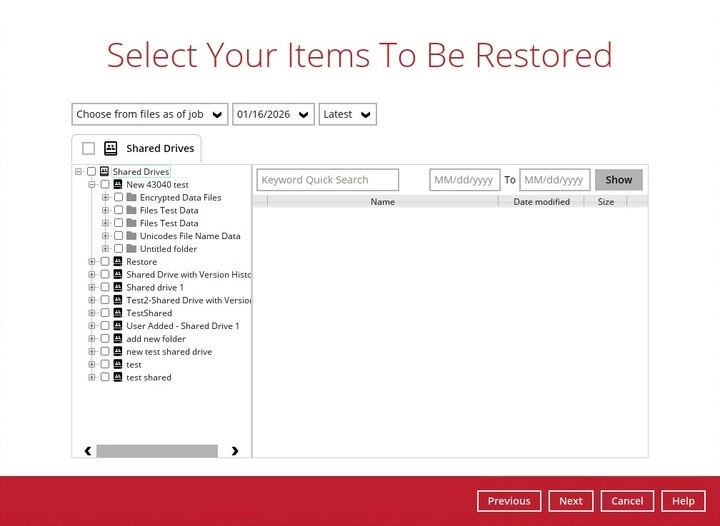
Specific items can be selected. There is a download function that will let you download items directly.
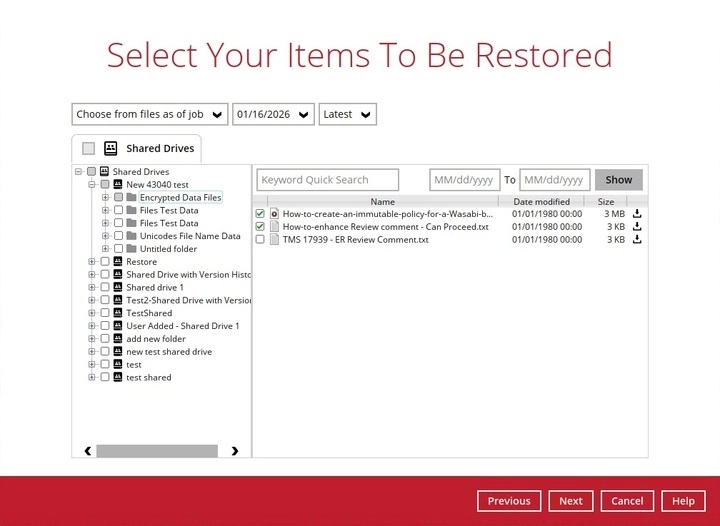
Click the "download" button to download the item. Click on Browse to select a location where to restore the items. You may also click on Show advanced option to change the temporary directory. Click Continue to start the download and restore. Click Close once done.
Click Next to continue.
Users and Shared Drives
If both Users and Shared Drives checkboxes were ticked, the following screen will be displayed:
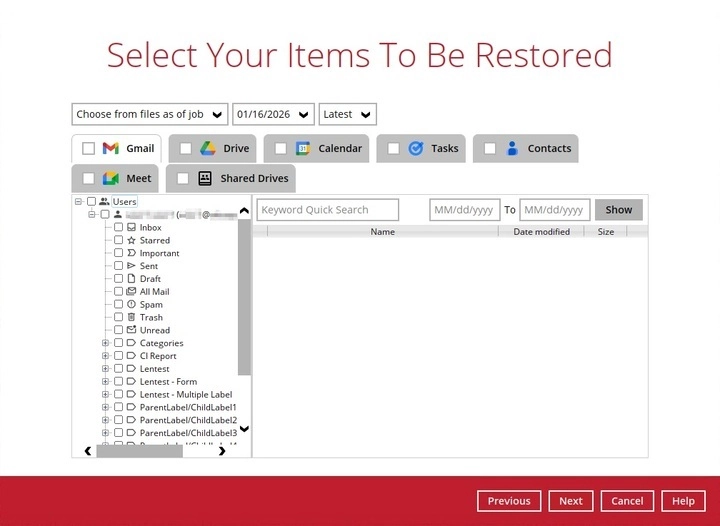
The Users and Shared Drives tabs are combined. Please refer to the instructions for Users and Shared Drives on how to preview and download items.
Click Next to continue.
-
-
Select the method and location where the items will be restored to.
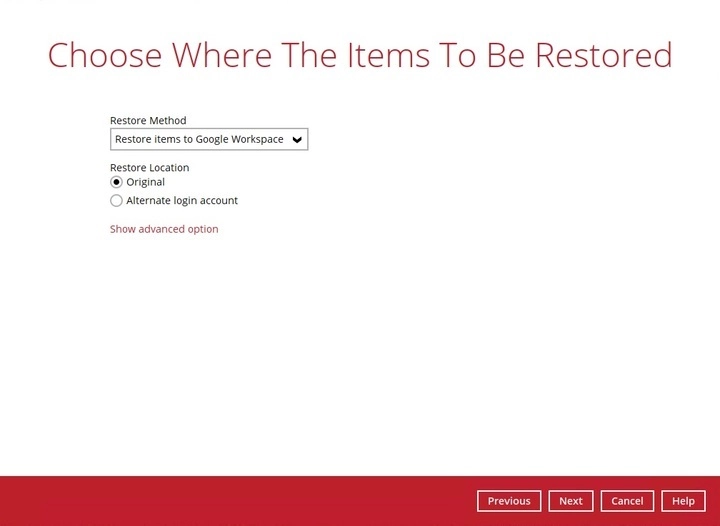
The choices for the restore location that will be displayed depends on the restore method selected. Furthermore, the restore location will depend on whether or not the user is restoring from the Users and/or Shared Drives category.
There are two restore methods available:
Restore items to Google Workspace
If Restore items to Google Workspace was selected, users will have these Restore Locations available to them:
If restoring from Drive and/or Shared Drives, users will be able to specify the Version History of the items they wish to restore, regardless of Restore Location.
Simply select either Restore all versions or Restore latest version only.
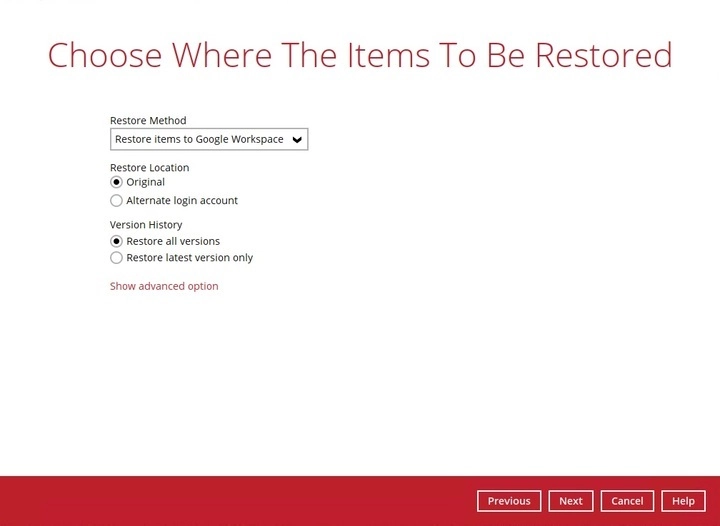
Original
-
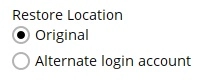
To restore to original location, select Original.
-
Click Show advanced option to configure other restore settings.

Verify checksum of in-file delta files during restore
By enabling this option, the checksum of in-file delta files will be verified during the restore process. This will check the data for errors during the restore process and create a data summary of the in-file delta files which will be included in the report.
-
Click Next to proceed.
Alternate login account
-
To restore to an alternate login account, select Alternate login account.
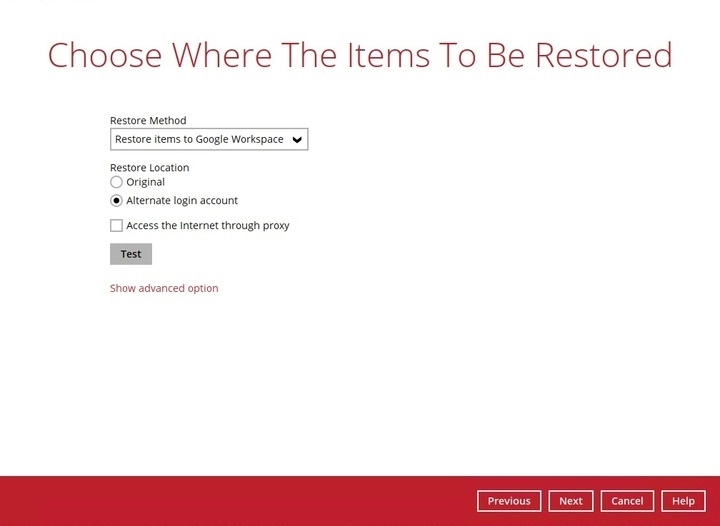
Click Test.
-
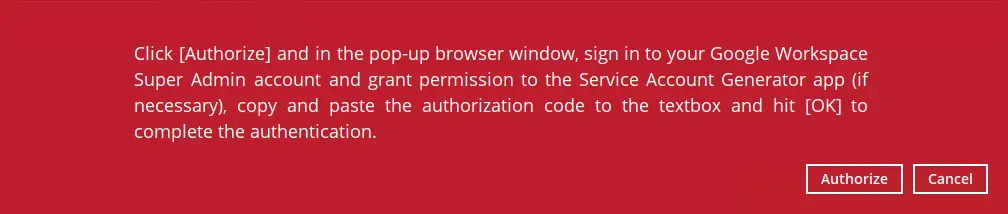
Click Authorize.
-
Login to the alternate Google Workspace account you wish to restore to. Then, copy and paste the authorization code and click OK.

You can only use a valid Google Workspace account as the alternate login account.
-
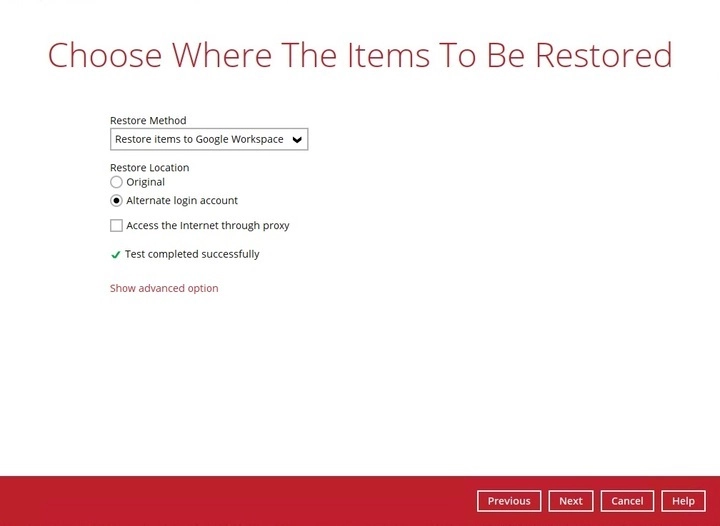
Click Next to continue.
-
Select the target folder then click Restore.
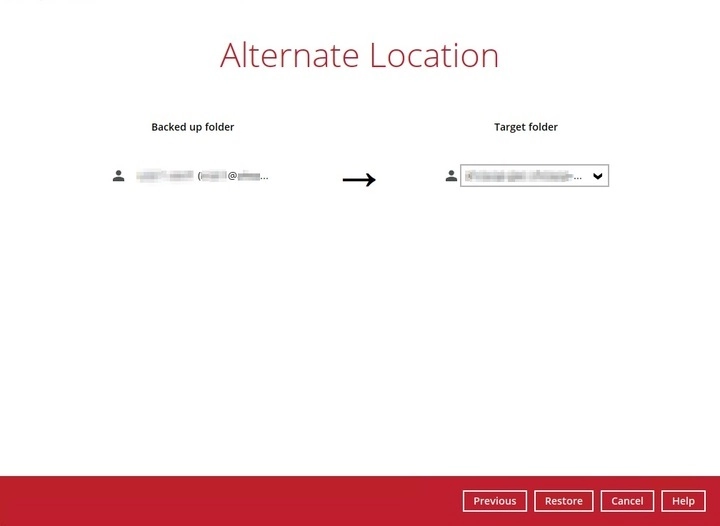
Save archive files to a destination
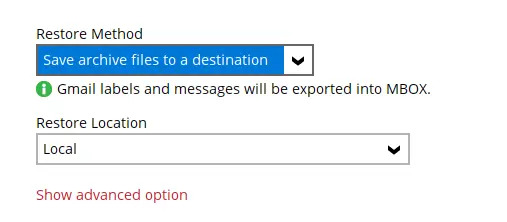
If Save archive files to a destination was selected, the only restore location available will be Local.
If restoring from Shared Drives, users will only be able to restore to Local. Additionally, where User restores will export into MBOX, Shared Drives restores will export into their appropriate file formats, depending on the type of Google service they are from (Docs and Sheets will export into MS Word and Excel, for example).
Additionally, if Meet files were selected for restore, the restore method that will be available is Save archive files to a destination and restore location available will only be Local.
Across all restore locations, if restoring a Shared Drive, users will be able to specify the Version History of the items they wish to restore.
Simply select either Restore all versions or Restore latest version only.
-
Select Local for the restore location.
-
To configure other restore settings, click Show advanced option. Please refer to the instructions above under Original for more details.
-
Click Next to proceed.
-
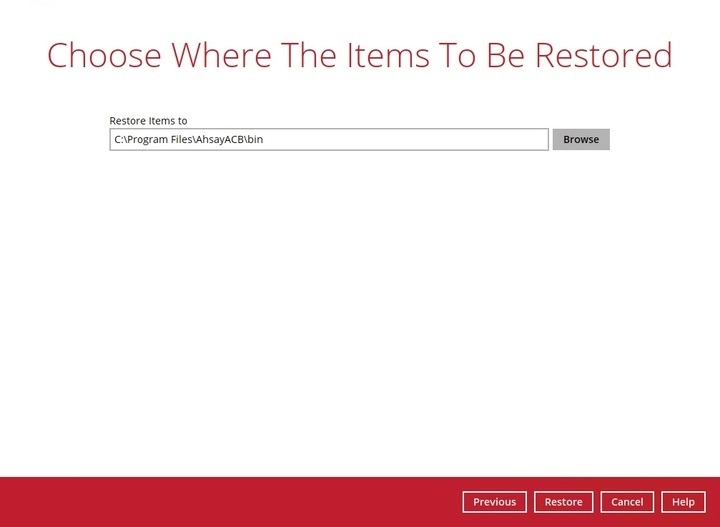
Select the path where the archive file will be restored to by clicking the Browse button.
-
Click Restore to proceed.
-
-
The following screen will be displayed after the restore process is complete.
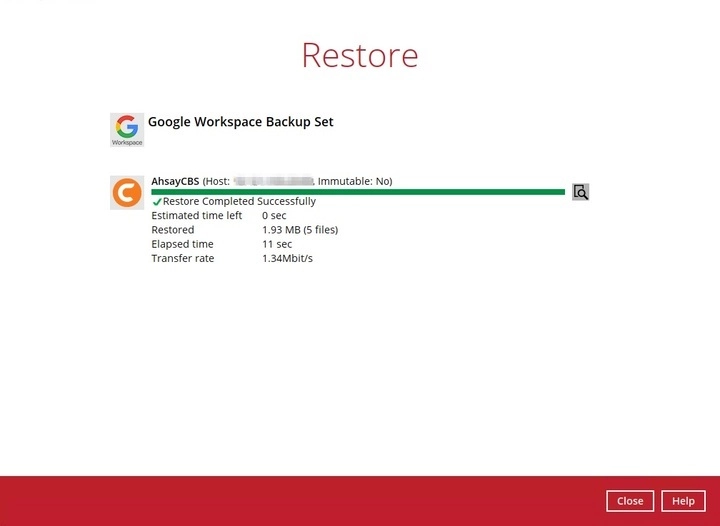
Click the magnify button to show the restoration log.
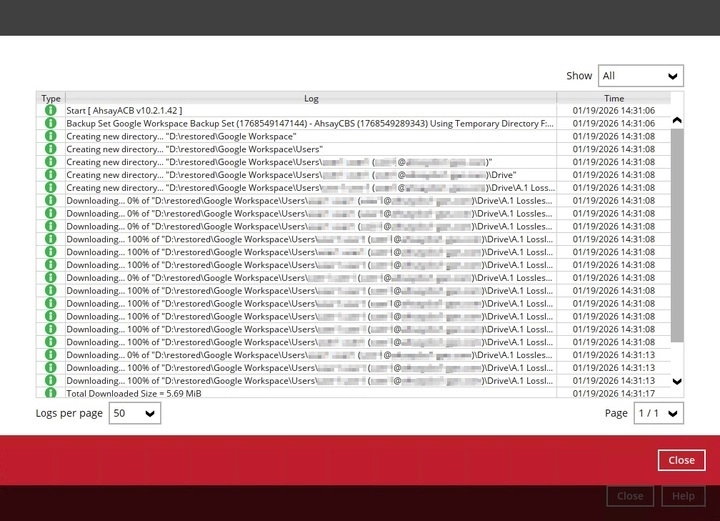
Click Close once done.


