AhsayCBS
Add an account
To add an account, follow the instructions below using:
Push Notification and TOTP
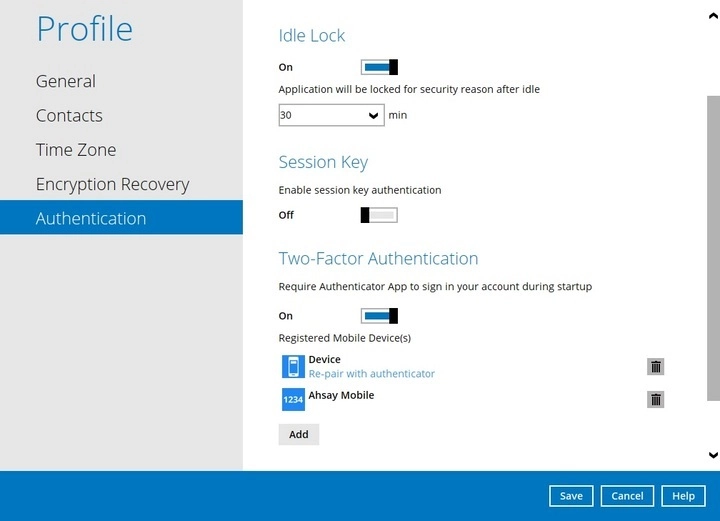
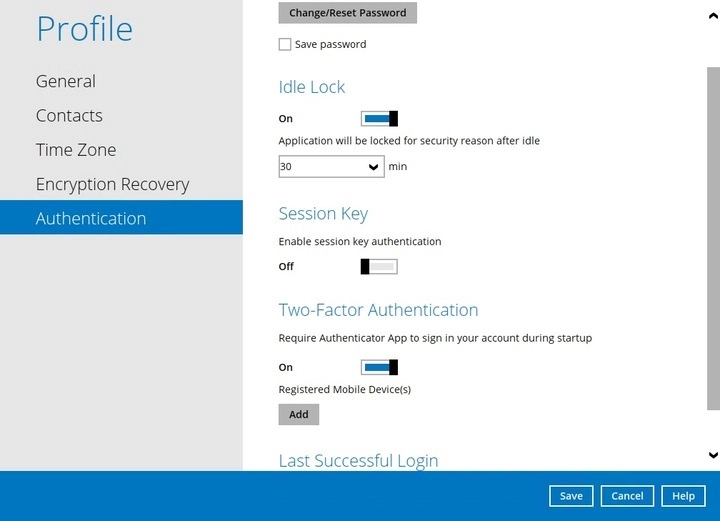
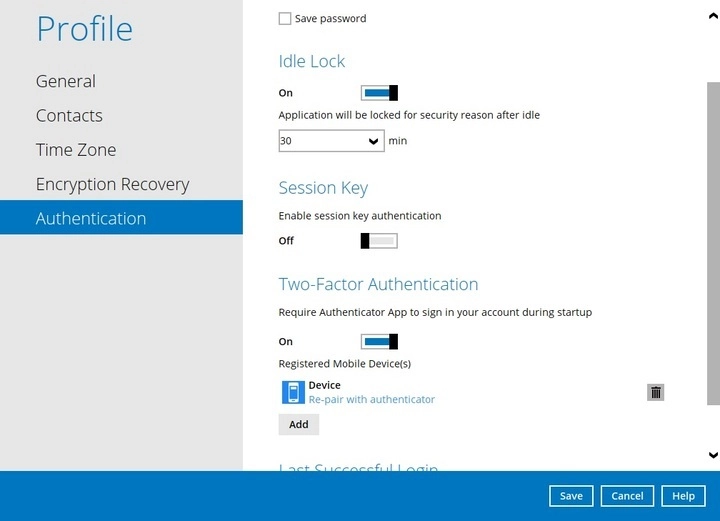
Open AhsayOBM / AhsayACB and go to Profile > Authentication > Two-Factor Authentication. Slide the switch to the right to enable then click Add.
Download and install the Ahsay Mobile app from Google Play for an Android device and from App Store for an iOS device.
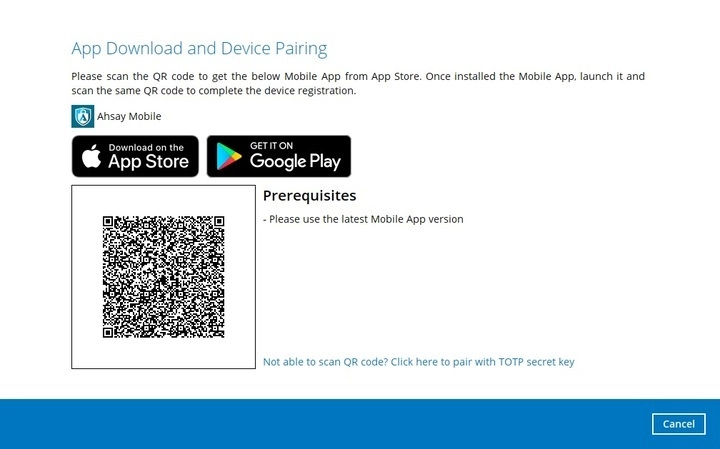
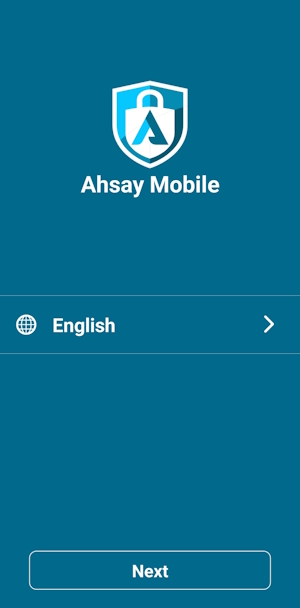
In the Ahsay Mobile app, tap Next to scan the QR Code on AhsayOBM / AhsayACB.
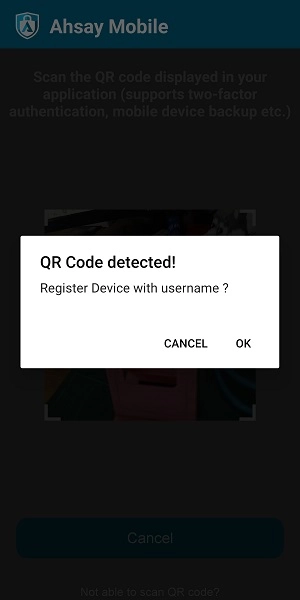
Once the QR Code has been detected, tap OK to proceed.
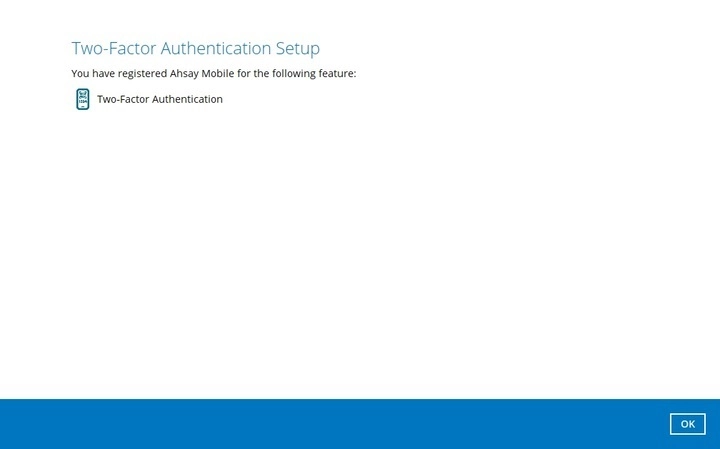
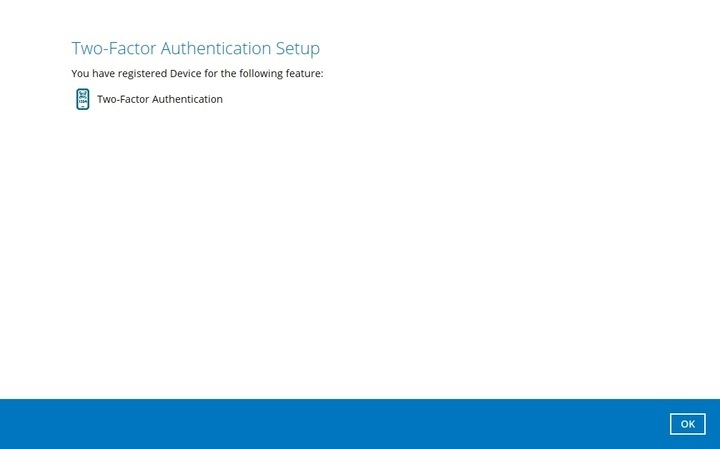
Once the registration is successful, the following screen will be displayed. You have now registered your device for two-factor authentication, then click OK.


TOTP only
Open AhsayOBM / AhsayACB and go to Profile > Authentication. Click Add under Two-Factor Authentication.
Download and install the Ahsay Mobile app from Google Play for an Android device and from App Store for an iOS device. Next, click Not able to scan QR code? Click here to pair with TOTP secret key link to complete the device registration for two-factor authentication (TOTP only) feature.
In the Ahsay Mobile app, go to 2FA. Tap the Not able to scan QR code? link.
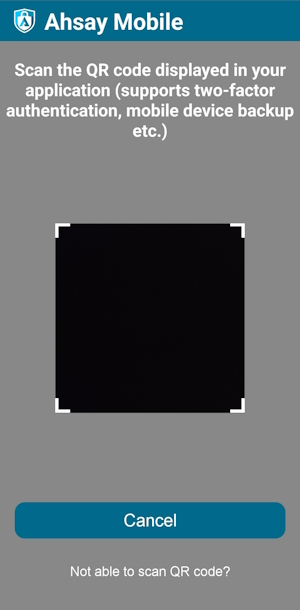
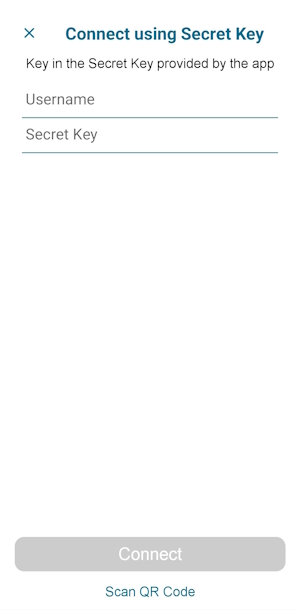
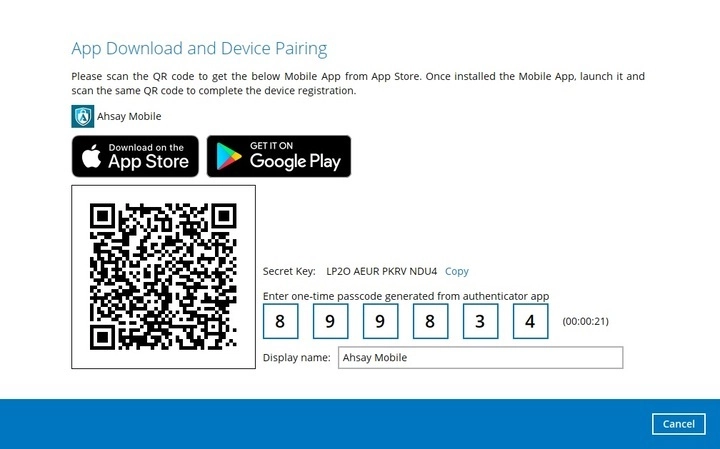
To see the secret key, click the Show Secret Key link to display the 16-digit secret key. The Display Name may be changed, this is the Username in the Ahsay Mobile app.
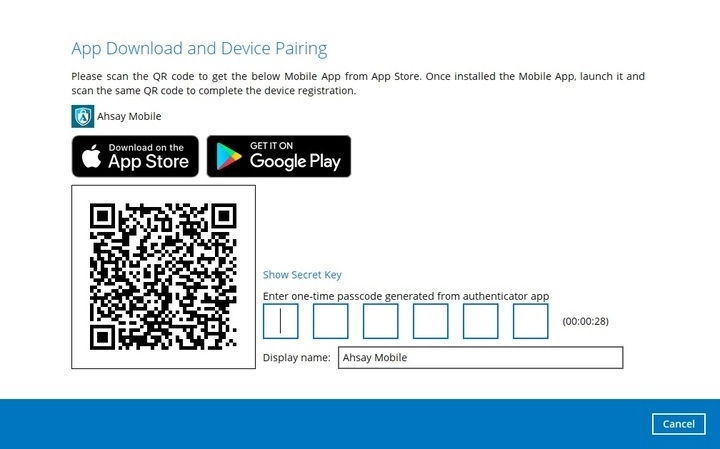
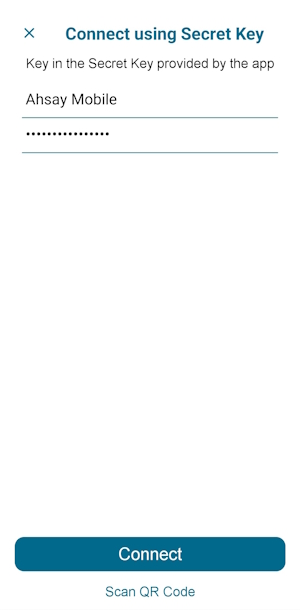
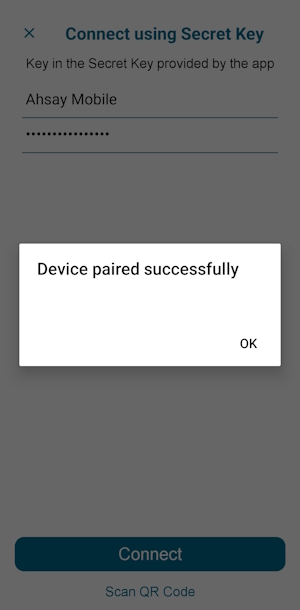
Enter the Username and Secret Key from AhsayOBM / AhsayACB then tap Connect.
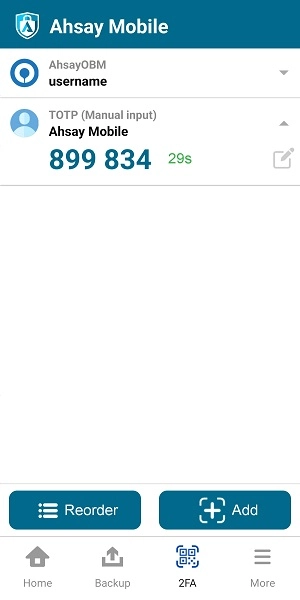
Enter the one-time passcode from the Ahsay Mobile app.
Once the registration is successful, the following screen will be displayed. You have now registered your device for two-factor authentication then click OK.