AhsayCBS
Ahsay Go System Tray Overview
As an additional way of launching and starting backup jobs, an Ahsay Go icon in the taskbar at the lower right corner of the screen can be seen after installation on a Windows machine only.

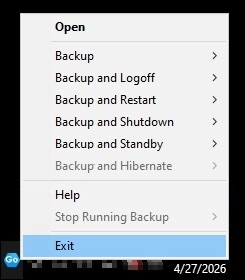
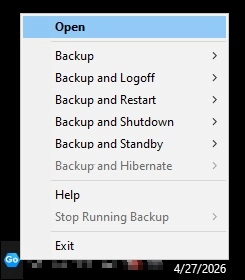
When you right-click the Ahsay Go icon, a control menu will pop-up.
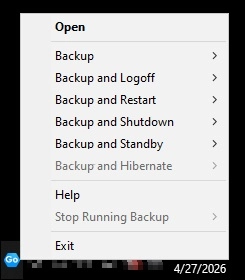
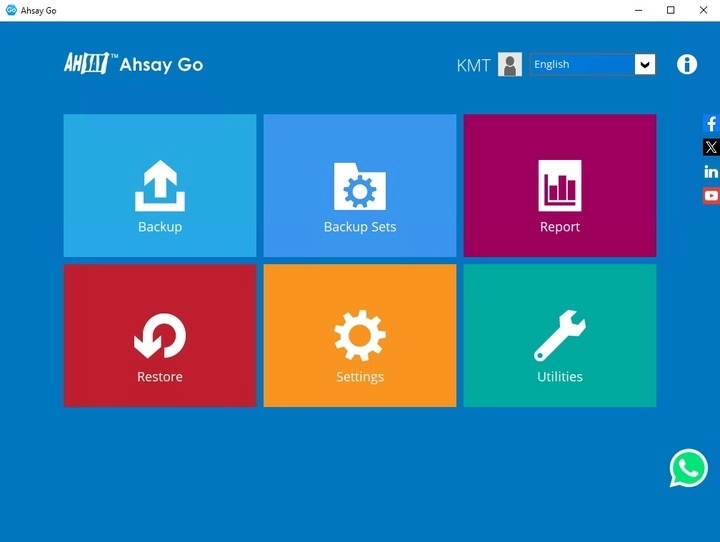
Open
Select this option to open Ahsay Go.
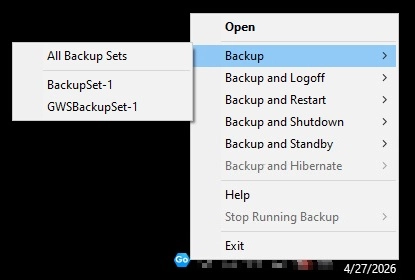
Backup
If you want to perform a backup without going to the interface, hover the mouse to this option and select the backup set you want to back up.
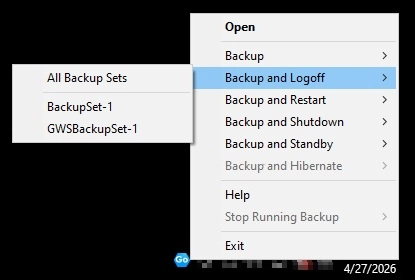
Backup and Logoff
Select this option if you want to logoff Windows after a manual backup job is done.
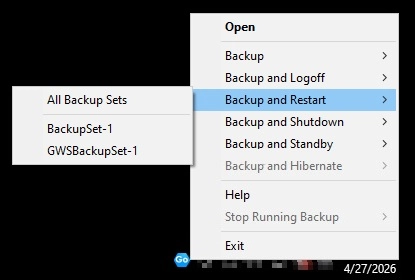
Backup and Restart
Select this option if you want the machine to restart after a manual backup job is done.
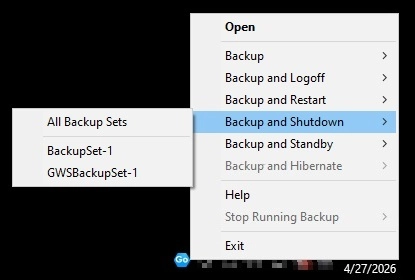
Backup and Shutdown
Select this option if you want the machine to shut down after a manual backup job is done.
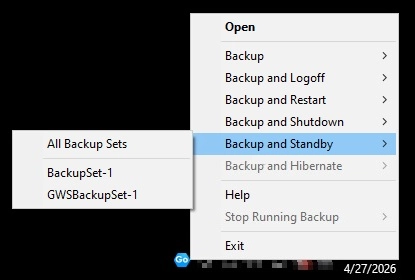
Backup and Standby
Select this option if you want the machine to go on standby after a manual backup job is done.
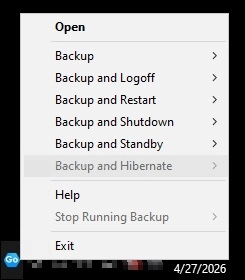
Backup and Hibernate
Select this option if you want the machine to hibernate after a manual backup job is done.
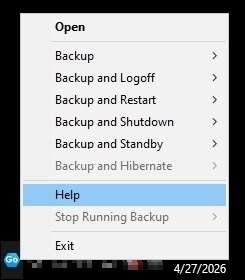
Help
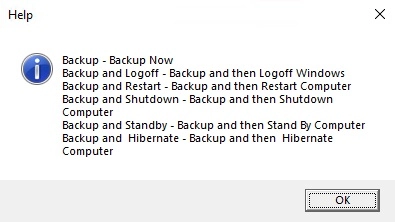
This tab will show you the function of each backup option.
Stop Running Backup
Use this option if you wish to stop a running manual, continuous or scheduled backup.
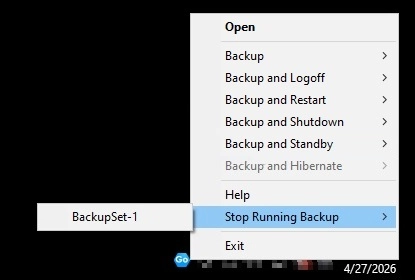
This option will be disabled if there is no backup job running.
Exit
Select this option if you want to close the application including the Ahsay Go icon at the taskbar.