

 AhsayCBS
Ahsay Go Report Overview
This feature allows the user to view the backup and restore reports and generate backup usage report in a graphical view.
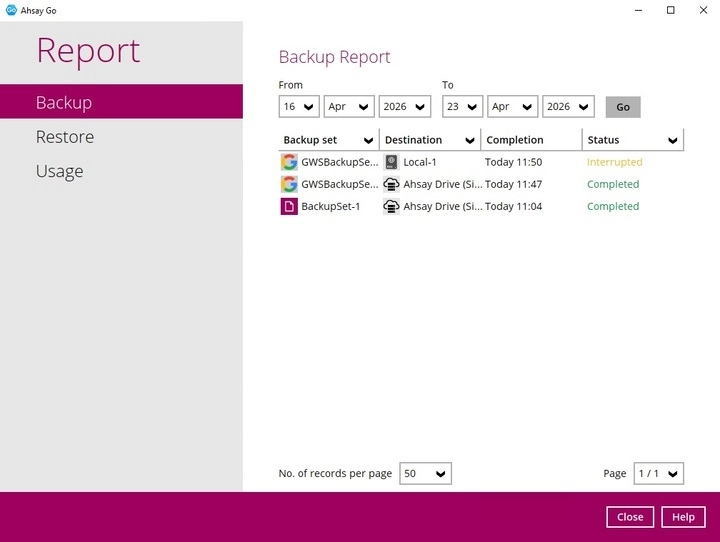
Report is further divided into three (3) sections:
- Backup
- Restore
- Usage
Report logs are displayed for each backup set which can be filtered by:
- Date
- Backup Set
- Destination
- Status
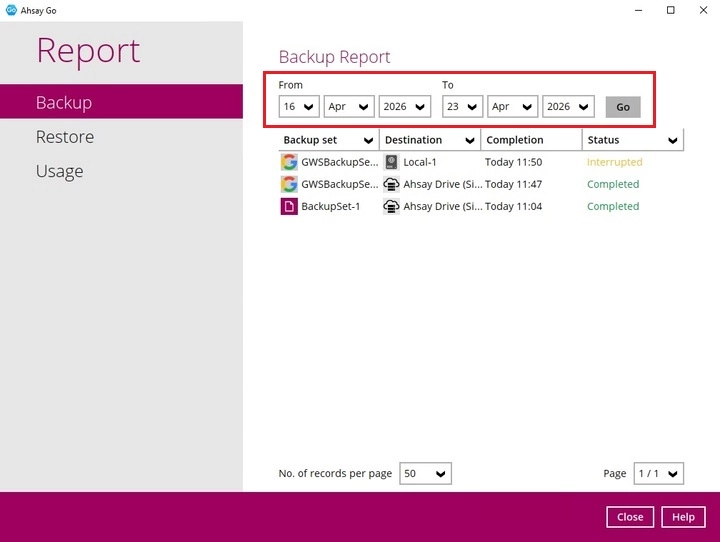
Date
Use this filter to display all the available backup report(s) within a date range.
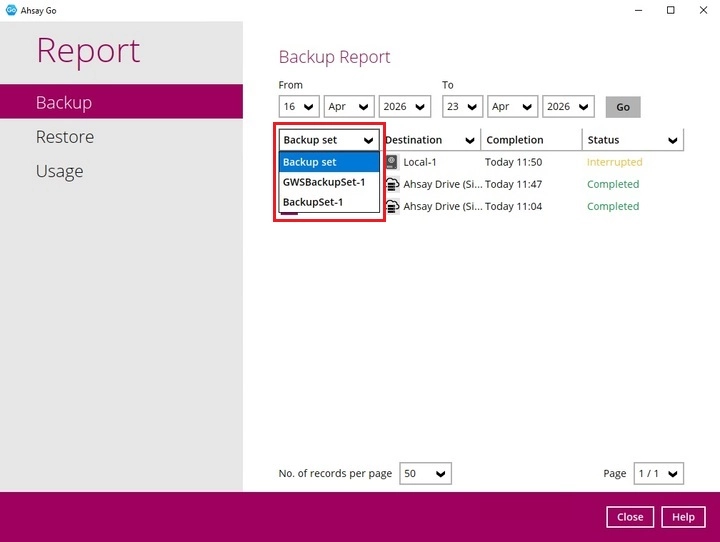
Backup Set
Use this filter to display all the backup report(s) of all backup set(s) or just a specific backup set.
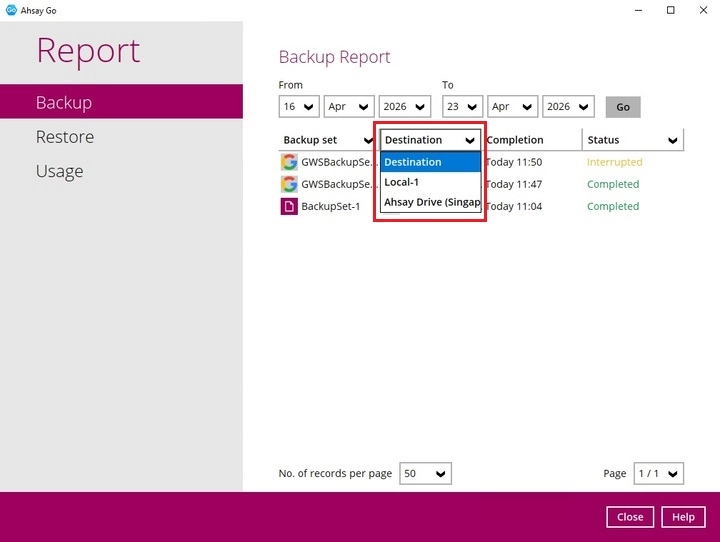
Destination
Use this filter to view the backup report(s) for all storage location or just the selected storage location.
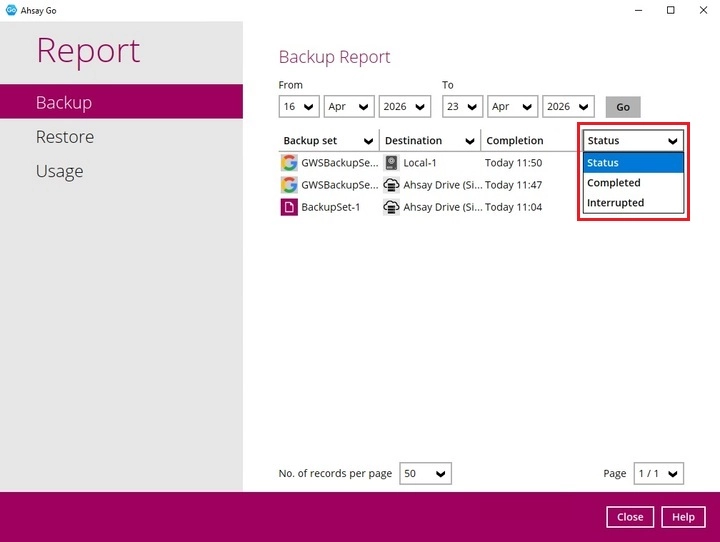
Status
Use this filter to view all the backup report(s) with the same status (i.e., Completed, Warning, Interrupted, Interrupted with error(s), Failed and In progress).
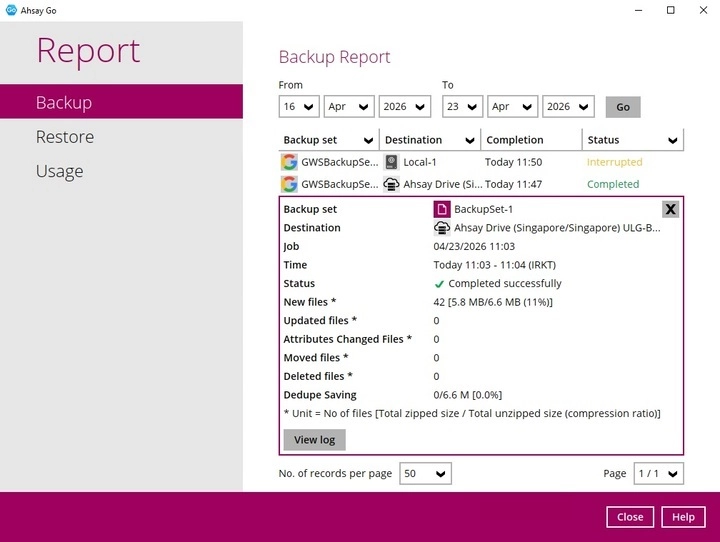
The Backup and Restore sections are used to view the respective reports. Steps in viewing the backup and restore report are the same. To view the report log:
Select and click the report, then click the View log button.
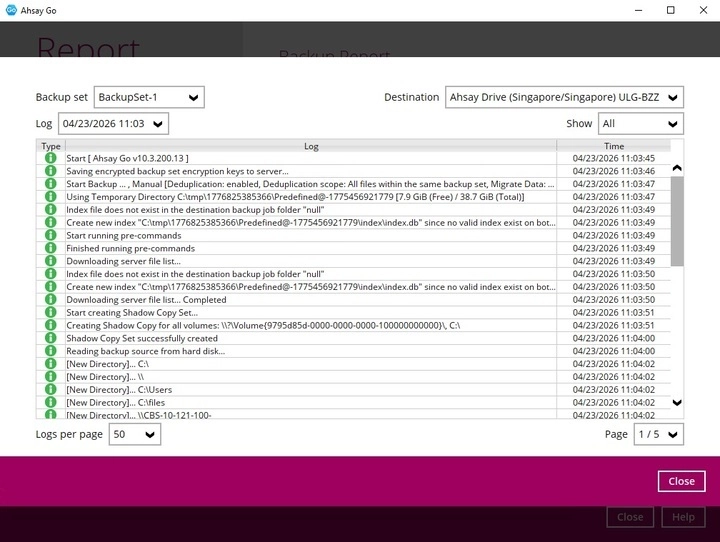
Sample of a backup report.
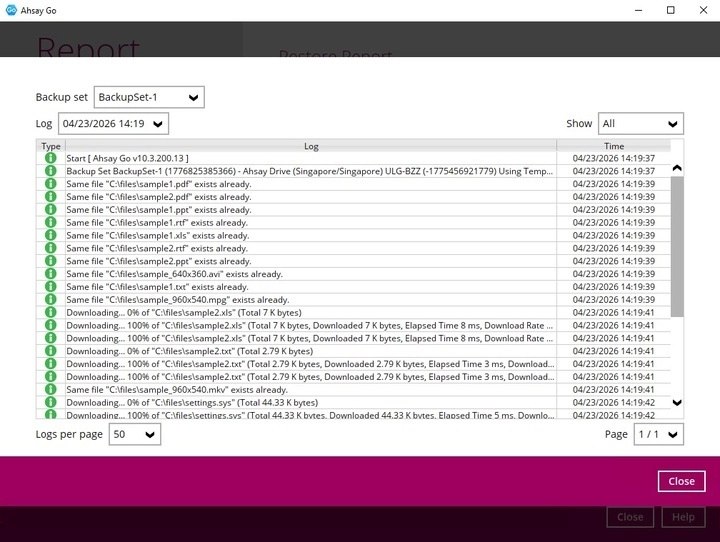
Sample of a restore report.
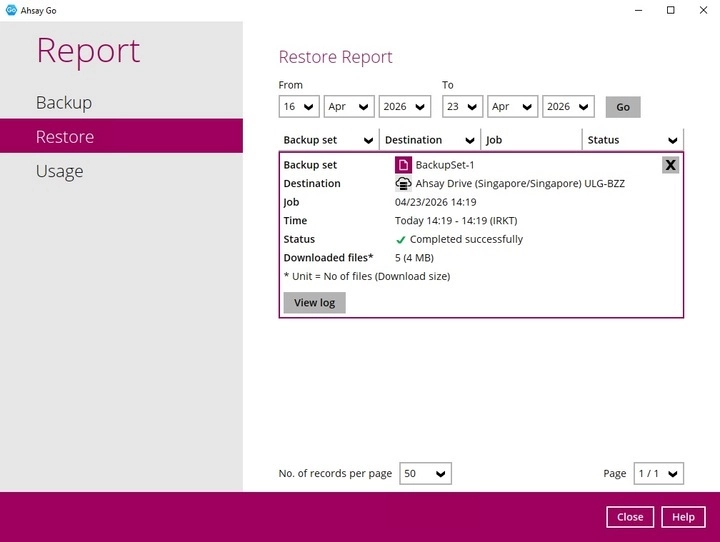
The backup set name, destination, log date and time, status, the number of logs per page, and page can be filtered when viewing the backup report.
Sample of a backup report.
Sample of a restore report.
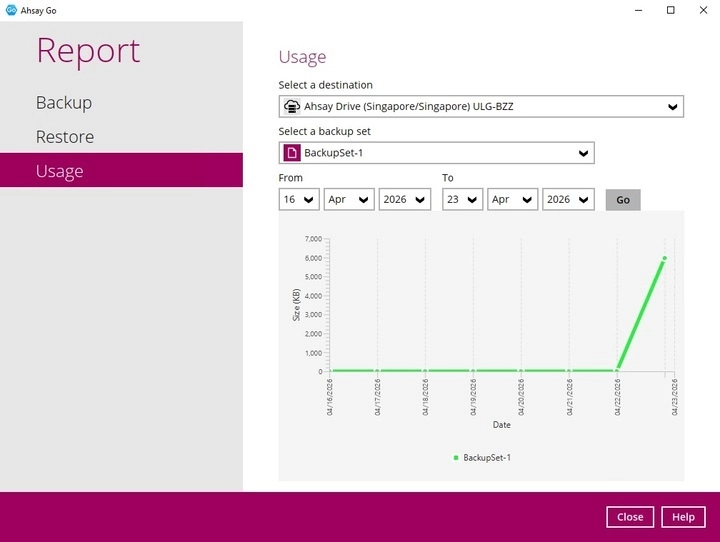
While the Usage section displays the storage and usage information in a graphical view for the selected backup set and backup destination within a specified date range.
Storage Statistics
The Total Size is displayed which shows the total amount of backed up data in the backup destination.
The storage statistics of a backup set is updated every time the following functions are run:
- Backup job
- Periodic Data Integrity Check (PDIC)
- Data Integrity Check (DIC)
- Space Freeing Up
- Delete Backup Data
Data Transfer Statistics
The data transfer statistics will pop up when you click over a specific date on the graph.
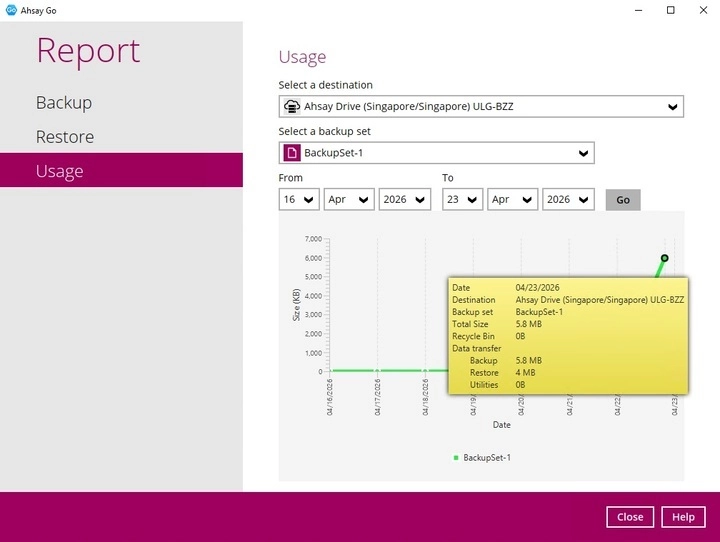
- Backup - displays the amount of data transferred to the backup destination for backups.
- Restore - displays the amount of data transferred from the backup destination for restores.
- Utilities - displays the amount of data transferred from the backup destination, when a Data Integrity Check (DIC) is run with the "Run Cyclic Redundancy Check (CRC) during data integrity check" option selected.