

 AhsayCBS
Truncate Transaction Log
The instructions below only apply for database with full recovery model.
Since Ahsay Go utilizes VSS-based backup, which does not support log backup (A Guide for SQL Server Backup Application Vendors), transaction log of database in full / bulk-logging recovery model may eventually fill up all disk space available on the volume.
Below are steps to perform a log backup in the SQL Server Management Studio. For futher details, refer to Back Up a Transaction Log.
- Launch SQL Server Management Studio in Windows.
-
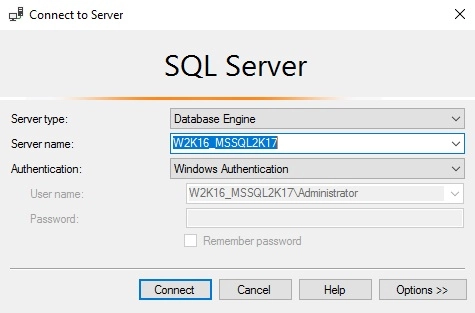
Select the SQL server you would like to connect to, and the corresponding authentication method, then click Connect to proceed.
-
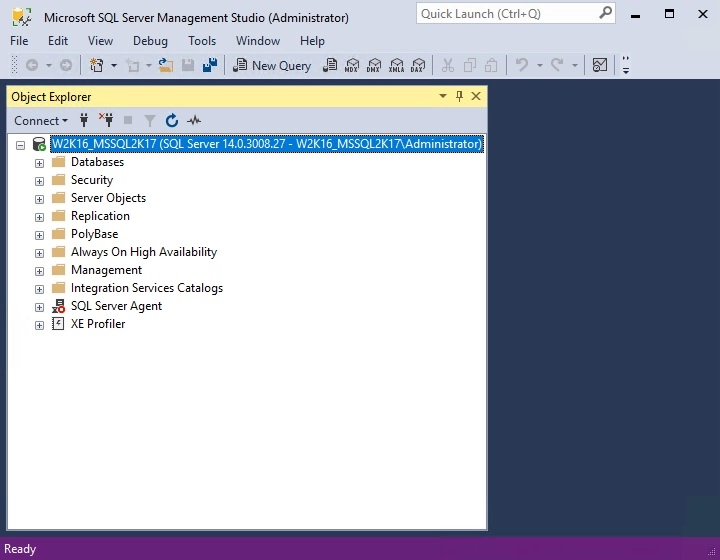
Expand the menu tree and select the desired database you would like to back up.
-
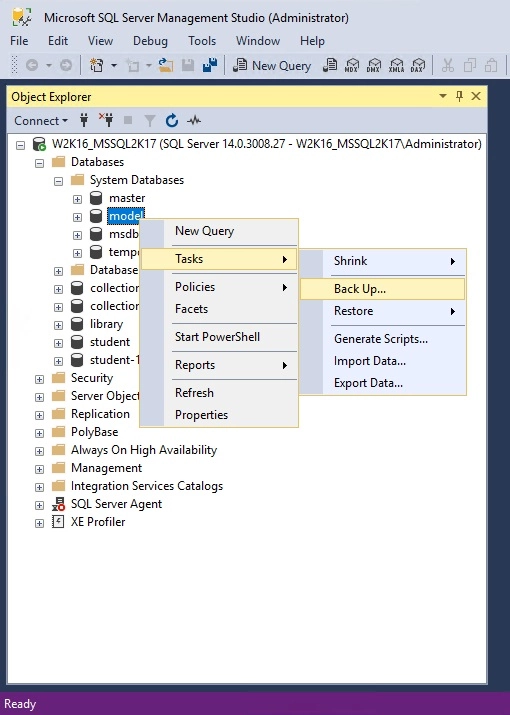
Right click the database name, then go to Tasks > Back Up. The Back Up Database dialog box shows.
-
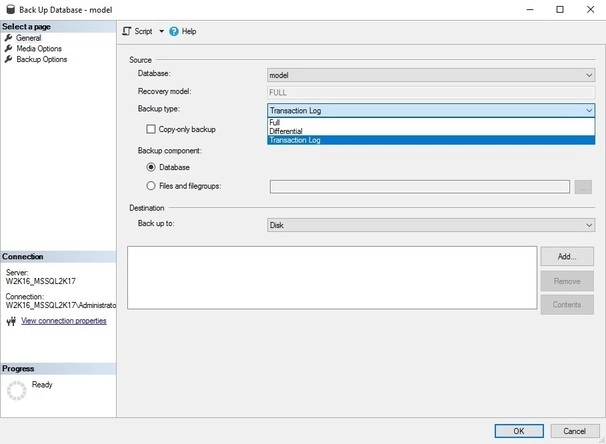
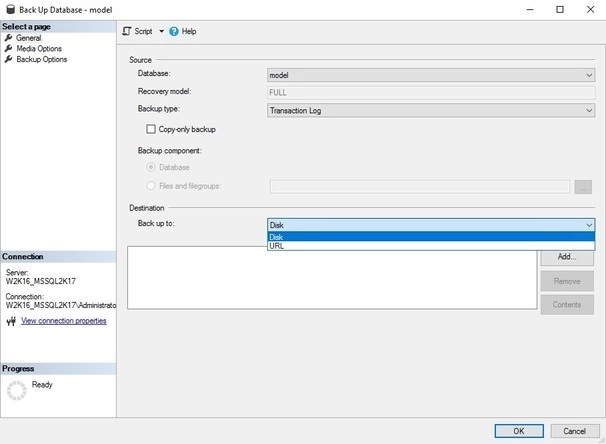
In the “Source” section, confirm the database name, then select Transaction Log in the “Backup type” drop-down menu.
-
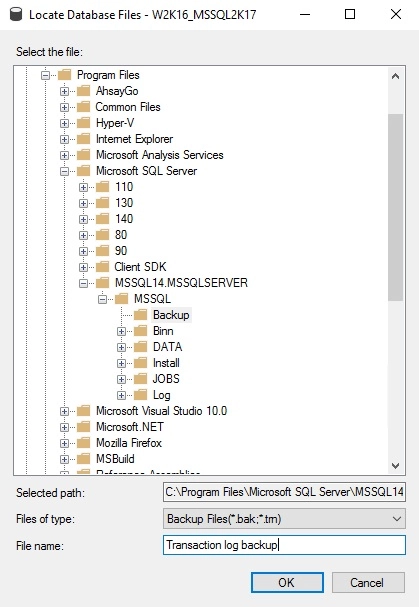
Select Disk or URL as the destination of the backup, then click Add to select a destination path.
-
After selecting the destination path, click OK twice to proceed.
-
Go to the Backup Options, then in the “Backup set” section, name the backup set and enter a description of the backup set if needed.
Configure the backup set to expire after a specified number of day or on a specified date. Set to 0 day if you do not want the backup set to expire.
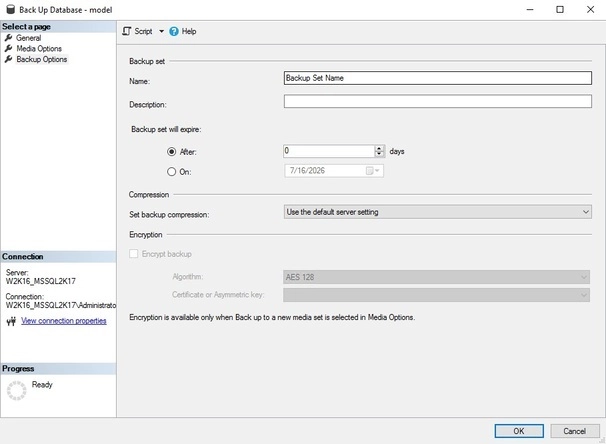
Click OK to start the transaction log backup when you are done with all the necessary settings.