

 AhsayCBS
Set Up Data Synchronization Check (DSC)
Data Synchronization Check (DSC) is enabled by default and will run every 60 days.
Assumption
Ahsay Go installation path is C:\Program Files\Ahsay Go
To disable the DSC, follow the instructions below:
- Make sure there are no active backup or restore job running.
- Close Ahsay Go UI.
- Stop the Ahsay Go services.
- Go to the C:\Program Files\Ahsay Go\ folder.
- Open the cb.opt file using a text editor such as Notepad or Notepad++.
-
Add this line, Office365.DSCInterval=-1.
A value of -1 indicates DSC is disabled.
- Start the Ahsay Go services.
To check if the DSC is enabled, follow the instructions below:
- Go to the C:\Program Files\Ahsay Go\ folder.
- Open the cb.opt file using a text editor such as Notepad or Notepad++.
-
Look for this line, Office365.DSCInterval=xx.
If xx is a positive value this indicates the DSC is enabled and represents the interval number of days until the next run of DSC.
OR
If the interval value is not -1.
To adjust the interval number of days, follow the instructions below:
- Make sure there are no active backup/restore job running.
- Close Ahsay Go UI.
- Stop the Ahsay Go services.
- Go to the C:\Program Files\Ahsay Go\ folder.
- Open the cb.opt file using a text editor such as Notepad or Notepad++.
-
Change the interval number.
Example:
Current interval: Office365.DSCInterval=60
Updated interval: Office365.DSCInterval=10
Explanation:
On the current interval, the number of days is 60. While the updated interval, the number of days is reduced to 10.
If the interval value is 0, Office365.DSCInterval=0, then the DSC will run for every backup job. - Start the Ahsay Go services.
Example scenario for DSC
All folders selected vs Select folders
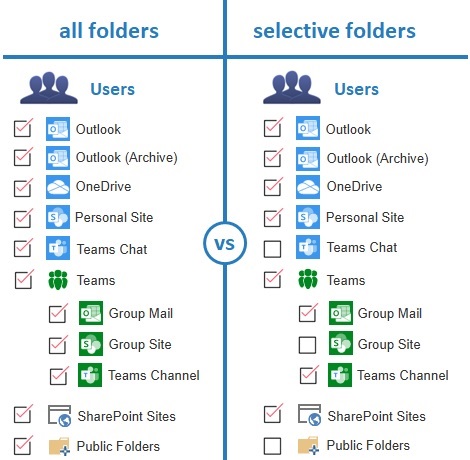
All folders selected
Selecting all folders automatically selects all the files and/or folders under Outlook, OneDrive, Personal Site and Teams Chat of the selected Microsoft 365 user account. And all the files and/or folders under Teams, SharePoint Sites and Public Folders of the Microsoft 365 organization.
DSC is not required when all the folders are selected for back up. As during a backup job any deleted files in the backup source will be automatically moved to Retention Area.
Select folders
When not all folders are selected for backup and folders are subsequently un-selected from the backup source. The backup job will not pick up the changes of the de-selected folders, they will not be moved to the Retention Area but remain in the Data Area. In the long run this could result in a build-up of data in the backup destination.
DSC is highly recommended to synchronize de-selected folders in the backup source with the backup destination. This will ensure that there will be no data build up on the backup destination.