

 AhsayCBS
Dropbox Backup Set
Users can now create backup sets that feature additional Backup scopes for the Dropbox Cloud type that allows users to backup and restore personal or team files / documents with a Dropbox Business Account.
The following will be discussed in this section:
Account type and Backup scope
Account type
When creating a new Backup set using Dropbox, the type of account that is used to create the Backup set will determine what Backup scope is available to them during the backup set creation process. These account types are further affected by whether or not said accounts are Admin or Non-Admin accounts.
For reference, here are the Account types and the Backup scopes available to them:
| Account type | Available Backup scopes |
|---|---|
| Personal account |
|
| Business account (Admin) |
|
| Business account (Non-admin) |
|
Backup scope
There are two Backup scopes that users can select during the backup set creation process:
-
Entire team
This option is only available for users who use Admin-type Dropbox Business Accounts for their Dropbox backup set. With this option selected, users will be able to select all files and folders that are available to them within their Dropbox team workspace.
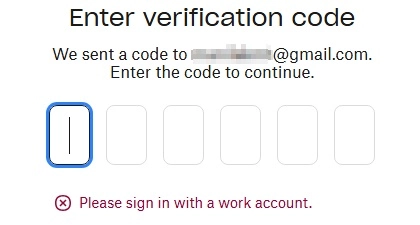
Personal Accounts and Non-Admin Business Accounts are incompatible with the Entire team option – when trying to create a backup set with this option selected using said account types, an error message will appear when trying to login to Dropbox to acquire the authentication code.
For more information regarding the differences between Shared Folders, Team Folders, and Team Members, you may check this FAQ.
-
This Dropbox user only
This option is available for both Personal Accounts and Business Accounts, regardless if they are Admin or Non-Admin accounts. However, Personal Accounts shall be limited to accessing their own personal files and folders for backup and restore.
Business Accounts meanwhile can, in addition to their own personal files and folders, select Team Folders and the files and folders of other Team Members, depending on whether the account is an Admin or Non-Admin account.
For reference, the difference between Admin and Non-Admin Business accounts are as follows:
Account type Available files/folders Personal account - Can only select personal files as backup source
Business account (Admin) - Can select Team Folders, and the personal files/folders of the business/admin account in Team Members.
Business account (Non-Admin) - Can select Team Folders, but limited to personal files/folders of the account only in Team Members.
Backup Sources
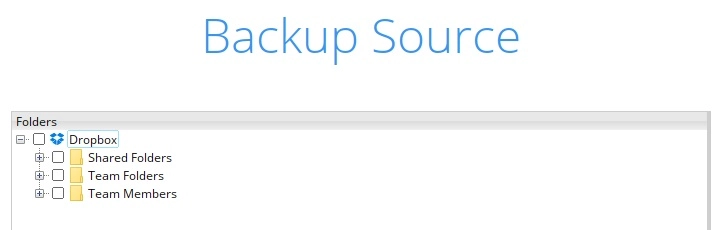
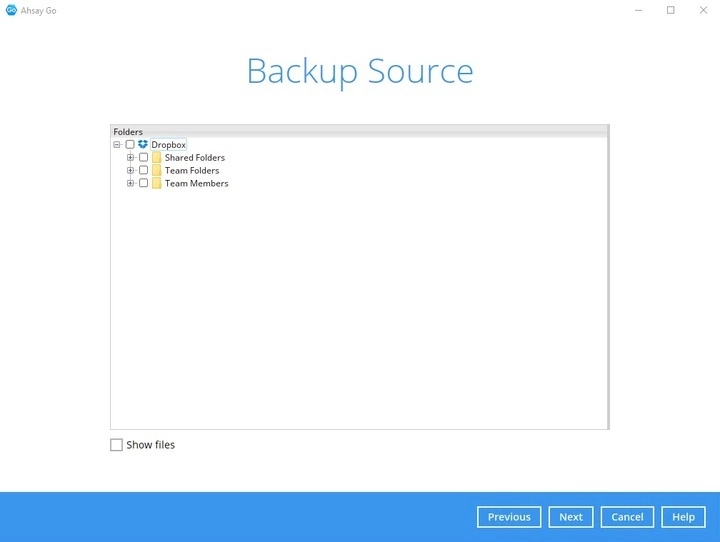
There are three primary folders that can be selected as backup source by users. The visibility and availability of each is contingent on the account type and backup scope selected by the user upon making the backup set.
-
Shared Folders
Shared Folders contain folders and documents that are shared with the Team by its members. This folder type is visible/accessible only by users who log in with an Admin type Business Account using the Entire team option as the Backup scope.
-
Team Folders
Team Folders are those folders/files marked as accessible for Team Members by Admins of a Team workspace. So long as a folder/file is marked in such a way, this backup source is visible/accessible to users who log in with Admin or Non-Admin Business Accounts with either Entire team or This Dropbox user only as the selected Backup scope.
-
Team Members
The Team Members backup source gives users the ability to back up files and folders of other users on Dropbox provided that they are part of your Dropbox Team. This backup source is visible/accessible only to users who log in with Admin or Non-Admin Business Accounts with either Entire team or This Dropbox user only as the selected Backup scope.
The ability to select a team member’s files and folders as backup sources is only available when selecting the Entire team Backup scope option.
- Admin Business Accounts with This Dropbox user only selected are restricted to accessing the files and folders of said Admin Business Account only.
- Non-Admin Business Accounts with This Dropbox user only selected are restricted to accessing their own files and folders.
Creating a Dropbox Backup Set
- Log in to the Ahsay Go application user interface.
-
In the Ahsay Go main interface, click Backup Sets.
- Create a Cloud File backup set by clicking the Add button.
-
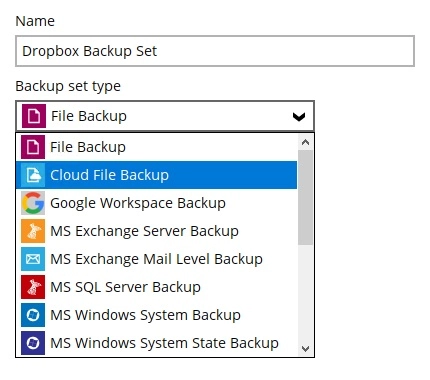
Enter a “Name” for your backup set and select Cloud File Backup from the “Backup set type” drop down menu.
-
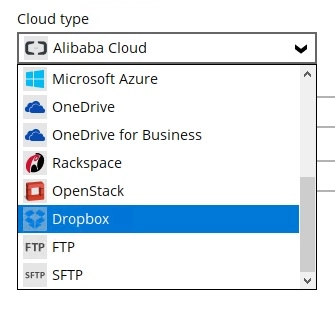
Select Dropbox from the "Cloud type" drop down menu.
-
Select a backup scope.
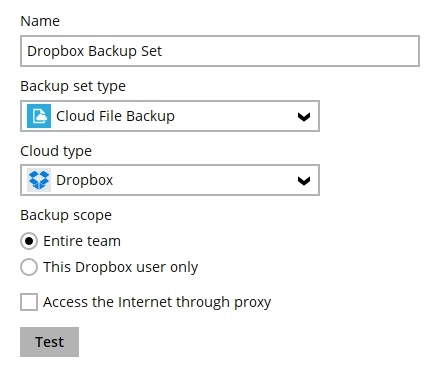
- Click Test. The Dropbox login page will then open – enter the login details of your preferred account. For details regarding account types, please refer to this section.
- Click Allow to permit Ahsay Go to access the contents of your Dropbox.
-
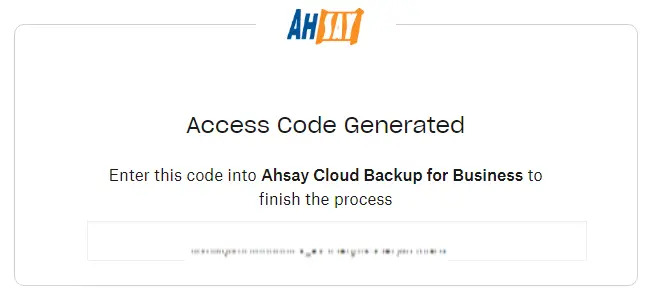
Copy and paste the generated code to Ahsay Go where you will be prompted to enter; click OK to confirm. Then, click Next to proceed.
-
In the “Backup Source” window, select the file and/or folders that you would like to back up. Enable Show Files to display the individual file (s) for backup. Click Next to proceed.
- For configuring the "Schedule", "Destination", "Encryption", and "Windows User Authentication", follow the steps under Create a Backup Set in the Cloud File Backup and Restore section.
- Click Close or Backup now to finish.
Restore
The Restore function for Dropbox Cloud File backup sets retains the same Restore Destinations as other Cloud File backup sets, with these destinations being:
- Local machine
- Original location
- Alternate location
Although the Local machine and Original location options remain the same, restoring a Dropbox backup set allows users to select specific folders/locations within the Dropbox workspace where they may restore their files to.
However, users are only allowed to restore files back to the original backup source they were sourced from (i.e. Folders/Documents backed from the Shared Folders backup source may only be restored to anywhere within Shared Folders, etc).
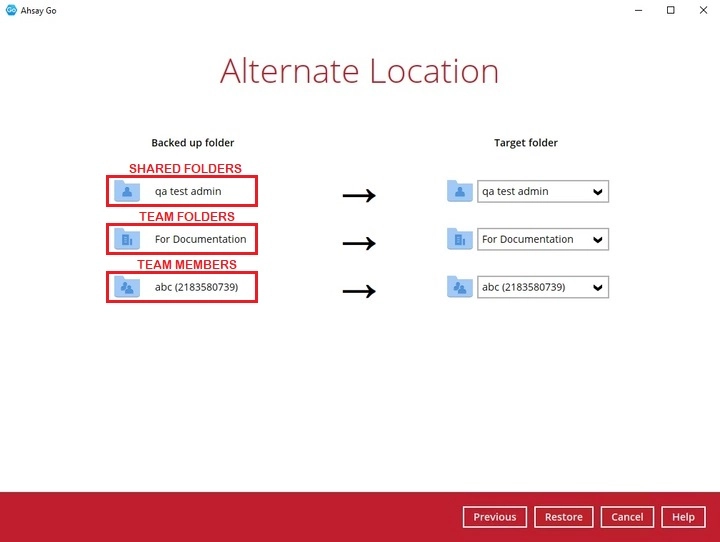
Only Business Accounts will have access to this feature.