AhsayCBS
Ahsay Go Profile Overview
The Profile contains different settings concerning the account of the user.

There are five settings available, which are:
General
The General tab displays the user and payment information.
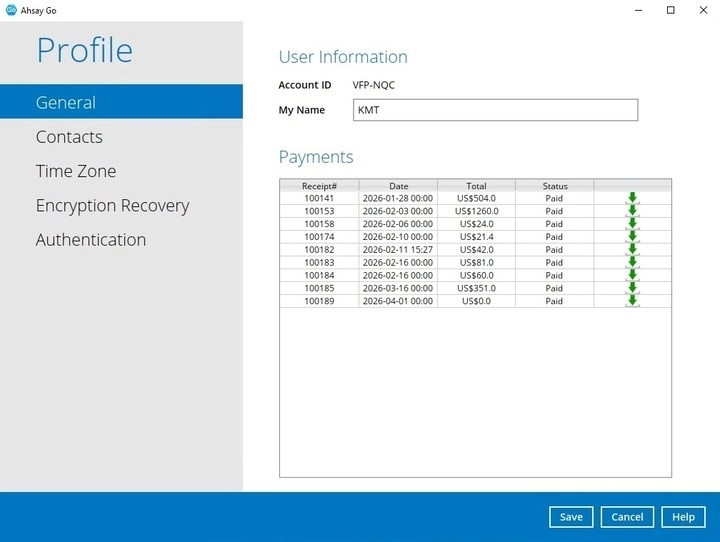
User Information
- Account ID - the account used to log in, cannot be changed.
- My Name - the name that will be displayed in the main menu, this can be edited.
Payments
- Receipt# - the receipt number.
- Date - date when payment was made.
- Total - total amount paid.
- Status - payment status.
Contacts
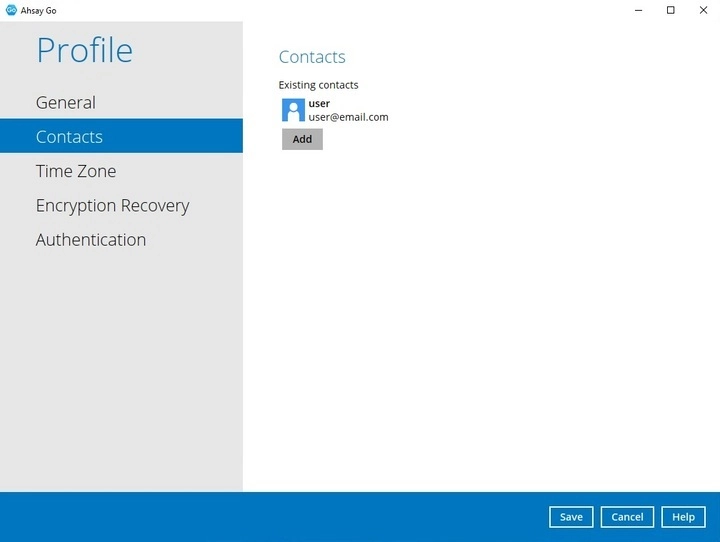
The Contacts tab displays the contact information of the user. You can add multiple contacts or modify existing contacts here. Having this filled in will help in sending backup and daily reports and even recover backup set encryption key in case it was forgotten or lost.
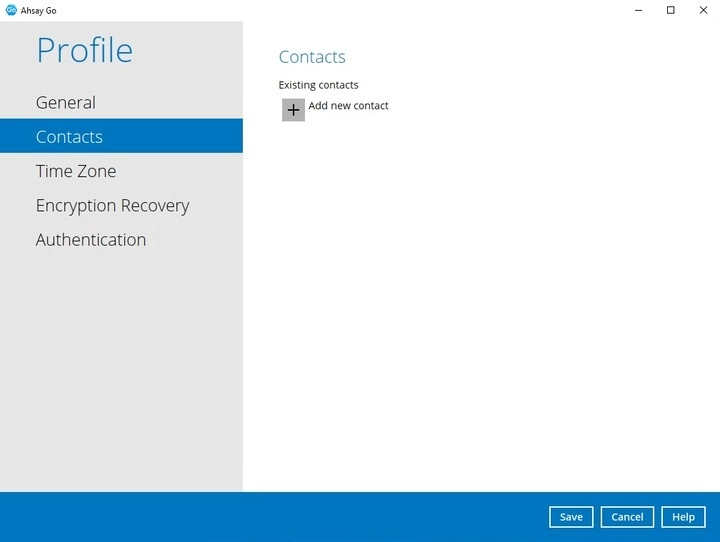
To add a contact:
Click the + button to add a new contact.
Complete the following fields, then click the OK button to return to the main screen.
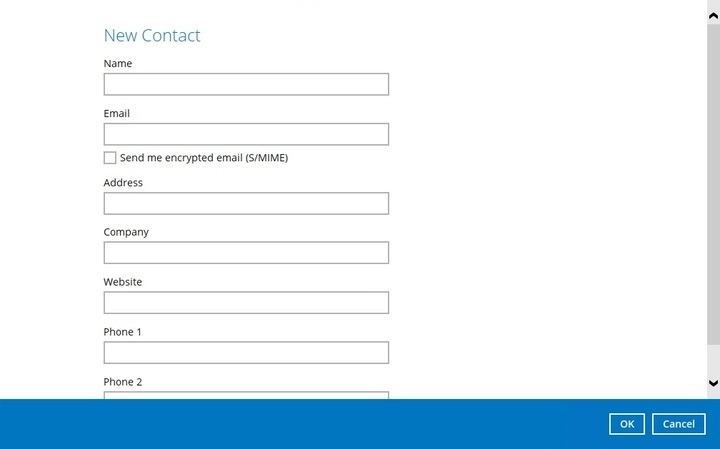
- Name
- Address
- Company
- Website
- Phone 1
- Phone 2
Click the Save button to store the contact information.
Time Zone
Setting the correct time zone is important to ensure that scheduled backup jobs are not missed. It ensures that the time zone selected in Ahsay Go is the same as the time zone set for the user.
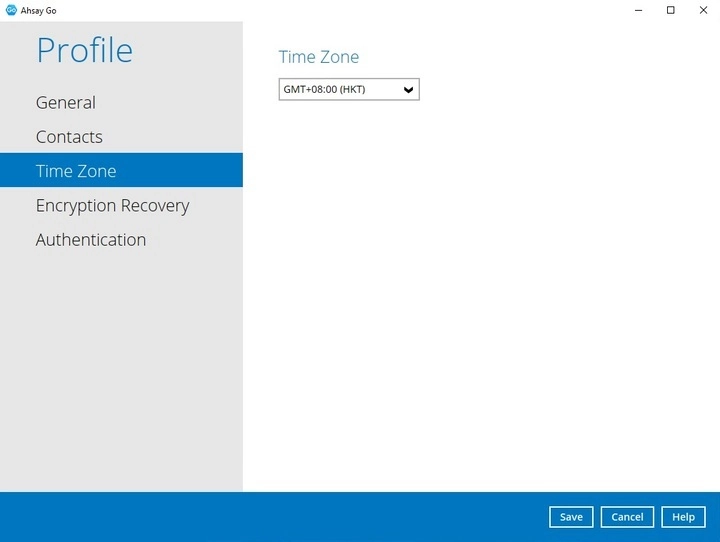
To modify the time zone:
Select from the dropdown list.
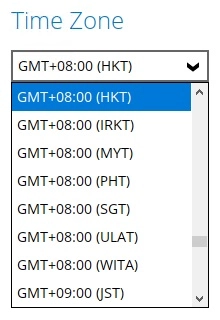
Click the Save button to save the updated time zone.
Encryption Recovery
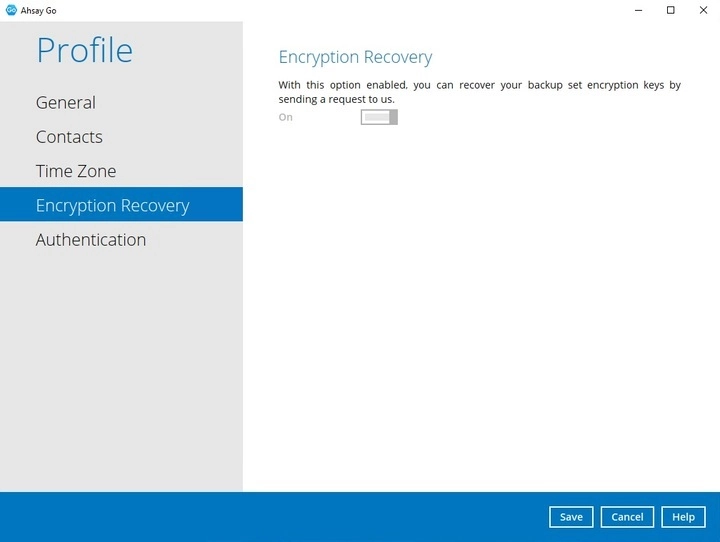
Backup set encryption key can be recovered since this feature is enabled by default.
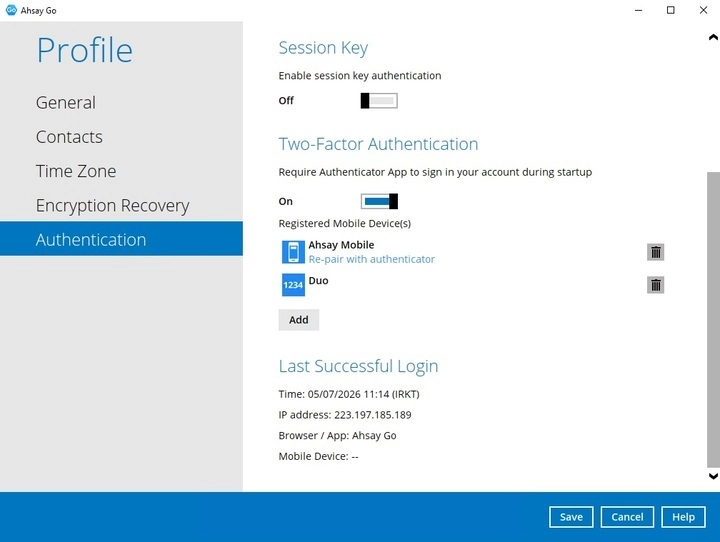
Authentication
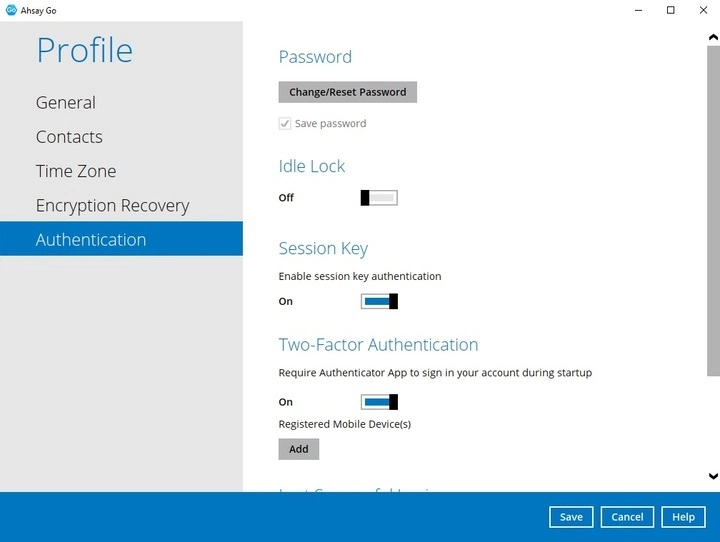
You can use the Authentication function to:
- Change the password.
- Reset the password.
- Enable or disable the "Idle Lock".
- Enable or disable the "Session Key".
- Setup Two-Factor Authentication.
- View details of your last successful login.
Password
Login password can be modified anytime. The "Save password" checkbox is ticked by default and it cannot be changed.
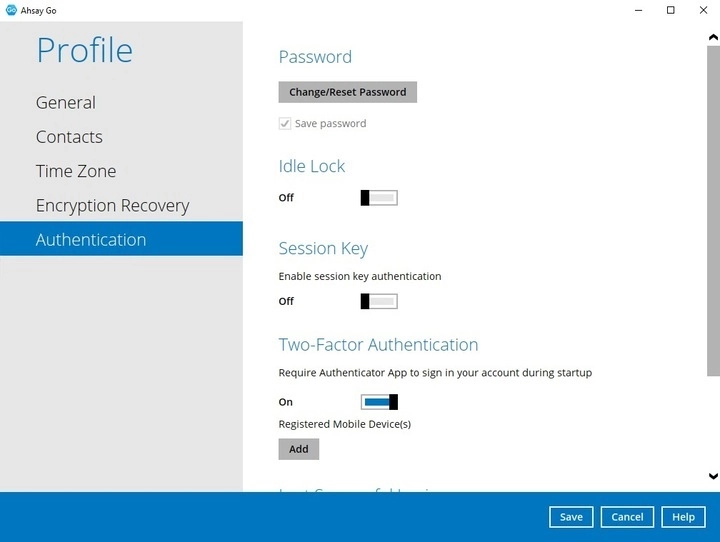
Change password
- Click the Change/Reset Password button.
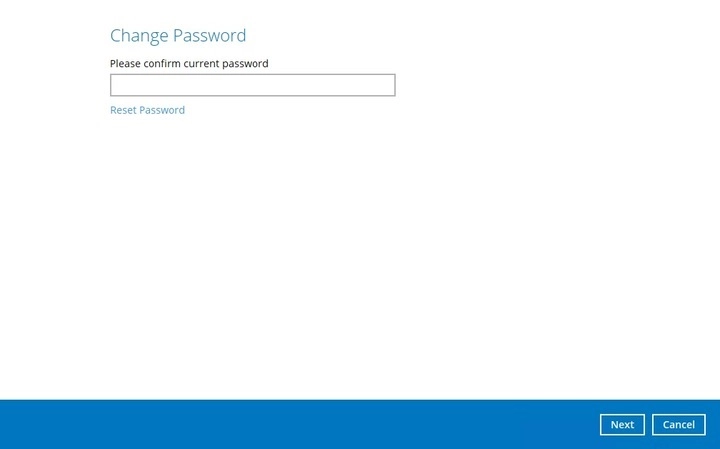
Enter the current password then click Next.
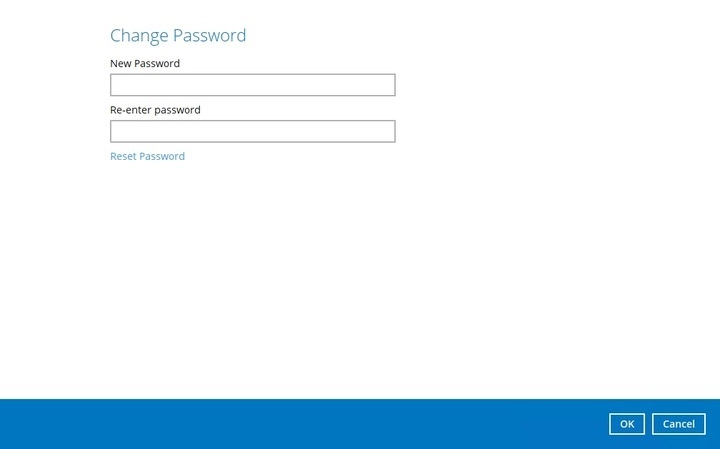
Enter the new password and re-enter it for authentication. Click OK to return to the main screen.
- Click Save to store the settings.
Reset password
- Click the Change/Reset Password button.
Click the Reset Password link.
Click OK.

Check your email and click the provided link. Here is a sample of the email that you will receive.
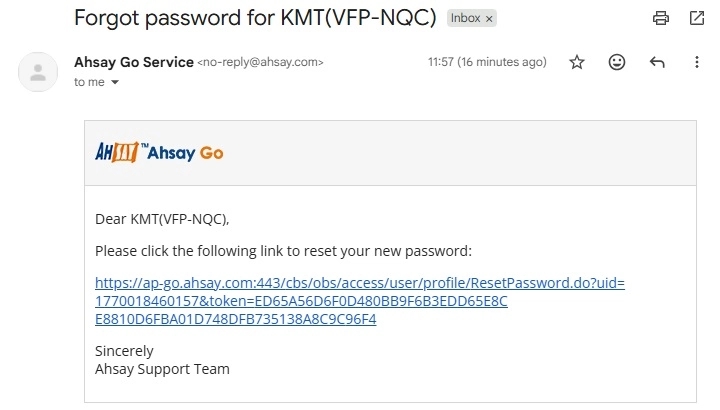
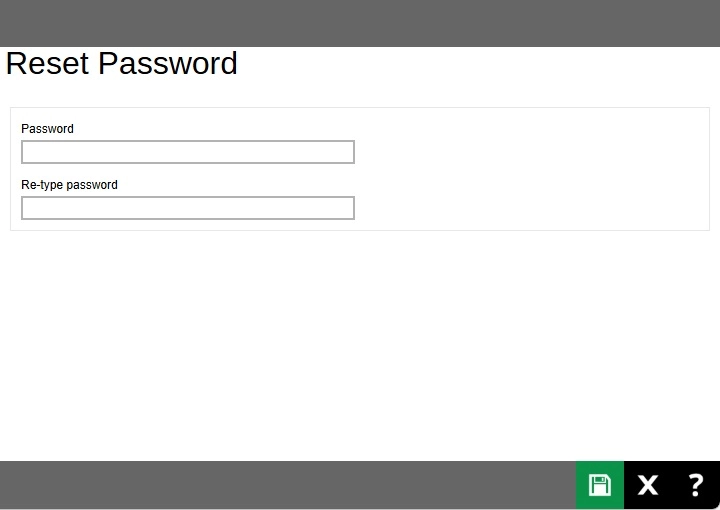
Enter the new password and re-enter it. Click the Save button to save it.
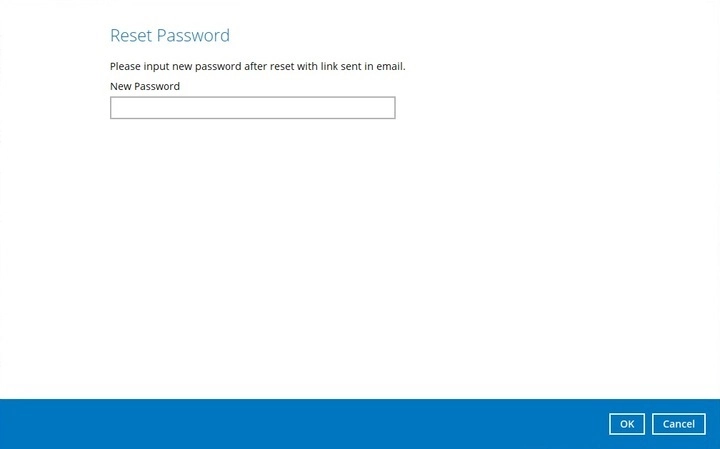
Go back to Ahsay Go to enter the new password. Click OK to proceed.
- Click Save to store the settings.
Idle Lock
The idle lock controls how long before your session is locked after the application has been idle for a specific time. This is disabled by default, which means that your session never times out.
Setup Idle Lock
Slide the Idle Lock switch to the right to enable it.
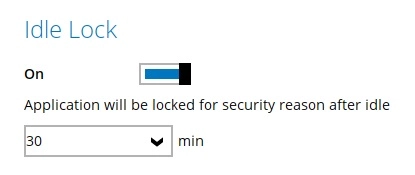
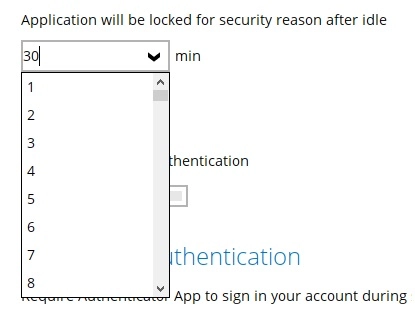
Select the minutes from the dropdown box or you may enter it directly.
- Click Save to store the settings.
Session Key
The session key is used to make API requests on profile changes and server side file updates on behalf of the user. By default this is disabled. To enable it simply swipe the switch to the right then click Save.
Two-Factor Authentication
Two-Factor Authentication (2FA) is enabled by default, this adds a second layer of security to make sure that your account is secure from unauthorized access. You can use different applications to register your mobile device at the same time.
Register Mobile Device
To register a mobile device, the Ahsay Mobile app or a third-party authenticator app is needed.
For detailed instructions on how to register a mobile device for 2FA please refer to Mobile Device Registration for 2FA.
Remove Registered Mobile Device
-
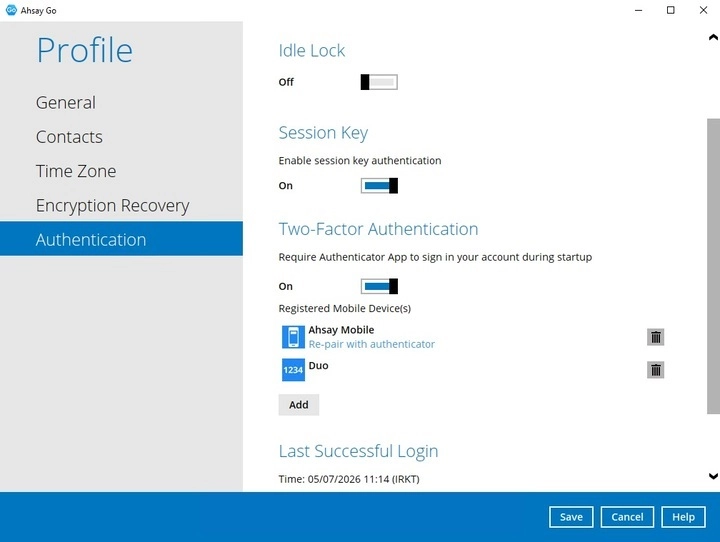
Click the trash can button on the right side of the registered mobile device. In this example, we are going to delete the mobile device named "Ahsay Mobile".
-
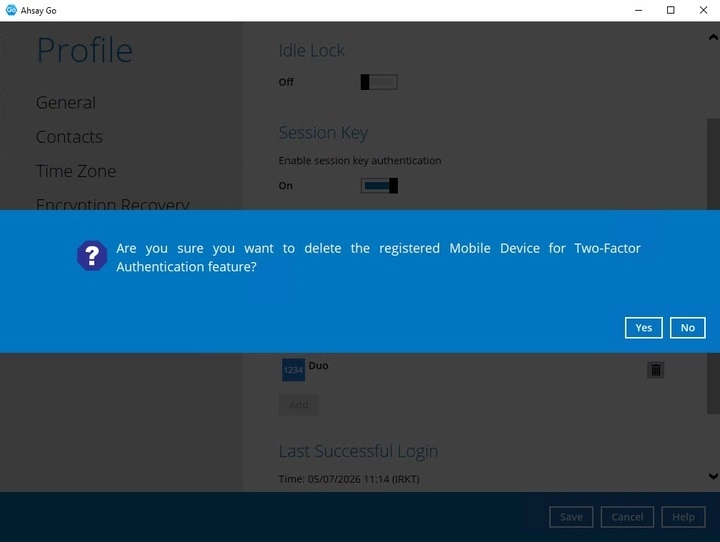
A confirmation message will appear, click Yes to proceed. Otherwise, click No.
Re-pair with Authenticator
Ahsay Go supports "Re-pair with authenticator" feature that enables users to re-pair their Ahsay Go account with Ahsay Mobile as long as the mobile device used for the 2FA is still registered in Ahsay Go.
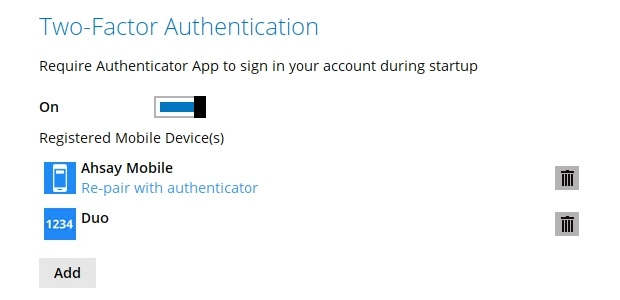
The feature is used when:
- The registered profile for 2FA was removed from the Ahsay Mobile app.
- The Ahsay Mobile app is accidentally uninstalled from the mobile device.
Disable Two-Factor Authentication
To disable 2FA, swipe the lever to the left. However, note that turning off 2FA will not automatically delete registered mobile device(s). If you need to delete the registered mobile device(s), this must be done manually first before disabling Two-Factor Authentication.
Last Successful Login
Displays the date, time, IP address and browser or app used during the last login.