

 AhsayCBS
Ahsay Go Proxmox Backup and Restore
Ahsay Go provides a comprehensive backup solution for your Proxmox VE. Ahsay Go provides you with a set of tools to help safeguard against data loss, system failure and potential disaster. This includes a VM backup feature and instant recovery feature (with the use of Run Direct technology), to ensure that mission critical virtual machines are back up and running within minutes of a disaster.
Instant VM Restore with Run Direct
Run Direct is a feature that helps reduce disruption and downtime of your production VMs.
Unlike normal VM restore procedure where a VM is extracted from backup files and copied to the production storage which can take hours to complete, restore with Run Direct can instantly power up a VM by running it directly from the backup files in the backup destination and the VM can be put into production.
Run Direct and Non-Run Direct Proxmox Backup Set Differences
| Run Direct Backup Set | Non-Run Direct Backup Set | |
|---|---|---|
| Encryption | YES | YES |
| Compression | YES | YES |
| Ahsay Drive | YES | YES |
| Local Destination | YES | YES |
| Cloud Destination | NO | YES |
Granular Restore Technology
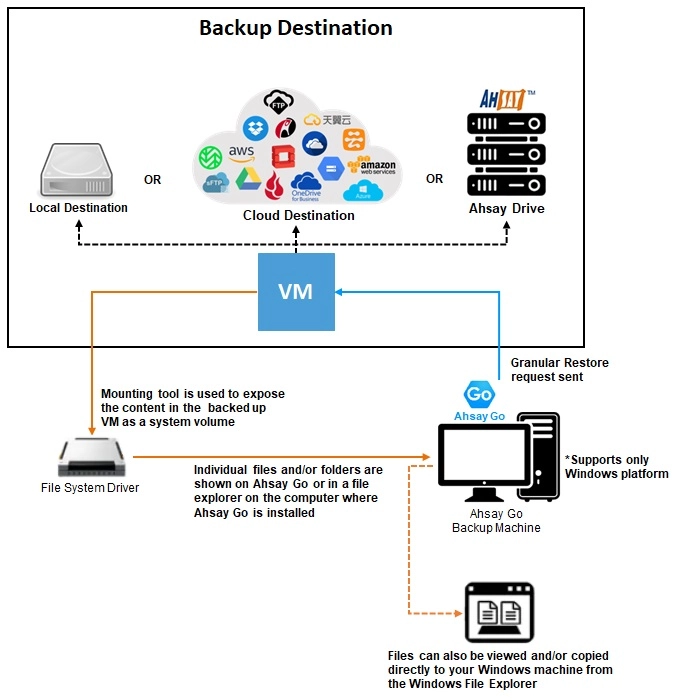
Granular Restore Technology enables the recovery of individual files from a guest VM without booting up or restoring the whole guest VM first.
Granular restore is one of the available restore options for Proxmox backup sets. Ahsay Go makes use of Granular Restore technology to enable a file level restore from a guest VM backup possible. It is particularly useful if you only need to restore individual file(s) from a guest VM which would normally take a long time to restore and then startup before you can gain access to the files on the virtual disks. Granular Restore gives you a fast and convenient way to recover individual files on a guest VM.
During the Granular Restore process, the virtual disks of the guest VM can be mounted on the Windows machine as a local drive. This will allow the individual files on the virtual disks to be viewed via the file explorer within Ahsay Go or from the Windows File Explorer on the Windows machine where you are performing the restore on, without having to restore the entire virtual machine. Granular Restore can only mount virtual disks if the guest VM is running on a Windows Platform and it is supported for all backup destinations, i.e. Ahsay Drive, Cloud storage, or Local/Network drives. The mounting of Linux/Unix file systems from virtual disk file is currently not available due to limitations of the file system drivers.
How Does Granular Restore Work?
Benefits of Using Granular Restore
Comparison between Granular Restore and Traditional Restore:
| Granular Restore | |
|---|---|
| Introduction | |
| Granular restore allows you to quickly mount virtual disk(s) directly from the backup file of a guest VM, so that individual files from virtual disk(s) can be exposed via the file explorer on Ahsay Go, or to be copied from the file explorer on to a 64 bit Windows machine where you are performing the restore. | |
| Pros | |
| Restore of Entire Guest VM Not Required | Compared to a traditional restore where you have to restore the entire guest VM first, before you can access any individual files/folders, granular restore allows you to view and download individual files, without having to restore the entire guest VM first. |
| Ability to Restore Selected Files | In some cases, you may only need to restore a few individual file(s) from the guest VM, therefore, granular restore gives you a fast, convenient, and flexible tool to restore selected file(s) from a guest VM quickly. |
| Only One Backup Set Required |
With traditional restore methods, if you wish to restore individual file(s) from a guest VM, you will have to create two different backup sets; a Proxmox guest VM backup set and a separate file backup set for the file(s) you wish to restore. You will require an additional Ahsay Go installation on the guest VM environment, with Granular Restore feature, only one backup set is required.
|
| Cons | |
| No Encryption and Compression | To ensure optimal restore performance, the backup of the guest VM will NOT be encrypted and compressed, therefore, you may have to take this factor in consideration when using this restore method. |
| Traditional Restore | |
|---|---|
| Introduction | |
| The traditional restore method for guest VMs, restores the entire backup files to either the original VM location or another standby location. The files or data on the guest VM can only be accessed once the guest VM has been fully recovered and booted up. | |
| Pros | |
| Backup with Compression and Encryption | Guest VM is encrypted and compressed, therefore is in smaller file size, and encrypted before being uploaded to the backup destination. |
| Cons | |
| Slower Recovery | As the entire guest VM has to be restored before you can access any of its file(s) or data, the restore time could be long if the guest VM size is large. |
| Two Backup Sets Required | If you only wish to restore individual files from the VM, two separate backup sets are required, one for the VM image and the other for the individual files. |
For further discussion regarding Proxmox VE backup and restore, refer to the following pages: