AhsayCBS
Create a Google Workspace Backup Set on AhsayOBM using QNAP NAS
-
Click the Backup Sets icon on the AhsayOBM main interface.
-
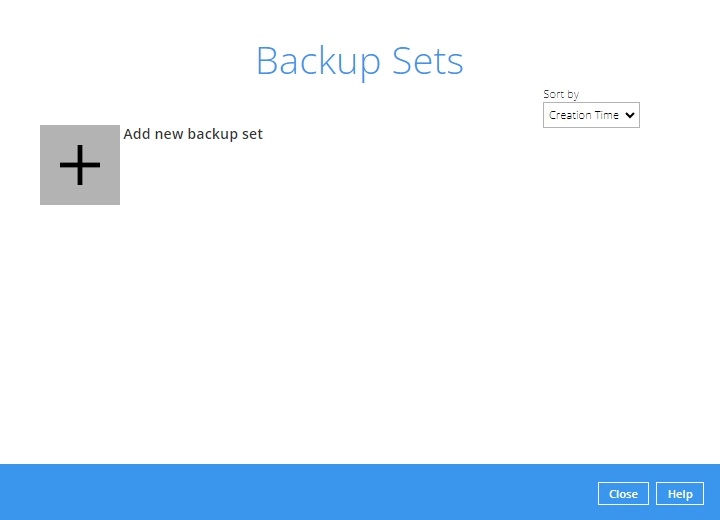
Create a new backup set by clicking the + icon next to "Add new backup set".
-
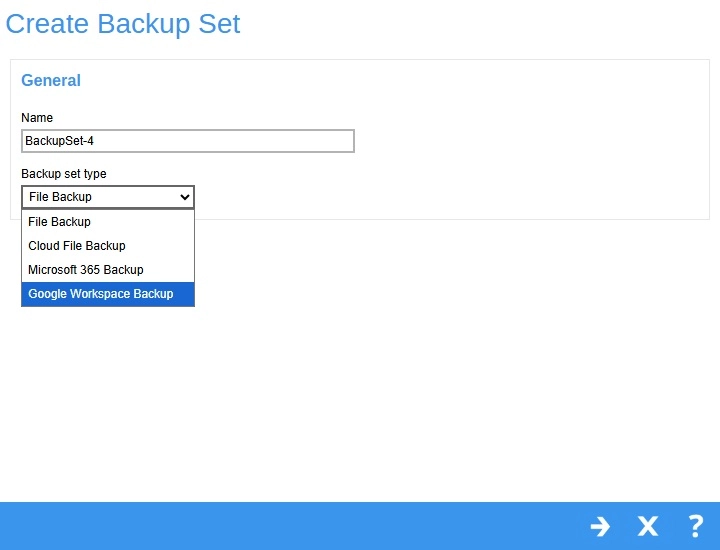
Enter a name for your backup set and select Google Workspace Backup as the backup set type. Click Next to proceed.
Select the "Backup scope" (between Entire organization or This Google user only). Click the Test button.
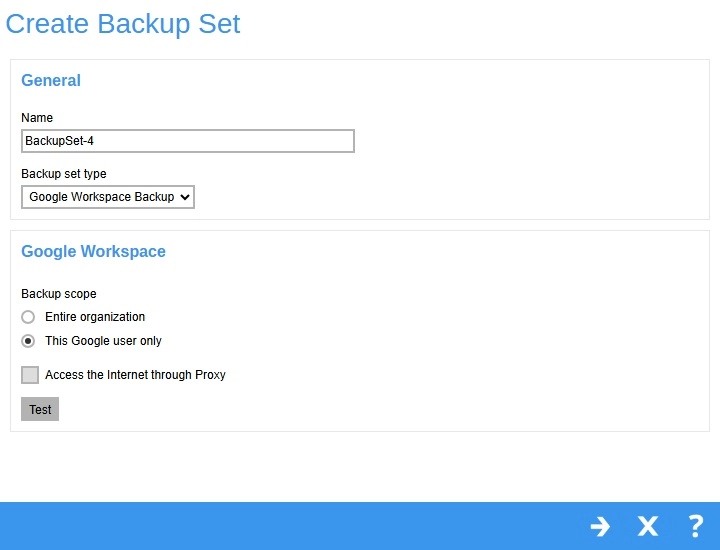
The "Entire organization" option will only work if you have a Google Workspace admin account. If you select "This Google user only", you will need to enter the email address of the user you want to back up.
-
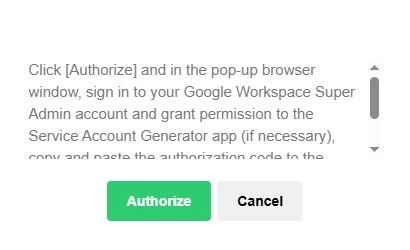
Click Authorize to start the authentication process.
-
Sign in to your Google Workspace account.
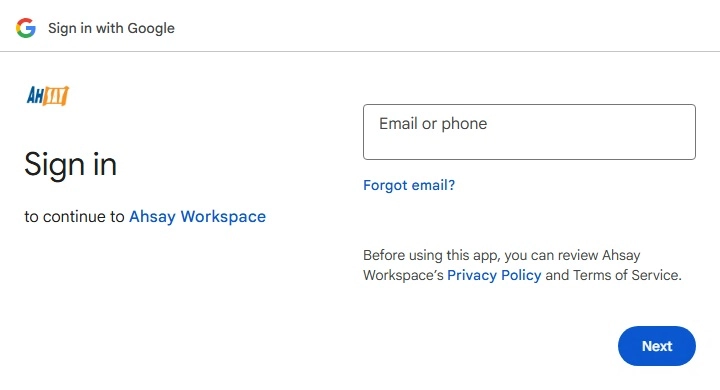
If the accounts have already been signed in before, or there are other accounts signed into the machine, select the Google Workspace account you wish to back up. Otherwise, click Use another account to sign in to the Google Workspace account you want to back up.
-
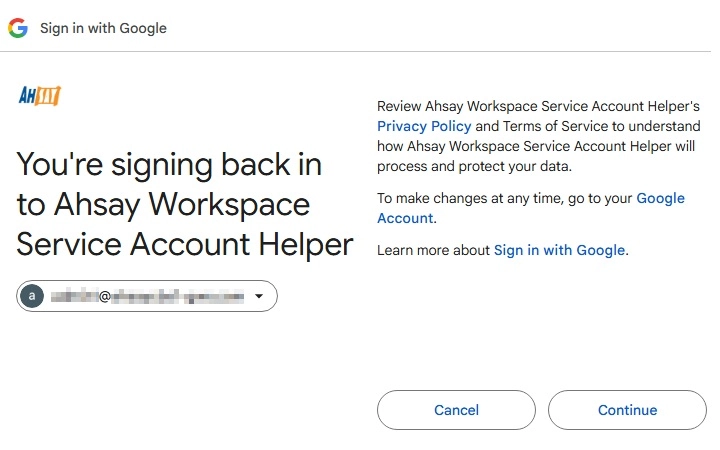
After signing in, you will be asked to allow AhsayOBM to access your Google Workspace account. Click Continue.
-
Copy the authorization code.
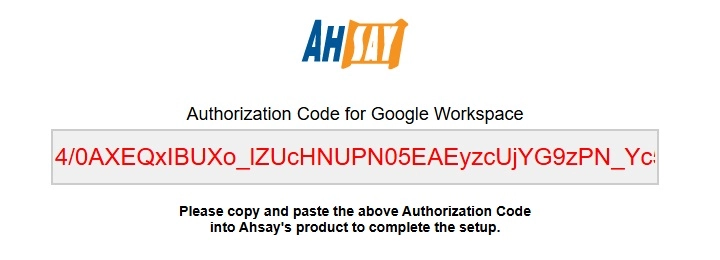
-
Go back to AhsayOBM and paste the authorization code. Click OK to proceed.
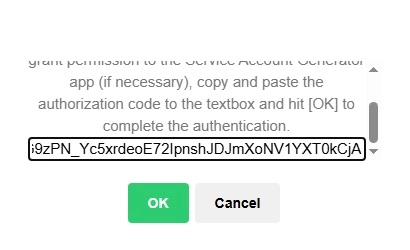
If the "Backup scope" selected is Entire organization but the account used to sign in is a personal account, an error message will be displayed.
-
"Test completed successfully" will be displayed when the validation is successful. Click Next to proceed.
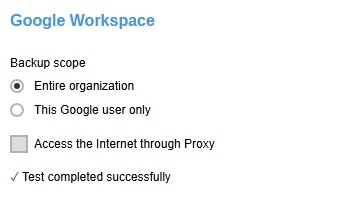
-
-
The "Backup Source" window will then be displayed. Select the Google Workspace services you want to back up, then click Next to proceed.
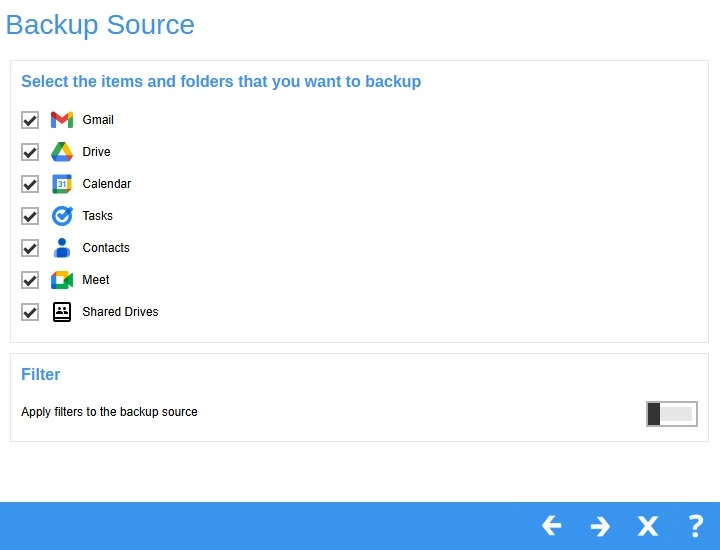
If you have used an admin account to sign in, you will be able to select "Chat" as another service to back up, as well as select specific Users and Shared Drives to backup for the backup set.
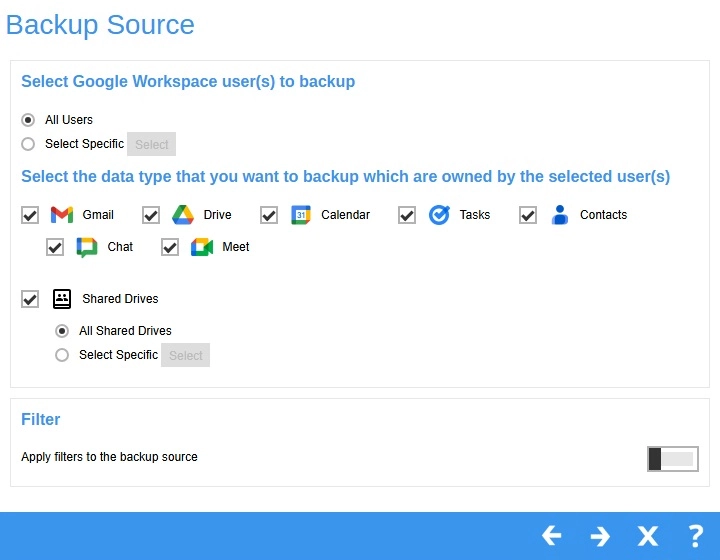
To use the filter, please refer to Backup Source Filter.
-
In the "Schedule" window, configure a backup schedule for backup job to run automatically at your specified time interval. Enable by sliding the switch to the right, to add a backup schedule click the Create button, configure the settings then click Next to proceed.
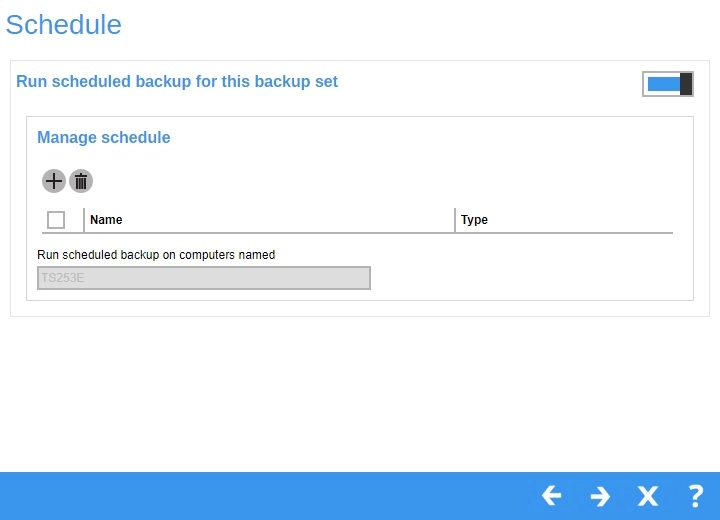
For details on how to configure the backup schedule settings, please refer to the Overview (GUI) section.
-
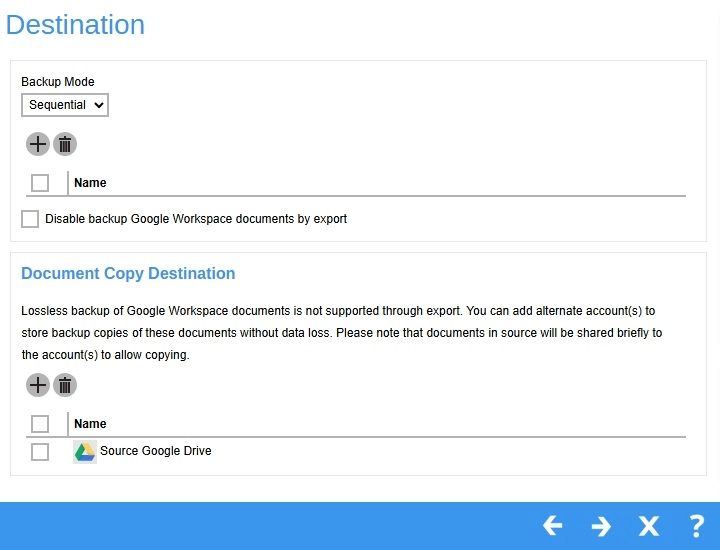
In the "Destination" window, there are two kinds of backup destinations that you can configure:
Traditional or regular Backup Destination (AhsayCBS, Local/Network, Cloud Destinations, etc.)
New Document Copy Destination (Google Drive)
These two destinations treat certain data backed up from Google Workspace differently in order to facilitate Lossless Backup, which is a limitation born from Google Workspace's API.
Traditional/Regular Backup Destination
For basic Google services such as Gmail, Drive, Calendar, etc., these can be backed up using the different Backup Destinations that can be configured under AhsayOBM, such as AhsayCBS, Local / Mapped Drive / Network Drive / Removable Drive etc.
Click on the Create button.
Select the storage destination then click Add once done.
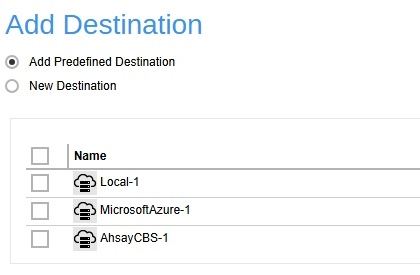
To know more about how to add destinations, please refer to Destination.

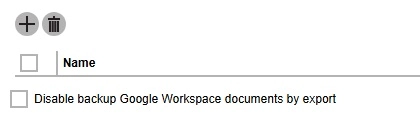
Below the setting to add Storage Destinations, there is a tick-box to "Disable backup Google Workspace documents by export". This means that by checking this box, AhsayOBM will not back up files from limited Google services (such as Google Docs, Sheets, Slides, etc.) by exporting them in different file formats (.xlsx, .doc, etc.) to your chosen Backup Destination.
By default, this box is unchecked, allowing AhsayOBM to export these files to other file formats - however, there is a loss in this process of Google-specific features.
New Document Copy Destination
For non-binary files sourced from other Google services such as Google Docs, Sheets, Slides, etc., although users will be able to back these files up by exporting them to different file formats which can then be reimported into these services, they will encounter a loss during the process of Google editor specific features.
As a solution to this, users can select a Google Drive account to temporarily share these files to, which can be copied or exported in a manner that the user has more control over.
By default, the Google Workspace account that the user has used to create the Google Workspace backup set will be the default account used for the New Document Copy Destination.
-
Under "Document Copy Destination", click the Create button.
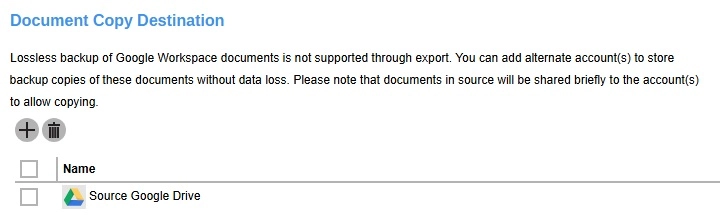
Although you can choose the same Google account that you used to create the Google Workspace backup set, it is generally recommended that you use a different Google account for its Google Drive. This is to generally provide you with a different destination for your backed up files other than the source Google account, and also to better make use of Google Drive's storage/size limit.
-
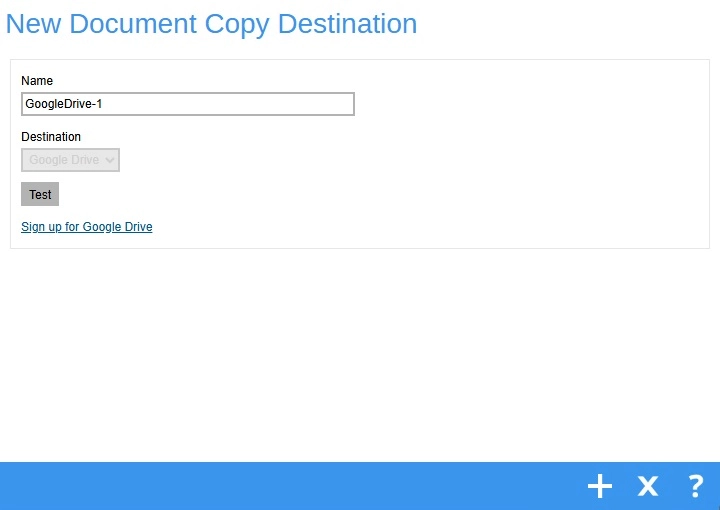
In the "New Document Copy Destination" window, input a "Name" for your Google Drive Destination.
-
By default, the "Destination" will be set to Google Drive. This option cannot be changed.
-
Click on Test. This will open a new window where you can choose a Google account to use its Google Drive as a backup destination.
Click Continue.
-
Copy the Authorization Code and paste it in AhsayOBM then click Add.
-
Click Next to continue.
If you wish to create a new account for Google Drive, you may click on the Sign up for Google Drive option.
-
In the "Encryption" window, the default "Encrypt Backup Data" option is enabled with an encryption key preset by the system which provides the most secure protection. Select the "Encryption Type" to be used then click Save to finish creating the backup set.
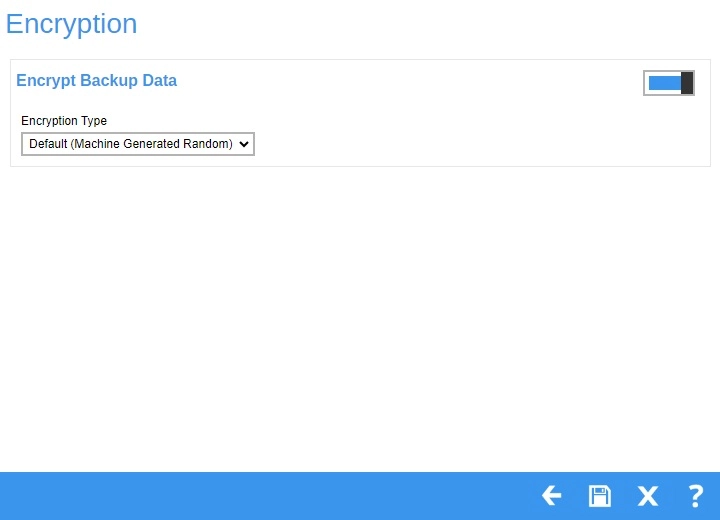
For details on how to configure the "Encryption" settings, please refer to the Overview section.
For best practices on managing your encryption key, refer to the following article: Best Practices for Managing Encryption Key on AhsayOBM or AhsayACB
-
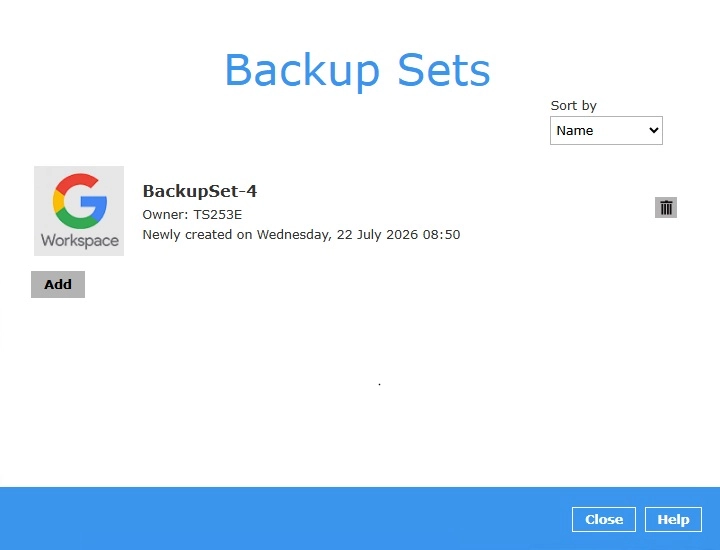
The following screen is displayed when the new Google Workspace backup set is created successfully.