AhsayCBS
Ahsay Go - Microsoft 365 Requirements
Public Folder Backup
A licensed Exchange Administrator or a licensed user with Public Folder permission is required, otherwise you will not be able to access the public folder to select items and for backup or restore.
Java Heap Size
The default Java heap size setting is 2048MB which is sufficient for Microsoft 365 backups based on the default four (4) concurrent backup threads.
The Java heap size should only be increased if the number of current backup threads is increased as more backup threads is expected to consume more memory. But this does not guarantee that the overall backup speed will be faster since there will be an increased chance of throttling.
As the value of four (4) concurrent backup threads is found to be the optimal setting for Microsoft 365 backups, to ensure best backup performance, minimal resource usage, and lowest probability of throttling of Ahsay backup requests by Microsoft 365.
For more detailed information on how to increase the backup thread, please refer to the How to Increase the Number of Concurrent Backup Threads.
Microsoft 365 License Requirement
-
Microsoft 365 Subscription Plan
The following subscription plans with Microsoft 365 email services are supported to run backup and restore on Ahsay Go.
Microsoft 365 Business Microsoft 365 Business Essentials Microsoft 365 Business Premium Microsoft 365 Enterprise E1 Microsoft 365 Enterprise E3 Microsoft 365 Enterprise E3 Microsoft 365 Enterprise E5 Microsoft 365 Education -
Microsoft 365 Subscription Status
Make sure your Microsoft 365 subscription with Microsoft is active in order to enjoy all privileges that come along with our backup services. If your account has expired, renew it with Microsoft as soon as possible so that you can continue enjoy the Microsoft 365 backup services provided by Ahsay Go.
When your account is expired, depending on your role, certain access restrictions will be applied to your account. Refer to the URL below for more details.
-
Restore Requirement
When restoring data of Microsoft 365 user, the account which the data will be restored to requires valid license(s):
-
Requires Exchange License
Example: Exchange Online Plan and Microsoft 365 E3 are required when restoring Outlook's / Public Folder's items.
-
Requires SharePoint License
Example: SharePoint Online Plan and Microsoft 365 E3 are required when restoring OneDrive's / Personal Site's items.
-
Microsoft 365 Permission Requirement
The basic permissions required by a Microsoft user account for authentication of a Microsoft 365 backup set is as follows:
-
Global Admin Role
The Microsoft 365 account used for authentication must have Global Admin Role, since Modern Authentication will be used.
This is to ensure that the authorization configuration requirements will be fulfilled (e.g. connect to Microsoft Azure AD to obtain the App Access Token). To assign the role, please refer to Assigning Global Admin Role to Accounts.
Alternatively, if for some reason the Global Administrator Role cannot be granted, the following permissions must be granted instead:
- Application Administrator
- Exchange Administrator
- SharePoint Administrator
- Teams Administrator
Please refer to Assigning Alternate Permissions to Accounts for instructions on how to assign the roles.
-
Term Store Administrator Role
The Term Store Administrator Role may be required for backup and restore of SharePoint items. To assign the role, please refer to Granting Term Store Administrator Role.
-
A member of Discovery Management security group
The Discovery Management security group must be assigned the following roles. To assign the role, please refer to Granting Permission Discovery Management Group.
- Legal Hold
- Mailbox Import Export
- Mailbox Search
- Public Folders
Otherwise, proceed to grant all necessary permissions to the Microsoft user account as shown in the following sections:
- Assigning Global Administrator Role to Accounts
- Assigning Alternate Permissions to Accounts
- Granting Term Store Administrator Role
- Granting Permission Discovery Management Group
- Granting Permission to Accounts for Creating Backup Set
- Granting Permission to Restore All Share link types to Alternate location in Microsoft 365
Assigning Global Administrator Role to Accounts
-
Click the App launcher in the upper left side.

-
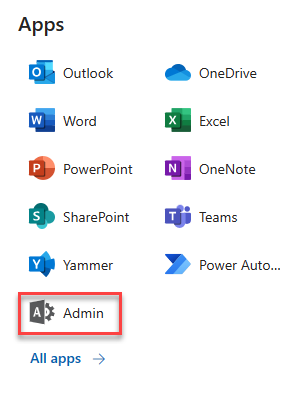
Click Admin to go to the Microsoft 365 admin center.
-
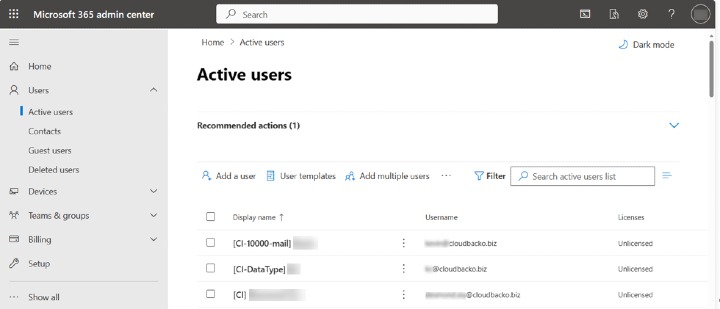
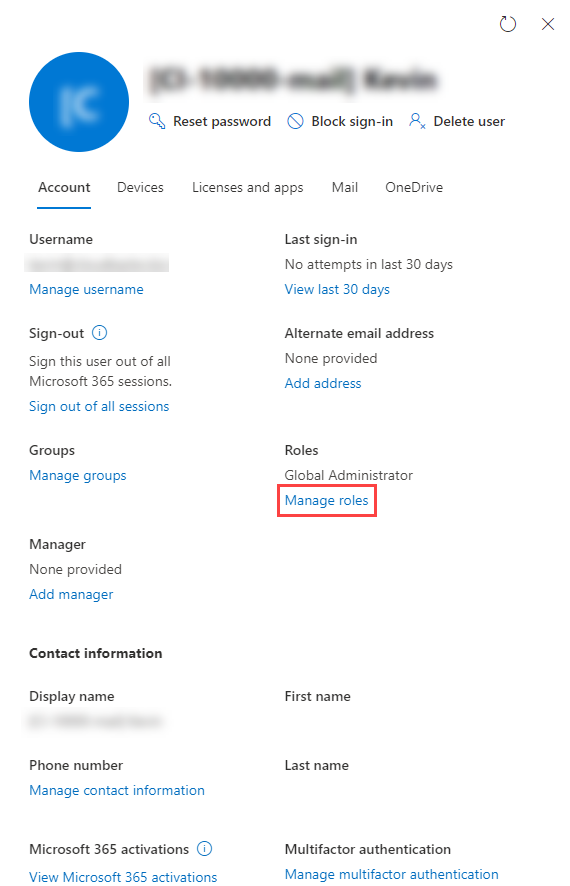
In the "Microsoft 365 admin center", on the left panel click Active users under "Users". Find the user you want to assign the Global Admin role and click Manage roles.
-
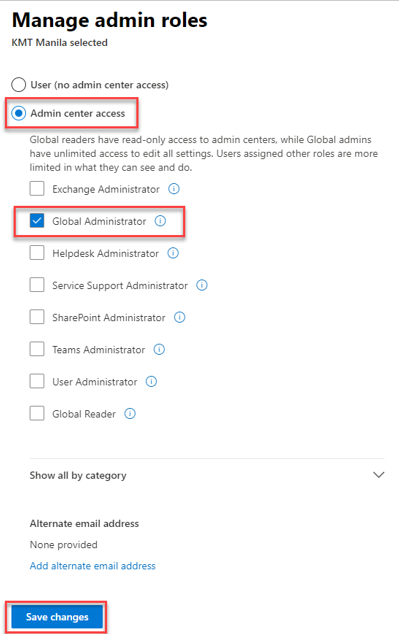
In the "Manage admin roles" window, select Admin center access then tick the box beside Global Administrator. Click Save changes to save the role you assigned.
Assigning Alternate Permissions to Accounts
-
Click the App launcher in the upper left side.
-
Click Admin to go to the Microsoft 365 admin center.
-
In the "Microsoft 365 admin center", on the left panel click Active users under "Users". Find the user you want to assign the role and click Manage roles.
-
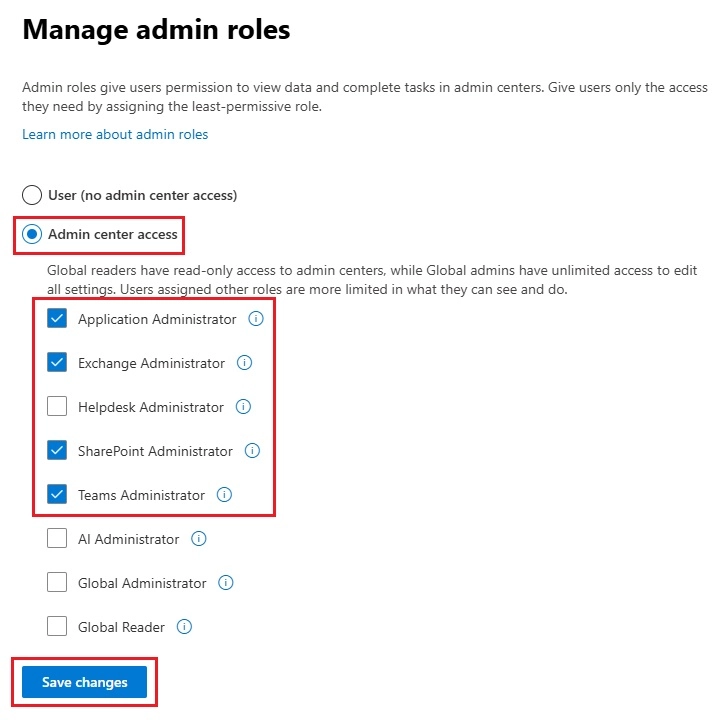
In the “Manage admin roles” window, select Admin center access then tick the box beside Application Administrator, Exchange Administrator, SharePoint Administrator, and Teams Administrator. Click Save changes to save the role you assigned.
Granting Term Store Administrator Role
To add Term Store Administrator role to the Microsoft 365 user account used to authenticate the Microsoft 365 backup set.
-
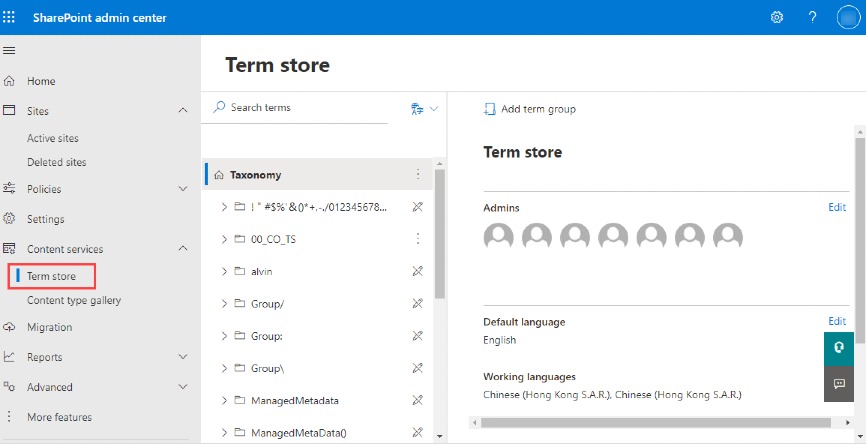
In the "SharePoint admin center", under "Content services", click Term store.
-
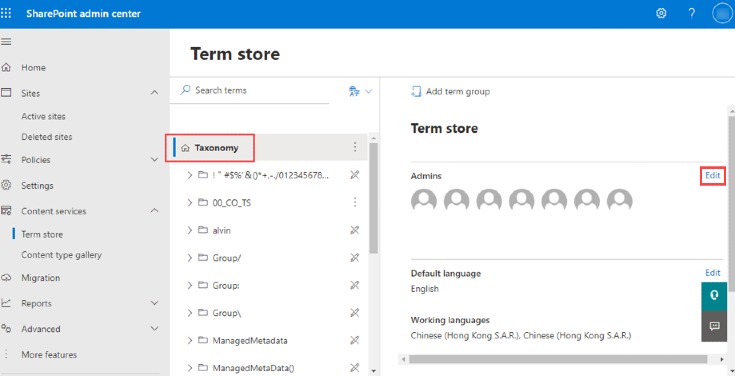
In the tree view pane in the middle, select Taxonomy. Then click Edit in the “Term store” section on the right.
-
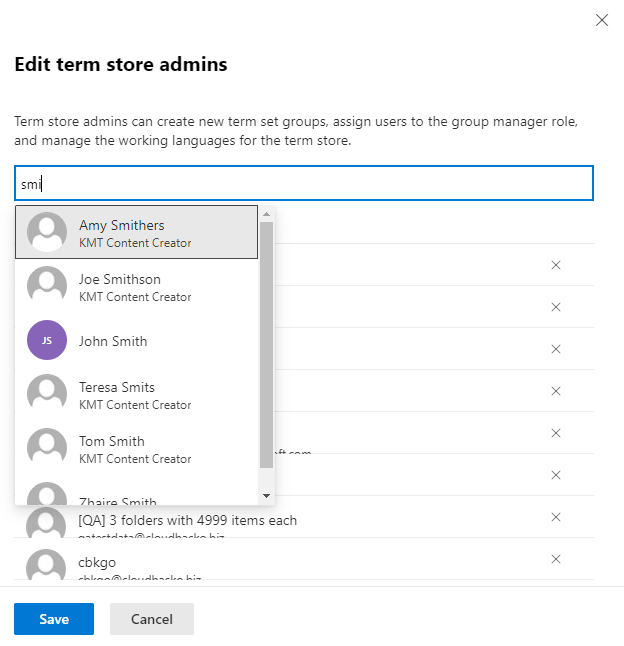
The “Edit term store admins” panel appears. Enter the names or email addresses of the Microsoft 365 user who you want to add as term store admins then click Save.
Granting Permission Discovery Management Group
This permission allows users added under the Assigned section of the “Discovery Management” group (refer to Granting Permission to Accounts for Creating Backup Set for setup) to back up and/or restore user item(s) not only for their account but also the accounts of other users in the same Assigned section.
- Open https://admin.exchange.microsoft.com/
-
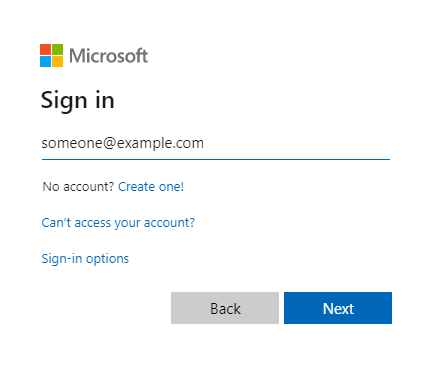
Log in to Microsoft 365 as an account administrator.
-
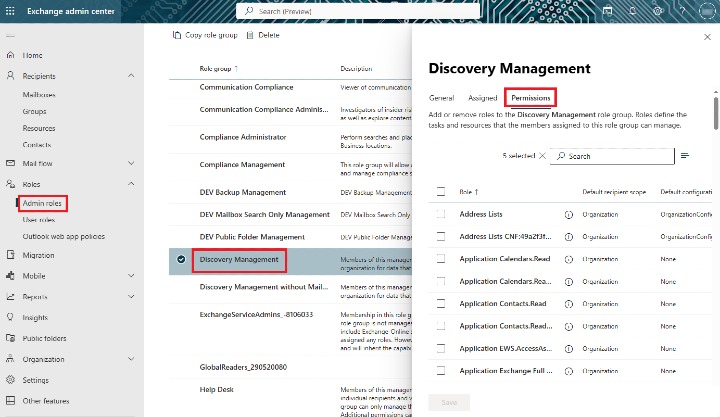
Select Admin roles which is under “Roles” on the left, then click Discovery Management in the middle. Click Permissions on the right.
-
Tick the box beside the roles you want to add. These are the following roles:
- Legal Hold
- Mailbox Import Export
- Mailbox Search
- Public Folders
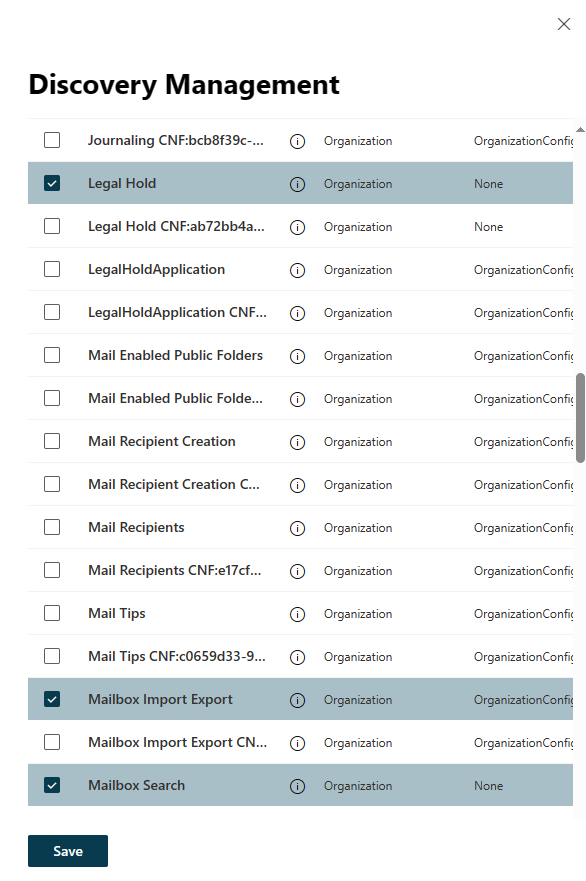
You can find the roles above easily by making use of the Search section.
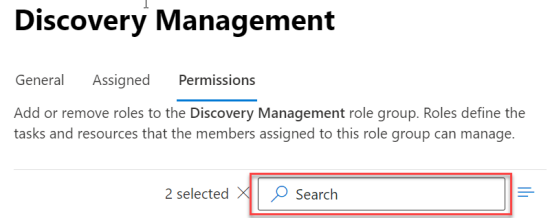
- Click Save to confirm and click the X to exit the setting.
Granting Permission to Accounts for Creating Backup Set
- Open https://admin.exchange.microsoft.com/
-
Log in to Microsoft 365 as an account administrator.
-
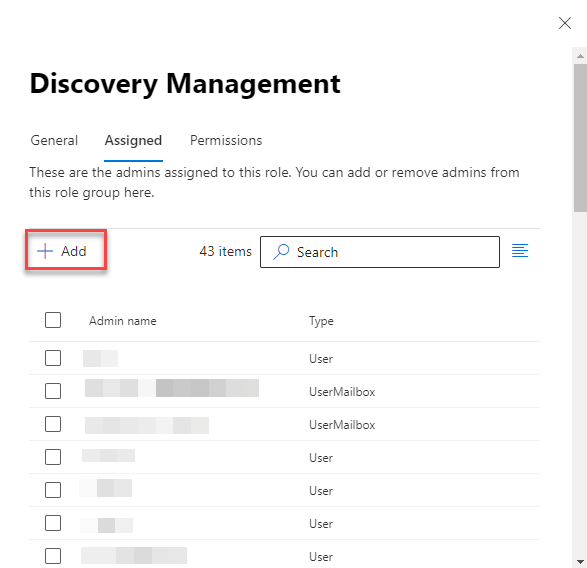
Select Admin roles which is under “Roles” on the left, then click Discovery Management in the middle. Click Assigned on the right, then click Add.
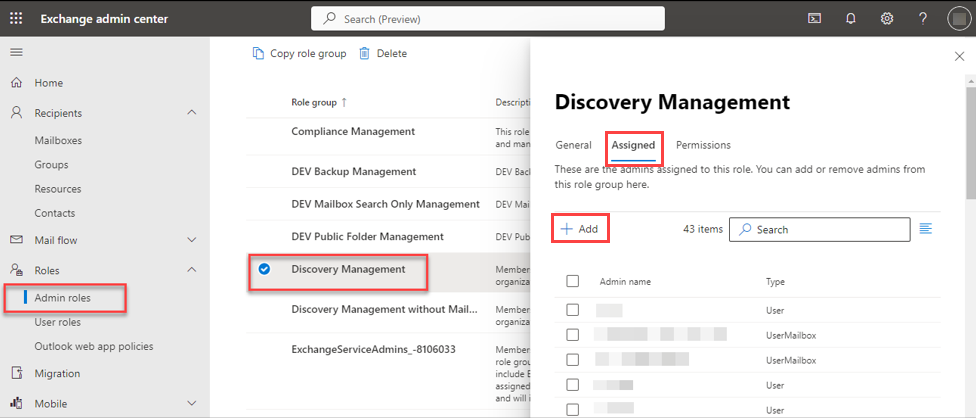
-
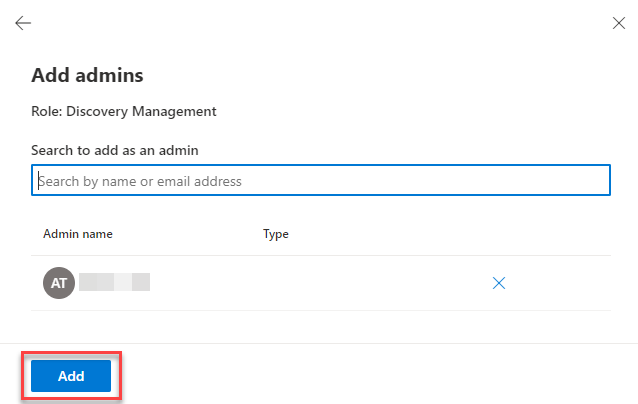
You can now add users to this group. Search by name or email address then click Add once done.
Granting Permission to Restore All Share link types to Alternate location in Microsoft 365
To successfully restore all share link types to alternate location of the same organization in Microsoft 365, follow the settings below:
Allowing Anonymous Users to Access Application Pages:
-
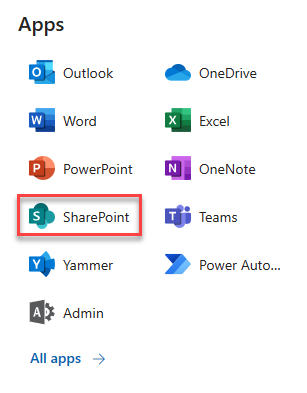
Click the App launcher in the upper left side.
-
Click SharePoint to go to the SharePoint page.
-
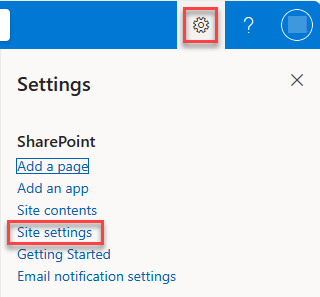
Click Settings>Site Settings
-
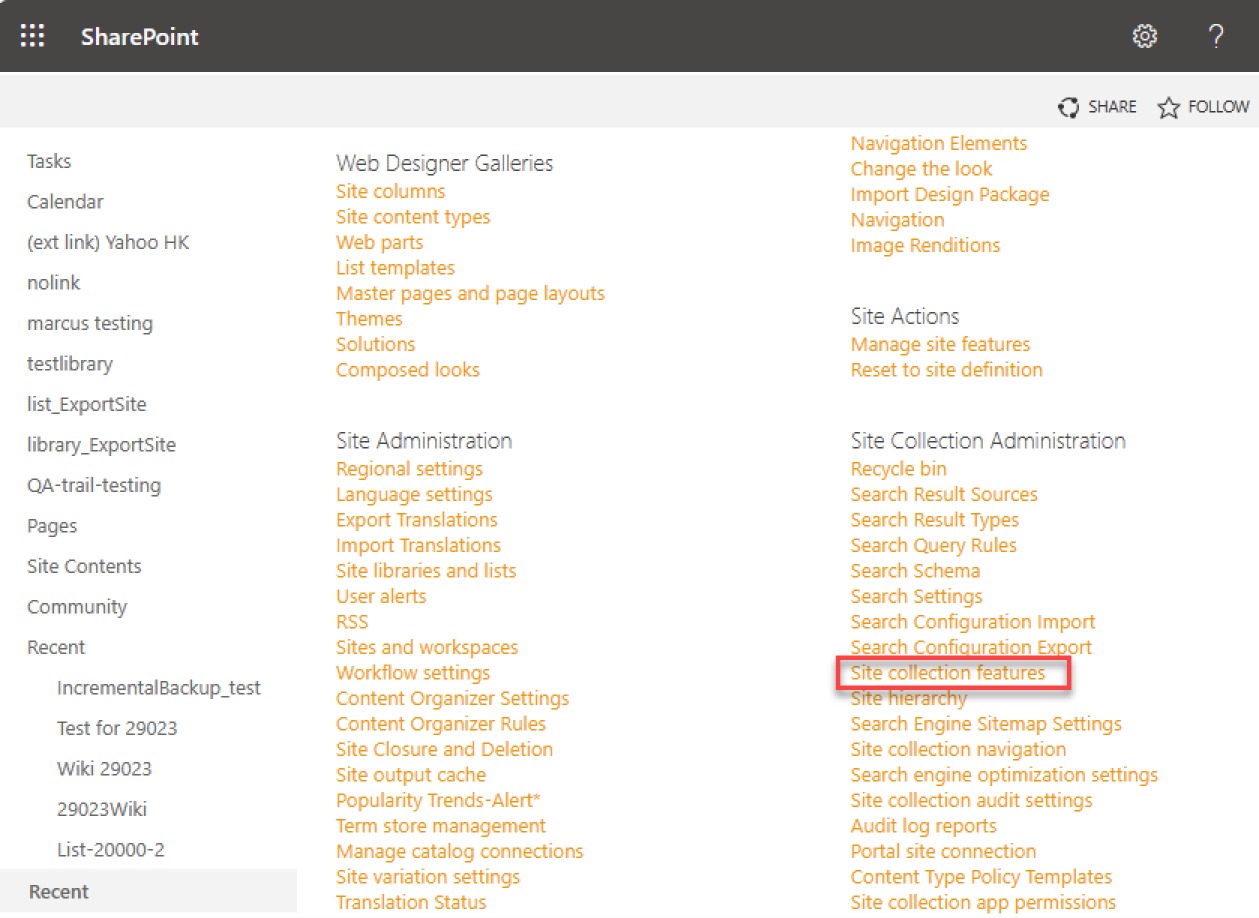
Under "Site Collection Administration", click Site collection features.
-
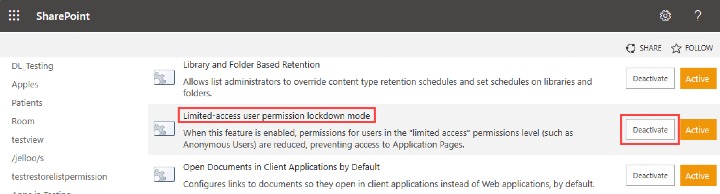
Scroll down and look for “Limited-Access user permission lockdown mode”, click the Deactivate button.
-
Click Deactivate this feature.

Once deactivated, the Deactivate button will no longer be available.

Allowing Sharing to External Users:
-
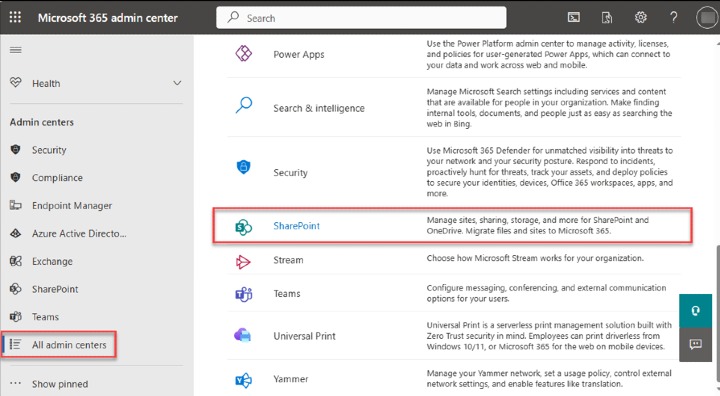
Go to your “Microsoft 365 admin center”, click All admin centers, then select SharePoint in the right pane.
-
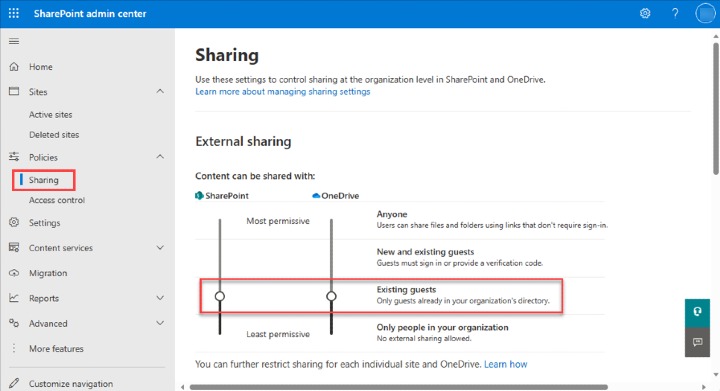
Go to Policies>Sharing. Under “External sharing” the button must be in line with “Existing guests” and click Save.
Data Synchronization Check (DSC) Setup
To compensate for the significant backup performance increase, there is a tradeoff made by the Change Key API, which skips the checking of de-selected files in the backup source, which over time can result in a discrepancy between the items or files/folders selected in the backup sources and the those in the backup destination(s). However, the Change Key API will continue to check for de-selected Microsoft 365 user accounts or Site Collections. Un-selected individual Microsoft 365 user accounts or Site Collections detected during a backup job and will be automatically moved to retention area.
To overcome this, it is necessary in some cases to run a Data Synchronization Check (DSC) periodically. The DSC is similar to a regular Microsoft 365 Change Key API backup job but with the additional checking and handling of de-selected files and/or folders in the backup source. So that it will synchronize the data in the backup source and backup destination(s) to avoid data build-up and the freeing up of storage quota.
Here are the pros and cons of performing the DSC.
| Enabled | Disabled | |
|---|---|---|
| Backup time |
Since DSC is enabled, it will only run on the set interval. For example, the default number of interval is 60 days. The backup time for the data synchronization job which is triggered every 60 days by default will take longer than the usual backup as it is checking the de-selected files and/or folders in the backup source and data in backup destination(s). |
As DSC is disabled, the backup time will not be affected. |
| Storage | Management of storage quota will be more efficient as it will detect items that are de-selected and move it to retention and will be removed after it exceeds the retention policy freeing up the storage quota. | Management of storage quota will be less efficient even though files and/or folders are already de-selected from the backup source, these files will remain in the data area of backup destination(s). |
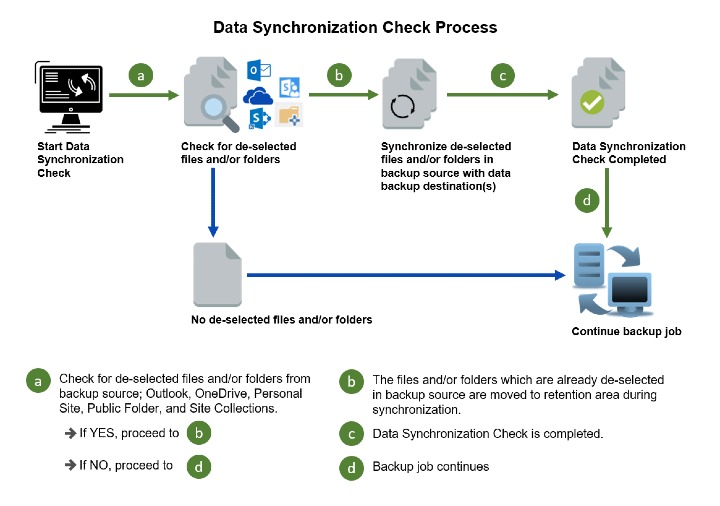
To setup the Data Synchronization Check (DSC), refer to the Set Up Data Synchronization Check (DSC).
Supported Services
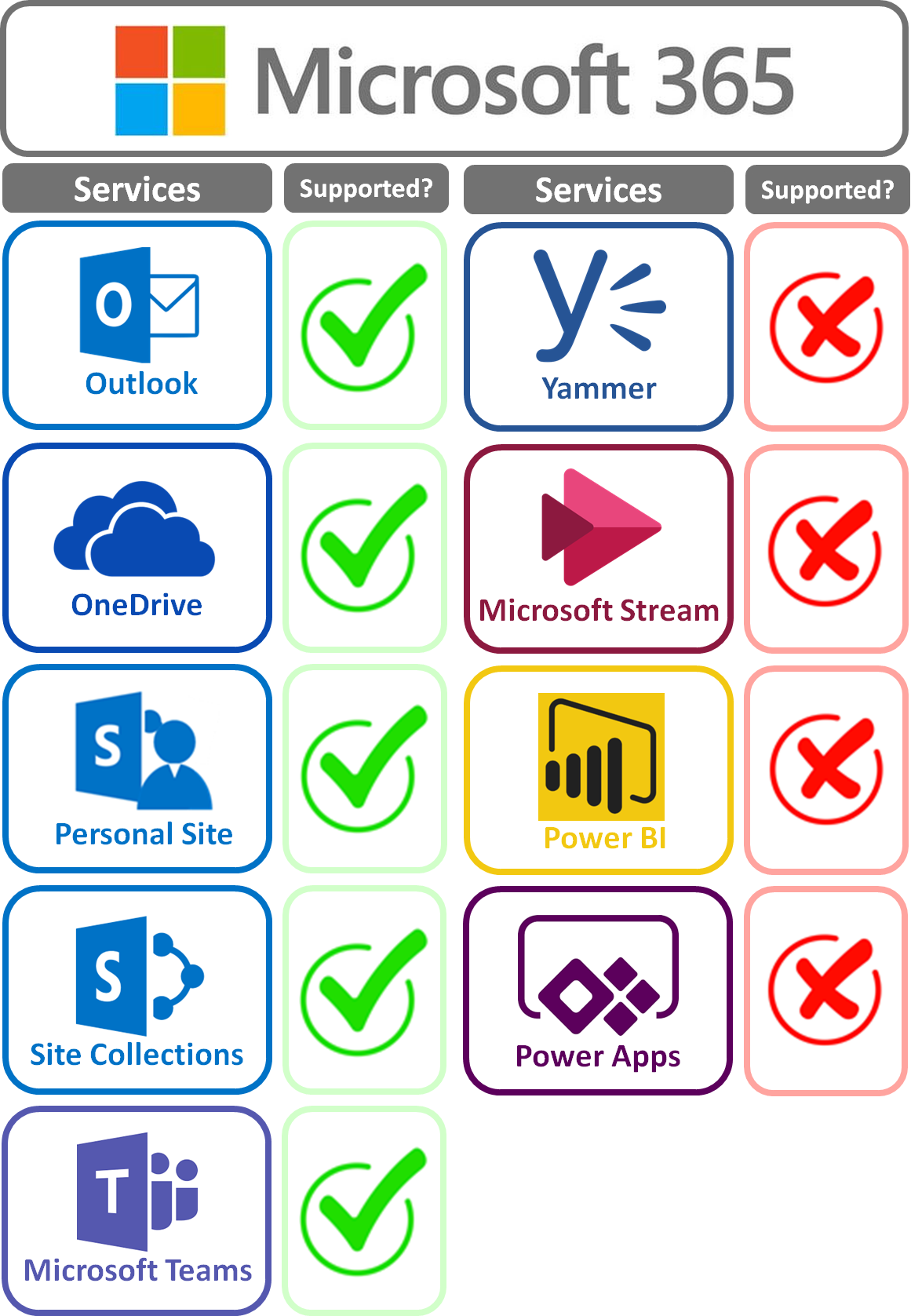
Below are the supported services of Microsoft 365 Backup module. It is also specified in the table some services that are currently not supported by the Microsoft 365 Backup module.
Below are the supported Outlook Mailbox types of Microsoft 365 Backup.
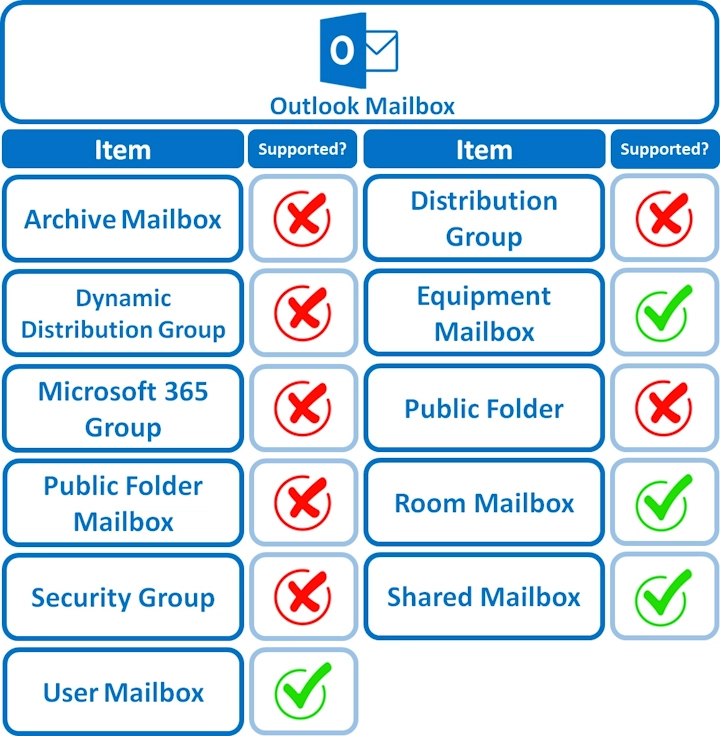
Below are the items that you can back up or restore from an Outlook mailbox.
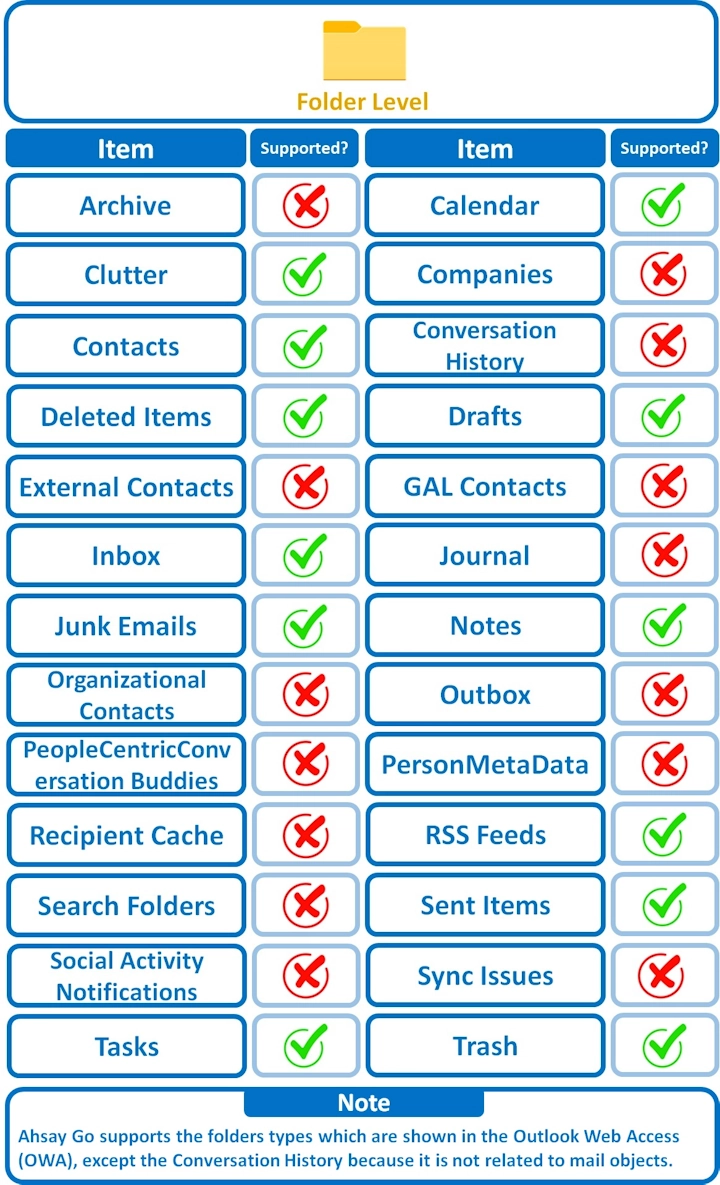
Below are the items that you can back up or restore from OneDrive.
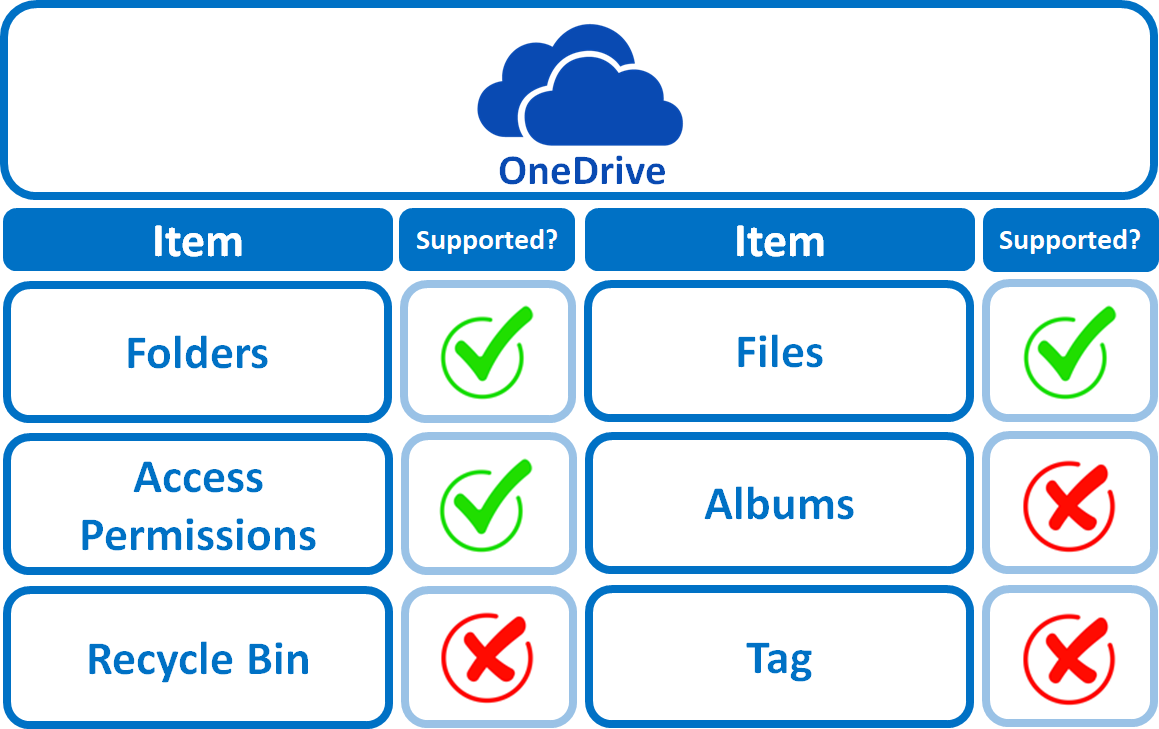
Below are the items that you can backup or restore from Teams Chat / Channel.
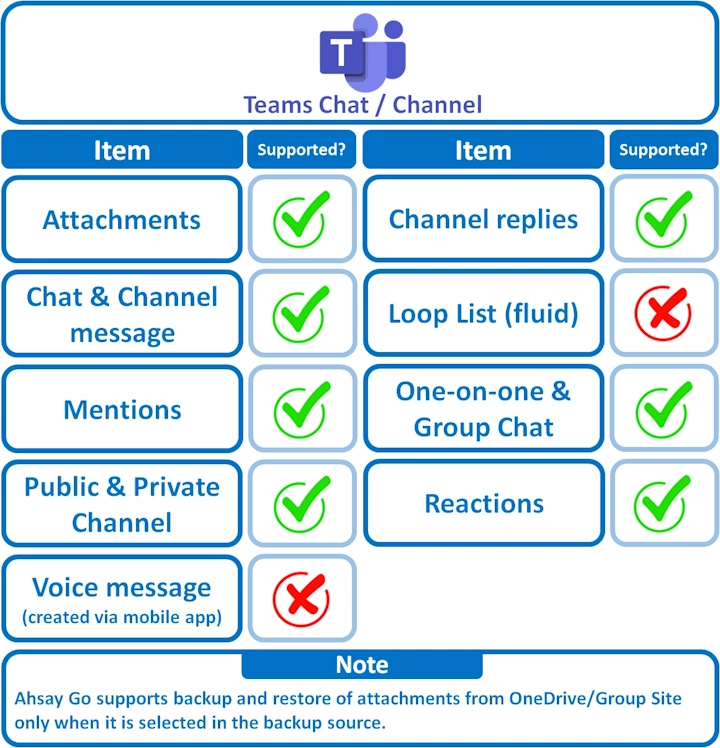
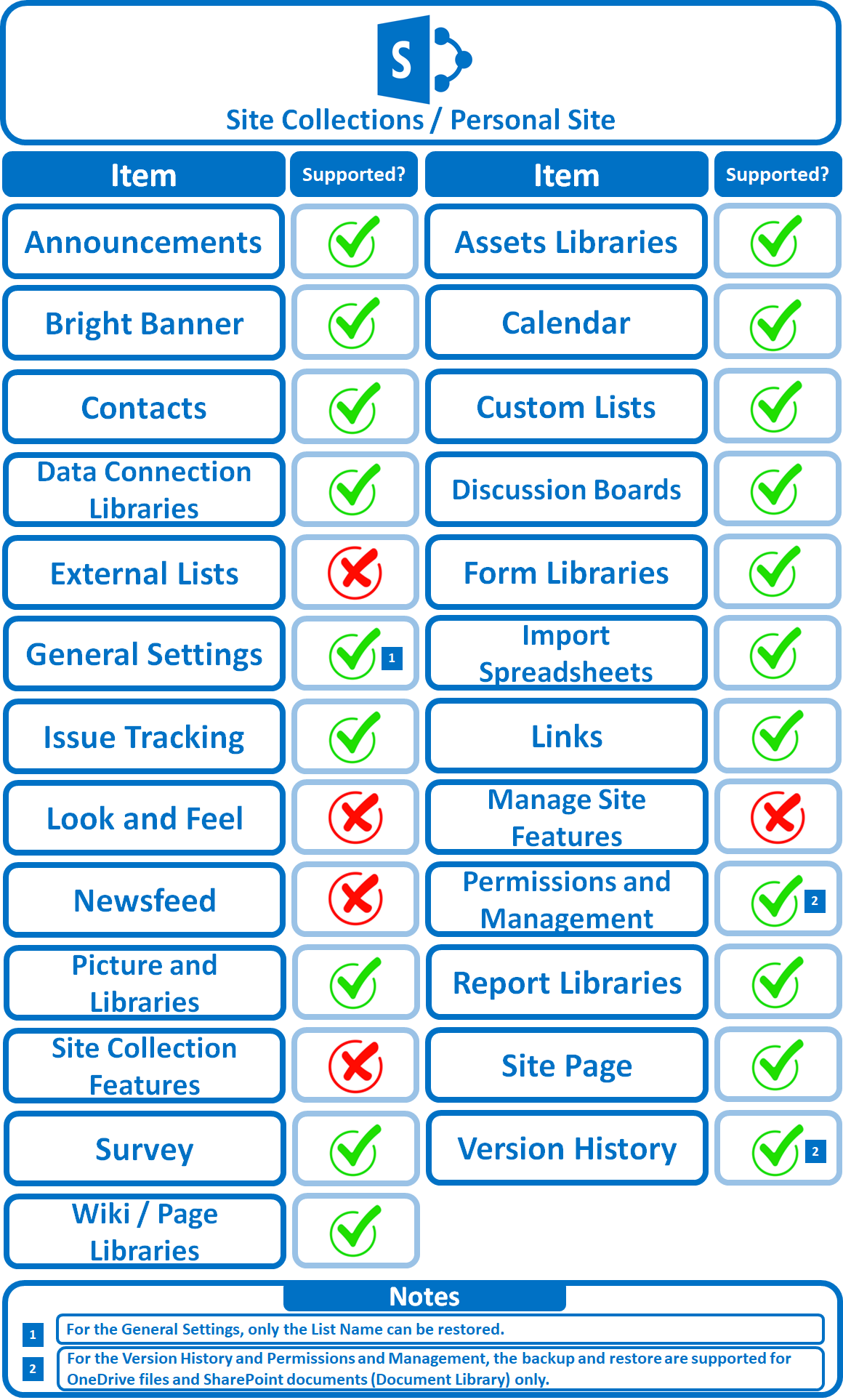
Below are the Site Collections/Personal Site items that you can back up or restore from a Microsoft 365 backup set.
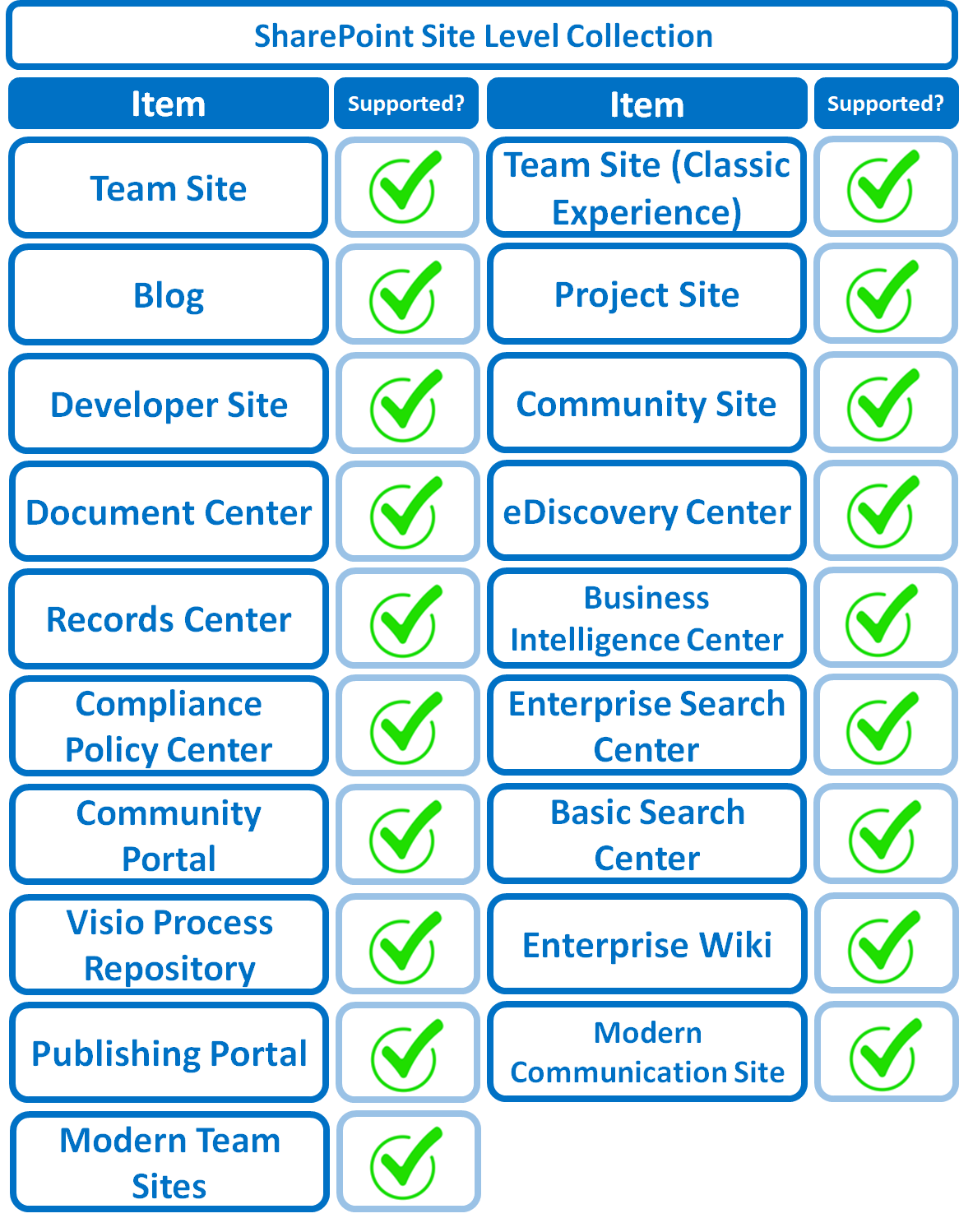
Below are the SharePoint Site Collections template that you can back up or restore from a Microsoft 365 backup set.
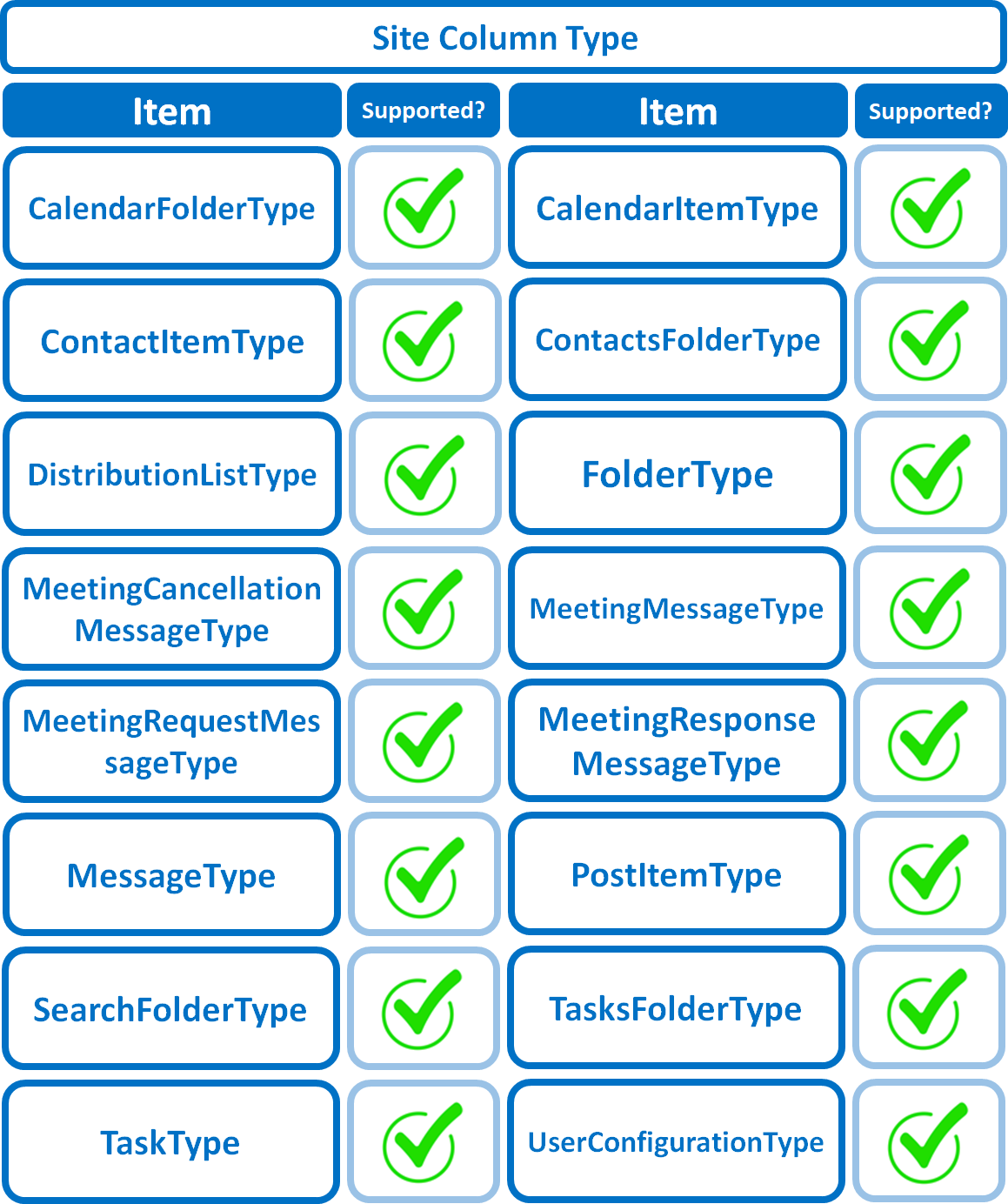
Below is the Site Column Type that you can back up or restore from a Microsoft 365 backup set.
Maximum Supported File Size
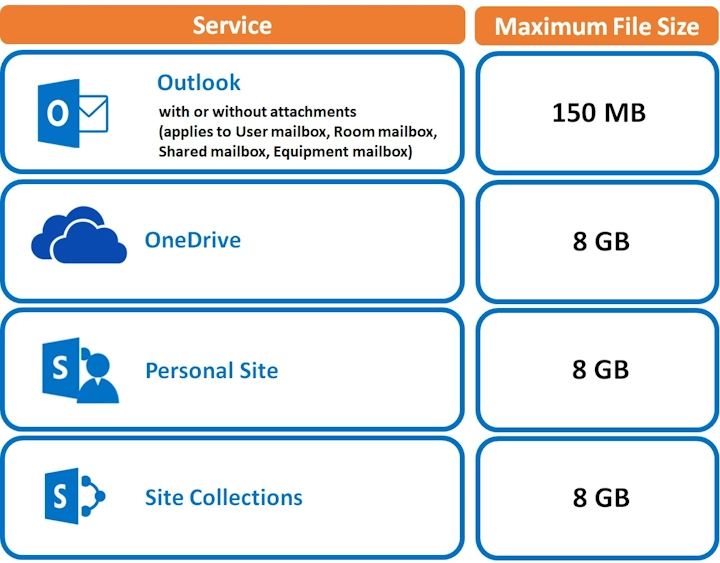
The following table shows the maximum supported file size per item for backup and restore of each service.
https://www.ahsay.com/sites/default/files/users_guide_page/4176/images/max-supported-filesize-m365-2x.webp