

 AhsayCBS
Ahsay Go - Microsoft 365 Best Practices and Recommendations
The following are some best practices or recommendations we strongly recommend you follow before you start any Microsoft 365 backup and restore.
Temporary Directory Folder Location (For Backup and Restore Running on AhsayOBM Only)
Temporary directory folder is used by Ahsay Go for storing backup set index files and any incremental or differential backup files generated during a backup job. To ensure optimal backup/restoration performance, it is recommended that the temporary directory folder is set to a local drive with sufficient free disk space.
Performance Recommendations
Consider the following best practices for optimized performance of the backup operations:
- Enable scheduled backup jobs when system activity is low to achieve the best possible performance.
- Perform test restores periodically to ensure your backup is set up and performed properly. Performing recovery test can also help identify potential issues or gaps in your recovery plan. It is important that you do not try to make the test easier, as the objective of a successful test is not to demonstrate that everything is flawless. There might be flaws identified in the plan throughout the test and it is important to identify those flaws.
Backup Destination
To provide maximum data protection and flexible restore options, it is recommended to configure:
- At least one offsite or cloud destination
- At least one local destination for fast recovery
Periodic Backup Schedule
The periodic backup schedule should be reviewed regularly to ensure that the interval is sufficient to handle the data volume on the machine. Over time, a data usage pattern may change on a production server, i.e., the number of new files created, the number of files that are updated/deleted etc.
Consider the following key points to efficiently handle backup sets with periodic backup schedule.
-
Hardware - to achieve optimal performance, compatible hardware requirements is a must. Ensure you have the backup machine’s appropriate hardware specifications to accommodate frequency of backups;
- so that the data is always backed up within the periodic backup interval
- so that the backup frequency does not affect the performance of the production server
- Network - make sure to have enough network bandwidth to accommodate the volume of data within the backup interval.
- Retention Policy - also make sure to consider the retention policy settings and retention area storage management which can grow because of the changes in the backup data for each backup job.
Large Number of Microsoft 365 Users to Backup
In general, we recommend that each Microsoft 365 backup set does not contain more than 2000 Microsoft 365 users, to ensure a daily incremental backup job completes within 24 hours assuming that only small incremental daily changes will be made on the backup set.
However, the actual number of Microsoft 365 users in a backup set may vary depending on the total number of Outlook, OneDrive, and SharePoint items, as well as the total size of these items. The actual number of Microsoft 365 users in a backup set could be considerably less or could be more than 2000.
For details on the actual item count and size of Microsoft 365 users, it is recommended to check in the Microsoft 365 Admin Centre.
Also, by splitting up all the users into separate backup sets, the more backup sets, the faster the backup process can achieve.
It is also a requirement that every split backup set should have its unique user account for authentication to minimize the probability of throttling from Microsoft.
Example: If there are 10 split backup sets, then there should be 10 unique user accounts for authentication.
Concurrent Backup Thread
The value of 4 concurrent backup threads is found to be the optimal setting for Microsoft 365 backups, to ensure best backup performance, minimal resource usage, and lowest probability of throttling of Ahsay backup requests by Microsoft 365.
Backup Source
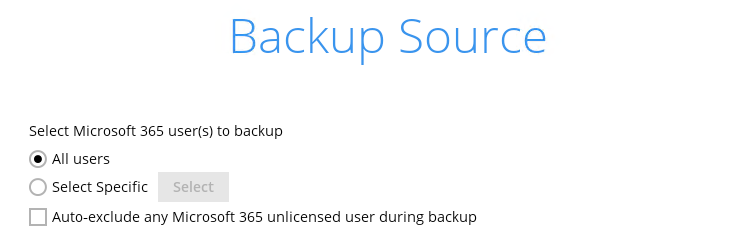
For Microsoft 365 backup sets there are two approaches for backup source selection. Below are the sample screenshots of the selection All Microsoft 365 users and Selective Microsoft 365 user.
-
All Microsoft 365 users
If you tick the Backup all Users, all of the sub-Microsoft 365 user accounts will automatically be selected.
-
Selective Microsoft 365 users
If you tick Select Specific, then click Select, you will notice that the All Users checkbox is highlighted with gray color. This indicated that not all the users are selected.
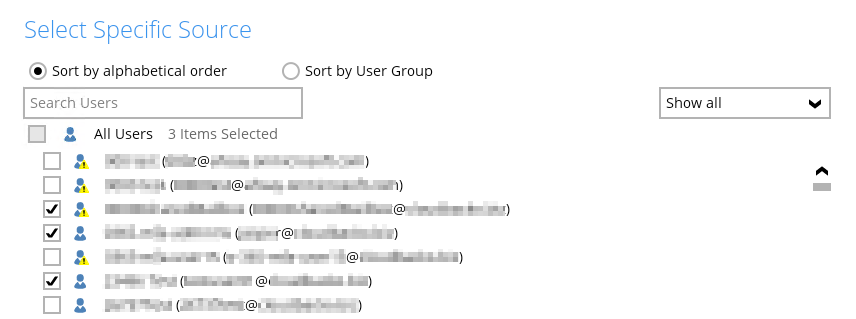
These are the Pros and Cons when selecting a backup source from all Microsoft 365 users and selective Microsoft 365 users.
All Microsoft 365 users Selective Microsoft 365 user Backup Set Maintenance The Admin does not need to manage the backup set, i.e. to select or unselect use when a Microsoft 365 user account was added or removed, the changes are automatically updated in the backup source. The Admin will have to select or unselect users manually when a Microsoft 365 user account was added or removed, as the changes are not automatically updated in the backup source this can be very time consuming.
If a Microsoft 365 user account is removed from the domain and the admin forgets to unselect the Microsoft 365 user account from the backup source, then this will cause a warning that the user does not exist.
For more details on the backup set maintenace, please see Example Scenario for Backup Set Maintenance.
Backup Time All Microsoft 365 user accounts will be backed up. This means the initial full backup job will take longer, any subsequent incremental backup will take longer. Only selective Microsoft 365 user accounts will be backed up. This will mean the initial full backup job will be faster, any subsequent incremental backup will be faster. Storage As all Microsoft 365 user accounts are backed up, more storage will be required. As only selective Microsoft 365 user accounts will be backed up, the backup set will require relatively less storage. Data Synchronization Check (For Windows Only) As all Microsoft 365 user accounts are selected for backup, regular DSC may not be required. As only selective files and/or folders are selected for backup, DSC is highly recommended to synchronize de-selected files and/or folders in the backup source with the backup destination(s).
To know more about the DSC, please refer to: Set Up Data Synchronization Check (DSC).