

 AhsayCBS
Ahsay Go - VMware Requirements
VMware vCenter/ESXi Requirements
For backup of virtual machines on vCenter / ESXi servers, make sure the following requirements are met.
ESXi/vCenter Patch Release
Make sure that the latest supported patch release is installed on the vCenter / ESXi hosts to prevent critical issue, such as corruption to change tracking data in certain situation (QueryChangedDiskAreas API returns incorrect sectors after extending virtual machine VMDK file with Changed Block Tracking (CBT) enabled in ESXi 8.0u2)
ESXi Shell Access
- ESXi Shell access must be enabled on the ESXi servers. Refer to the following VMware KB article for instruction: Using ESXi Shell in ESXi 6.x, 7.x, and 8.x
- Consult with VMware support representatives if you are unsure on the process.
License Specification
- Paid License (VMware Essentials License or above): VMware ESXi and vCenter v5.5, v6, v6.5, v6.7, and v7.
- Free License: VMware ESXi v5.5, v6, v6.5, v6.7
For backup of VMware vCenter/ESXi 7 hosts using a Free License key or if Ahsay Go is installed on a non-Windows staging machine such as macOS or Linux, the guest VMs must be powered off.
SSH
SSH must be enabled on the hypervisor (ESXi Server). To enable root SSH login on an ESXi host, please follow the below instructions from VMware.
Allowing SSH access to VMware vSphere ESXi/ESX hosts
Root Account
Ahsay Go requires root account access to the ESXi server to perform backup and restore.
Port Requirement
- For environment with firewall, the vCenter, ESXi servers and Backup Client Computer must be able to communicate with each other.
-
Ensure that ports 22, 80, 111, 443 and 902 allow outbound communication on the vCenter and ESXi servers. Refer to the link below for details on port usage:
Ports 443 and 902 are default ports for VMware.
If these have been changed from the default in your VMware environment, the firewall requirements will change accordingly.
Disk Space Available on Datastore
Sufficient disk space must be allocated on the datastore (e.g. 1.2 x size of the largest virtual machine selected for backup), where the virtual machine(s) for backup are located.
VMware Tools
VMware Tools are used to quiesce VMs prior to backing them up. To create consistent backup for your VMs on Windows platforms, ensure that VMware Tools are installed, and up to date on all VMs to be backup.
Quiescing is a process that ensures that the disk data is in a state suitable for backups to reduce the possibility of data corruption upon restore. This is especially important for transactional-based applications running on VMs like MS SQL Server.
There are different types of quiescing mechanisms, according to the guest operating systems (e.g. Crashconsistent, File-system-consistent and Application-consistent quiescing).
ESXi Hosts and Virtual Machine Hardware Versions Compatibility
Refer to the link below for information on the supported and compatible virtual machine hardware versions in VMware vSphere.
ESXi hosts and compatible virtual machine hardware versions list
Backup Client Computer Requirements
In the following VMware setup:
- Standalone VMware ESXi Server
-
VMware vCenter Server
- Windows VMware vCenter Server
- VMware vCenter Server Appliance (vCSA)
For backup of virtual machines on VMware vCenter/ESXi Server, it is recommended a separate Backup Client Computer (staging machine) must be prepared for Ahsay Go to be installed on.
Ahsay Go installed on a Windows machine will allow support for VDDK backup mode, Run Direct, Granular Restore and vSAN Cluster.
However, for Standalone VMware ESXi Server and VMware vCenter Server Appliance (vCSA), Ahsay Go can be installed on either a Linux (GUI) or MacOS machine but VDDK backup mode, Run Direct, Granular Restore and vSAN Cluster are not supported on these platforms.
Ahsay Go cannot be directly installed on a VMware ESXi server or VMware vCenter Server Appliance (vCSA).
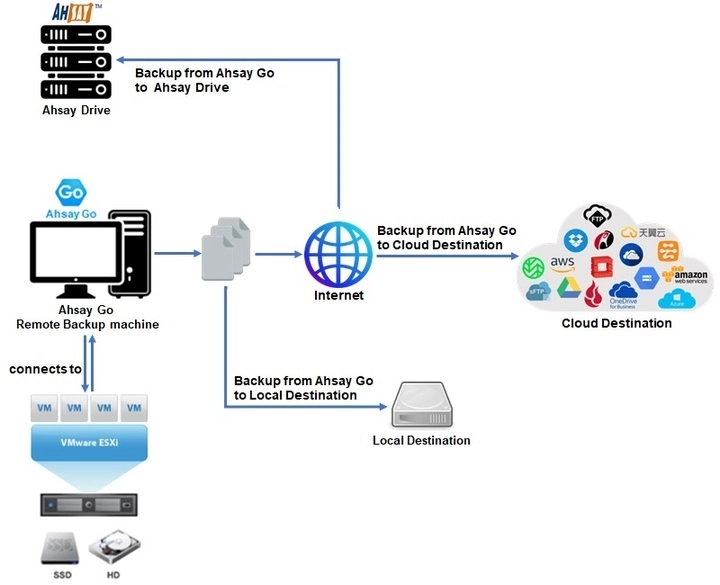
Ahsay Go is installed on a remote backup machine which connects to the standalone VMware ESXi server. The backup is saved either on Ahsay Drive, a local destination on the Ahsay Go remote backup machine or to a cloud destination.
For environments with the following vSAN setups, the Ahsay Go setup and deployment for Two Node and Standard vSAN Cluster are similar as they both are on one site.
The following are the different types of setups for each vSAN Cluster:
Two Node vSAN Cluster
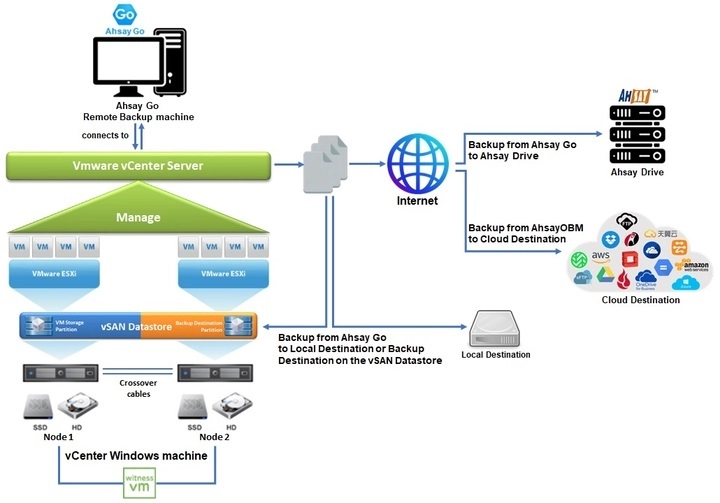
For environment with Windows vCenter Server with Two Node vSAN Cluster setup, a separate Backup Client Computer must be prepared for Ahsay Go to be installed on.
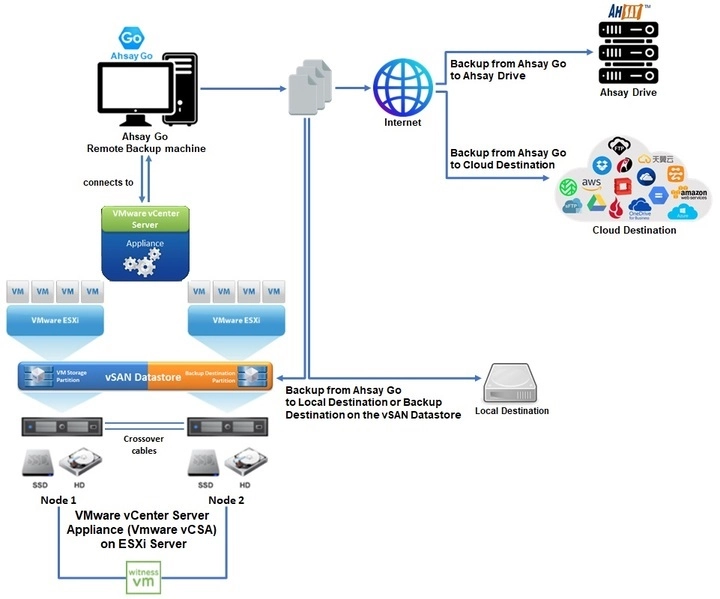
For VMware vCenter Server Appliance (vCSA) with Two Node vSAN Cluster setup, a separate Backup Client Computer must be prepared for Ahsay Go to be installed on.
Standard vSAN Cluster
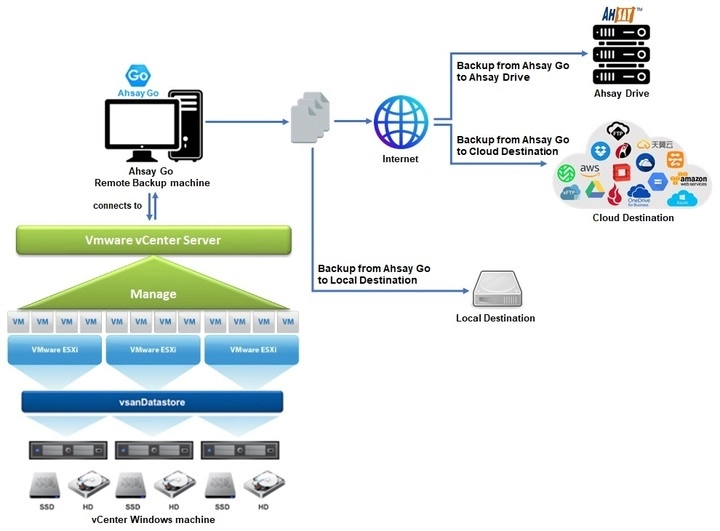
For environment with Windows vCenter Server with Standard vSAN Cluster setup, a separate Backup Client Computer must be prepared for Ahsay Go to be installed on.
For VMware vCenter Server Appliance (vCSA) with Standard vSAN Cluster setup, a separate Backup Client Computer must be prepared for Ahsay Go to be installed on.
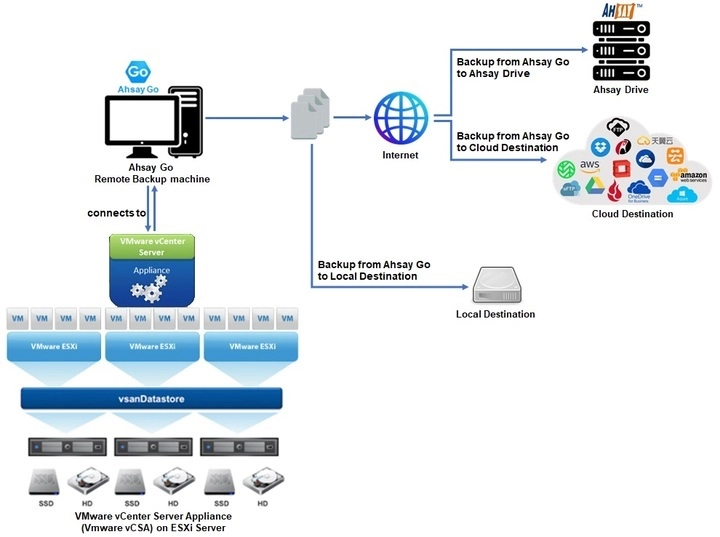
Stretched vSAN Cluster
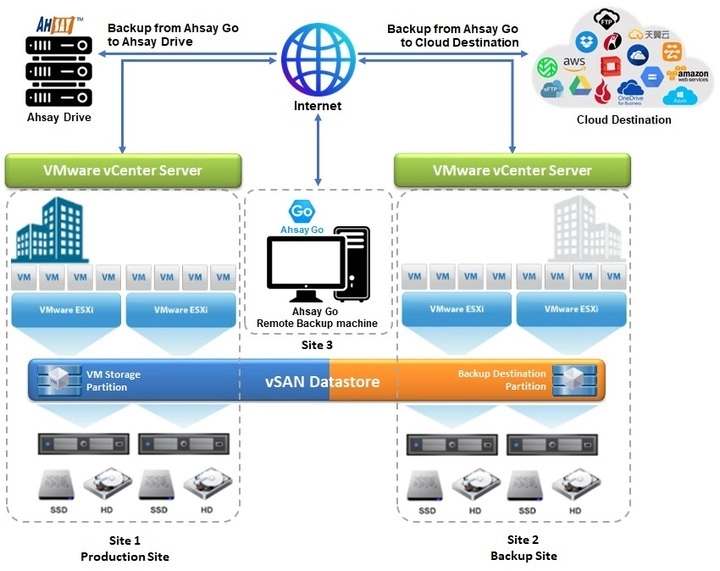
For environment with Windows vCenter Server with Stretched vSAN Cluster setup, a separate Backup Client Computer on a third location connected to the production site using internet connection must be prepared for Ahsay Go to be installed on.
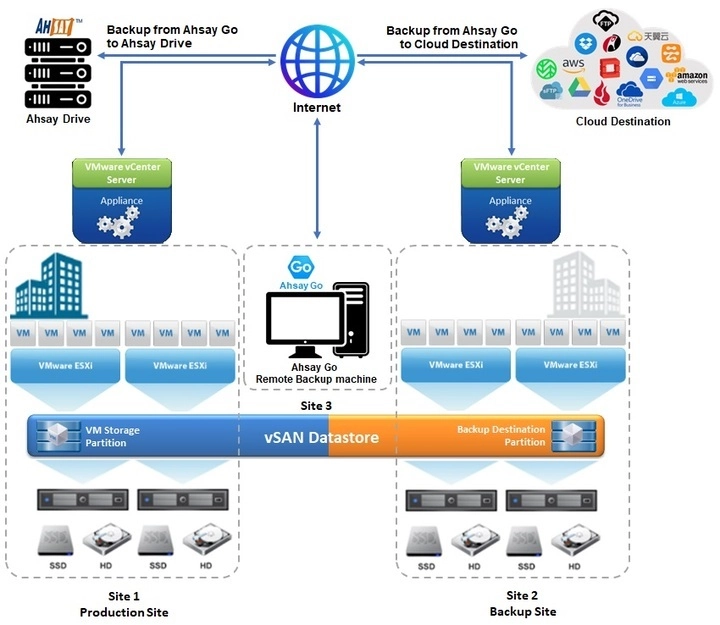
For VMware vCenter Server Appliance (vCSA) with Stretched vSAN Cluster setup, a separate Backup Client Computer on a third location connected to the production site using internet connection must be prepared for Ahsay Go to be installed on.
Backup Client Computer on Linux
For Backup Client Computer running on Linux operating system platform, the Graphical User Interface (GUI) environment (e.g. GNOME or KDE) must be installed to support selection of guest VMs in backup source.
Run Direct restore, VDDK backup mode, Granular Restore and vSAN Cluster are not supported for Backup Client Computer on Linux / Mac OS X platforms.
Disk Space Available on Backup Client Computer (or the vCenter Computer)
Sufficient disk space must be allocated on the Backup Client Computer (or the Windows vCenter server if Ahsay Go is installed on this machine) for the temporary directory configured for the backup set, and the formula for the calculation of disk space is as follows:
(Total File Size * Delta Ratio) * number of backup destinations = Maximum Free Space Required
The calculation is based on the current guest VM size, and it does not consider guest VM growth over time. It is recommended for fast growing guest VM the maximum free space required should be reviewed on a regular basis to avoid potential backup problems.
Windows OS Requirement for VDDK Mode
Make sure Ahsay Go is installed on:
- 64-bit Windows OS if you will back up VM data from VMware vCenter/ESXi 6.5 or above.
- For VMware vCenter/ESXi 7 or above, Ahsay Go must be installed on Windows version: Windows Server 2016 (including versions 1709 and 1803) / Windows Server 2019 / Windows Server 2022 / Windows Server 2025.
Run Direct Requirements
Run Direct is a feature that helps reduce disruption and downtime of your production VMs.
For more details on Run Direct, refer to Instant VM Restore with Run Direct in the Introduction.
To utilize the Run Direct feature, ensure that the following requirements are met:
VDDK Backup Mode
Run Direct restore is only supported for virtual machines that are backed up in VDDK mode. Make sure that the VDDK Backup Mode Requirements are met.
Backup Destination Requirements
- When a Run Direct restore is performed, the backup destination containing the guest VM files is mounted on the VMware host as NFS datastore.
-
Ensure that the following requirements are met by the backup destination of the VMware VM backup set:
- Destination must be accessible to the VMware host.
- Destination must have sufficient disk space available for the Run Direct restore. There should be 1.5 x total provisioned size of all VMs selected for backup.
- For Run Direct restore of 1 VM with provisioned size of 100GB, there should be 150GB (e.g. 1.5 x 100GB) of free space available in the Destination.
-
Operating System of the Backup Client Computer
- Run Direct restore is only supported by Ahsay Go installation on Windows.
- To utilize the Run Direct feature, make sure that Ahsay Go is installed on a supported Windows platform.
VDDK Backup Mode Requirements
Ahsay Go supports VDDK backup mode (Virtual Disk Development Kit) for ESXi and vCenter setup. The backup speed is enhanced as the generation of the delta file of the VM are performed directly by the ESXi or vCenter itself. With VDDK backup mode, the following are supported:
- Backup / restore of the resource pool and 'roles' settings, and support of restoration to another name or alternate location on the ESXi platform.
- VM hardware version upgrade, change tracking option and change tracking data option when a new backup set is created.
- Add or remove VM hard disk without uploading the existing hard disk again on the vCenter backup.
For VDDK backup mode, Ahsay Go must be installed on a supported Windows operating system as VDDK backup mode is only supported on Windows platform.
License Requirement
- The VMware vSphere Storage APIs, which are essential for VDDK backup mode, are included with the VMware vSphere Enterprise Standard, Enterprise and Enterprise Plus Edition.
- Ensure that the license requirement is met.
For VM on free version of ESXi with a Run Direct backup destination, the following error message would be returned during a backup:
”Skip backing up Virtual Machine “name". Reason = "Run Direct is only support to VDDK backup mode"”.
Changed Block Tracking (CBT) on VMs
CBT must be enabled for the VM to be backed up in VDDK mode. Make sure that the following requirements are met:
- The VM must be hardware version 7 or later.
- The VM must have zero (0) snapshots when CBT is enabled.
- The virtual disk must be located on a vSAN volume, VMFS volume backed by SAN, iSCSI, local disk, or an NFS volume.
For virtual disk on VMFS, the initial backup (e.g. full file backup) will be of size similar to used size; while for virtual disk on NFS, the initial backup will be of the provisioned size.
Once you run the Ahsay Go CBT enabled backup job on a VM with VMware CBT setting enabled, going forward you should not disable VMware CBT. The backup will fail if you disable CBT from VMware, even though Ahsay Go CBT setting is enabled.
VMware Snapshot
VDDK backup mode does not support backup of virtual machine snapshot.
For backup of individual virtual disk, the restored virtual machine does not support the reversion of previous snapshots, if the snapshot contains disks which are not previously backed up by Ahsay Go.
Virtual Machine State
VDDK backup mode does not support backup of virtual machine state (e.g. power on state/suspend state).
File Name Requirement
If the file name of the virtual machine contains the following special characters, the https access to the virtual machine’s files will fail:
` ^ ~ = ; ! / ( [ ] { } @ $ \ & # % +
This is due to the percent-encoding specified in the URL standard is not supported for ESXi based HTTP(S) file access. To resolve the issue, please rename the corresponding file to avoid special characters. For instructions on renaming a virtual machine, please refer to the following answers from VMware support: Renaming a virtual machine.
Restore Requirement
For VMware ESXi restore, the virtual machine must be restored to a VMware ESXi host with the same VMFS datastore version.
For example, the backup of the virtual machine was done on a VMware ESXi host with a VMFS5 datastore in VDDK backup mode but is restored to a VMware ESXi host using a VMFS6 datastore and vice versa.
This limitation does not apply to VMware vCenter backup sets.
vSAN Backup and Restore
Requirements
For VMs using vSAN datastore, here are the requirements:
-
Supported vSAN setups
- Two Node vSAN Cluster
- Standard vSAN Cluster
- Stretched vSAN Cluster
-
VMware vSAN version with corresponding vCenter and ESXi compatible version.
vSAN version vCenter version ESXi version 5.5 5.5 or later 5.5 or later 6.0 6.0 or later 6.0 or later 6.1 6.0 or later 6.0 or later 6.2 6.0 or later 6.0 or later 6.5 6.5 or later 6.5 or later 6.6 6.5 or later 6.5 or later 6.6.1 6.5 or later 6.5 or later 6.7 6.7 or later 6.7 or later 7.0 7.0 or later 7.0 or later -
Ahsay Go must be installed on a supported Windows operating system as vSAN backup and restore is only supported on Windows platform.
-
Backup set version must be VMware vCenter.
- Only VDDK backup mode is supported for VMs in vSAN datastore.
- VMware vMotion must be enabled on the vCenter and ESXi servers for Run Direct to support live migration.
- For Stretched vSAN Cluster, the Ahsay Go staging machine must be located on another site aside from the VMware Center production and backup sites.
Granular Restore Requirements
Temporary Directory Requirement
The temporary directory folder should have at least the same available size as the guest VM to be restored and should be located on a local drive to ensure optimal backup/restore performance.
Network Drive Requirements
The login accounts for network drives must have read and write access permission to ensure that backup and restore would be successful.
Available Spare Drive Letter
One spare drive letter must be available on the Windows machine for the Granular Restore process, as the VDDK virtual disk is mounted on Windows as a logical drive. Ahsay Go will automatically take the next available drive letter in alphabetical order for the mounted virtual disk.
The Windows drive letters A, B, and C are not used by Granular Restore.
The Granular Restore assigned driver letter(s) will be released once you exit from Ahsay Go UI.
Network Requirements
The recommended minimum network speed is at Least 100Mbps download speed.
The network bandwidth requirements will increase in proportion to the size of the guest VM and the incremental delta chain length to ensure optimal performance. Working with limited network bandwidth may severely affect the granular restore performance.
You can use an online network speed test website to get an idea of the actual bandwidth of the machine.
Other Dependencies
The following dependencies are restore-related and therefore they will be checked by Ahsay Go only when granular restore is performed. Absence of these elements will not affect the backup job but would cause the restore to fail.
Permissions
- The Windows login account used for installation and operation of the Ahsay Go client machine requires Administrator privileges.
- For Granular Restore, Windows User Account Control (UAC) must be disabled.
- For Granular Restore (OpenDirect), it is required to log in as the real Windows administrator and not any other user with admin role or with elevated admin account permission. The real administrator account will be the one with the security identifier (SID) "S-1-5-21domain-500".
For more information about security identifiers in Windows OS, refer to the following article: Security identifiers.