AhsayCBS
Cloud File Restore on AhsayOBM using QNAP NAS
-
On the main interface, click Restore.
-
Select the backup set and destination.
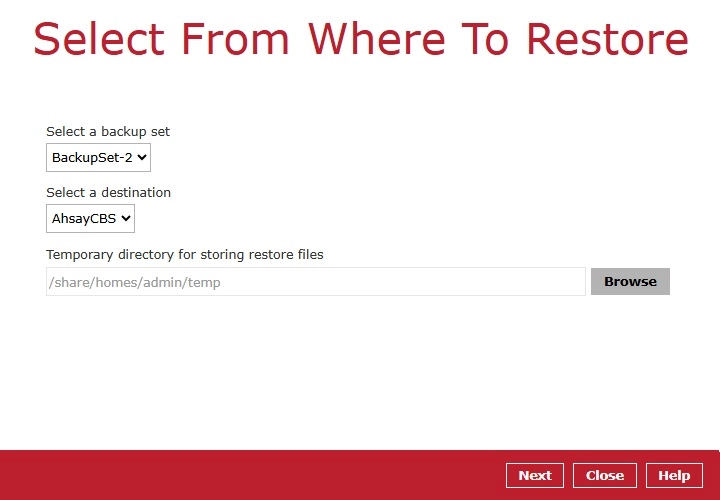
You may change the path under "Temporary directory for storing restore files" by clicking the Browse button. This will allow you to select the directory that will be used to store the temporary files.

Click Next to proceed.
-
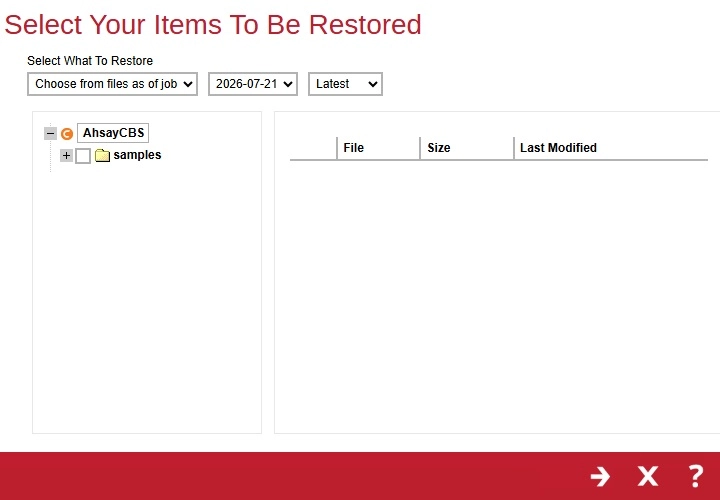
Select to restore from a specific backup job, or the latest job available from the “Select what to restore” drop-down menu.
-
Select to restore the files to their Original location, to an Alternate location or Restore Raw to Client Local.
-
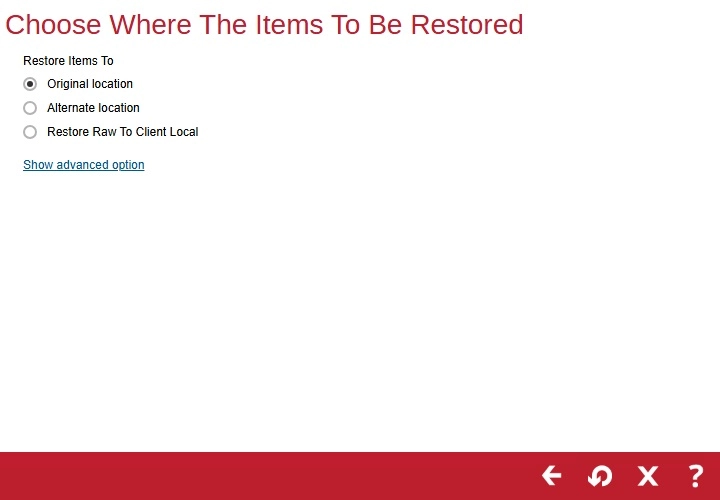
Original location
If you have chosen this option, the backup data will be restored to the original location on the cloud storage.
-
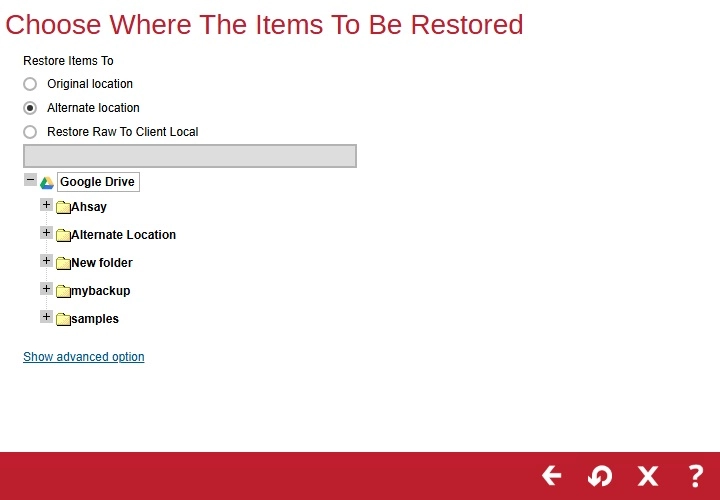
Alternate location
If you have chosen this option, backup data will be restored to a different folder on the same cloud storage.
-
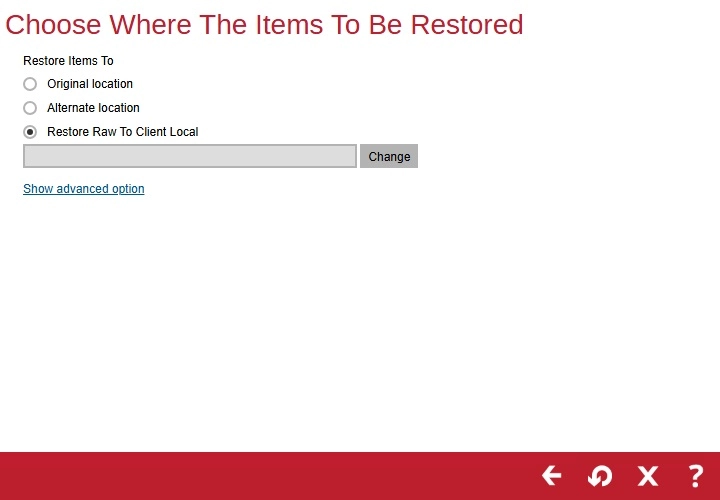
Restore Raw To Client Local
If you have chosen this option, backup data will be restored to the NAS device where AhsayOBM is running. Click Change to select the folder where the data will be restored on the NAS device.
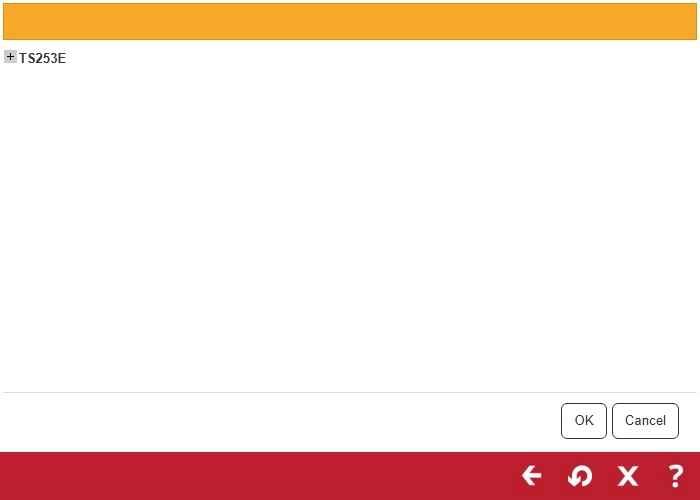
Select the folder where the data will be restored then click OK.
Click Show advanced option to configure other restore settings.
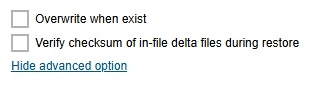
Overwrite when exist
By ticking this option, if the backup data already exists in the restore location, it will be overwritten with the backup data.
Verify checksum of in-file delta files during restore
By ticking this option, the checksum of in-file delta files will be verified during the restore process. This will check the data for errors during the restore process and will create a data summary of the in-file delta files which will be included in the report.
Click Restore to start the restore process.
Data can only be restored to the NAS device or to the original cloud storage where the data was backed up from (i.e. same cloud storage provider and same account). Restoring backup data to a different NAS device, cloud storage provider or different account is NOT possible.
-
-
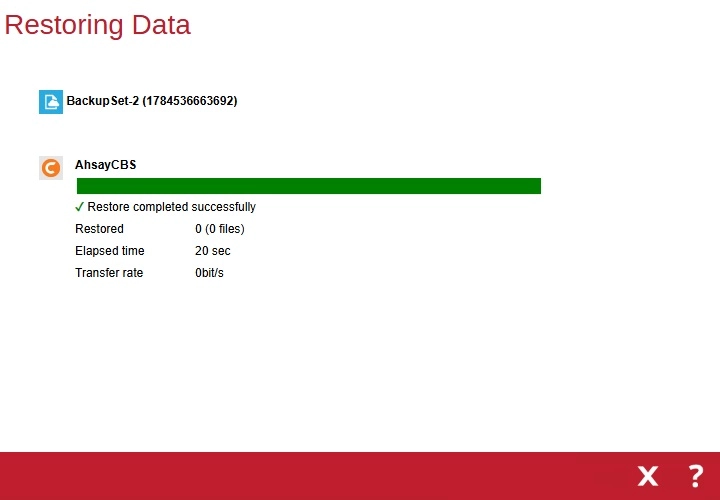
The following screen will be displayed after the restore process is complete.