

 AhsayCBS
Ahsay Go - Run VMware Backup Job
-
Click the Backup icon on the main interface of Ahsay Go.
-
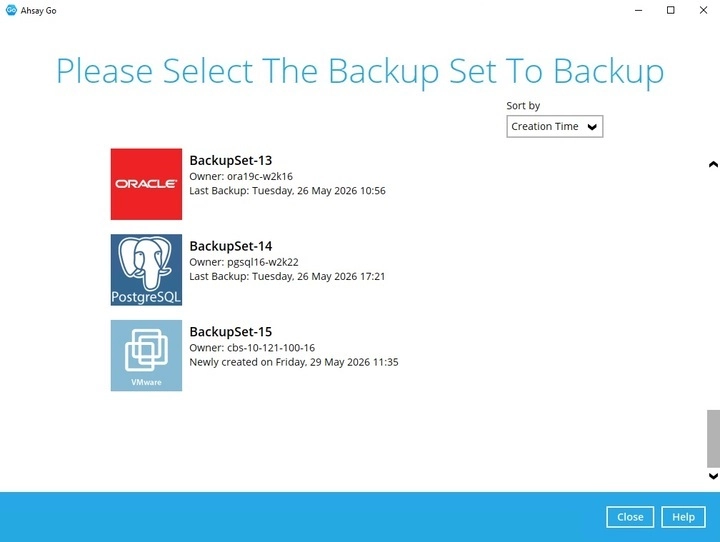
Select the VMware backup set which you would like to start a manual backup for.
-
Choose a backup set type (i.e., Full or Incremental)
- Full - A full backup captures all the data that you want to protect. When you run a backup job for the first time, AhsayOBM will run a full backup regardless of the in-file delta setting.
- Incremental - An incremental backup captures only the changes made as compared with the last uploaded full or delta file (e.g. changes since the last incremental backup).
You can also modify the “Destinations” option.
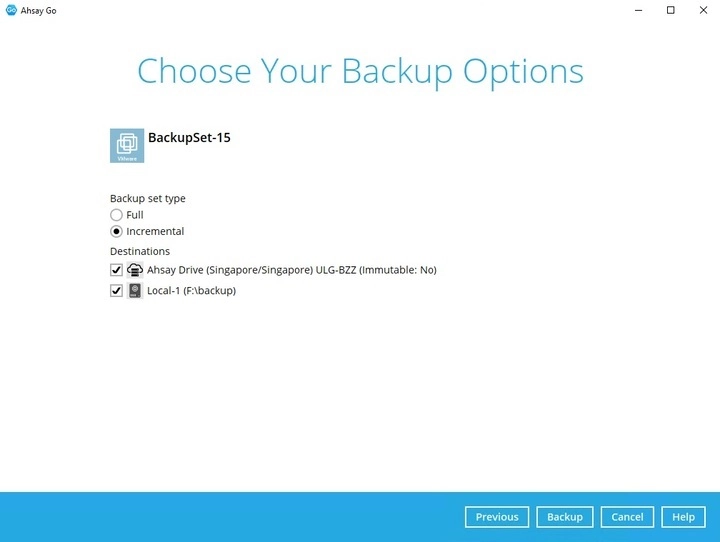
Once done with the settings, click the Backup button to start the backup job.
-
The status of the backup job will be shown.
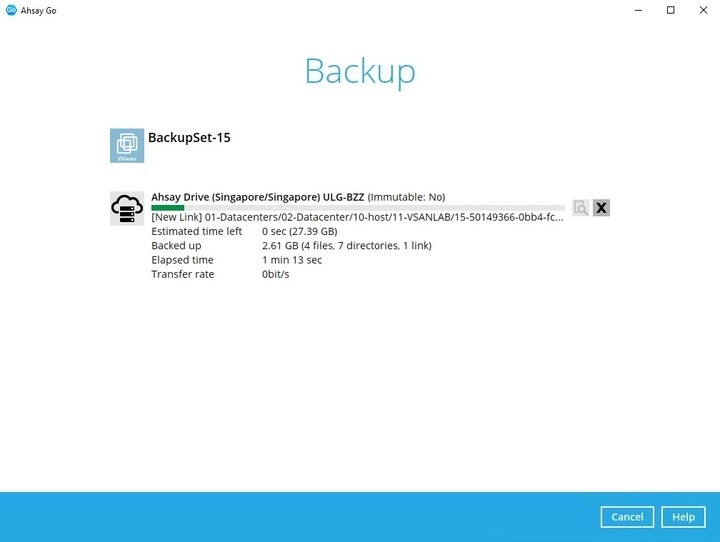
Another way of checking the progress of the backup is from vSphere. The backup has started when a Snapshot of the VM was created.

-
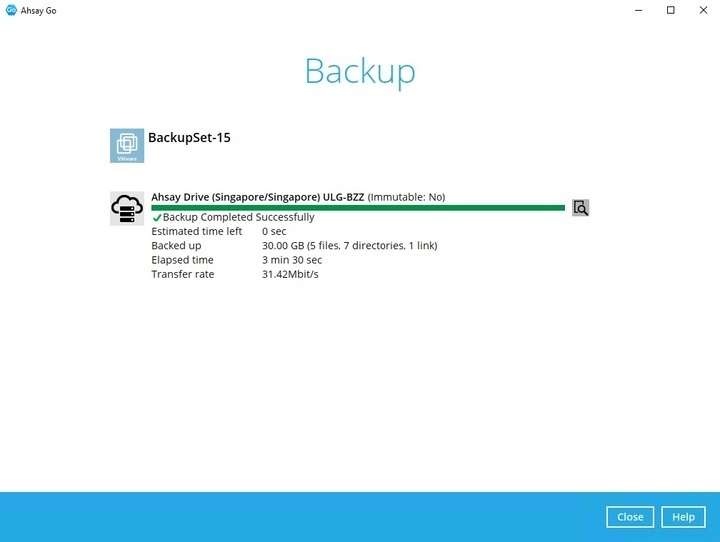
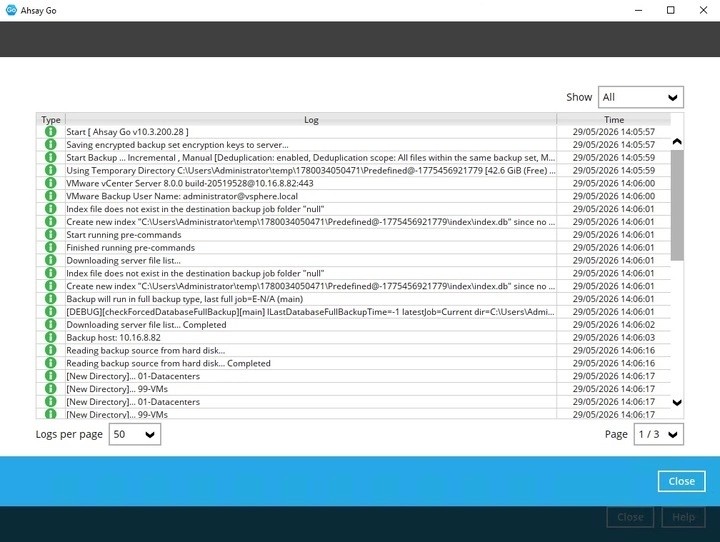
The following screen will be displayed to indicate that the backup job is successfully completed. You may click the "Magnify" button to check for the backup log.
From vSphere, the Snapshot of the VM will be removed when the backup is completed.
