AhsayCBS
Ahsay Go - Create MySQL Backup Set
-
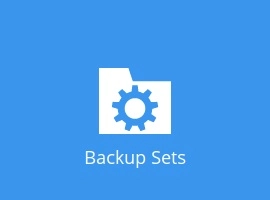
Click the Backup Sets icon on the main interface of Ahsay Go.
-
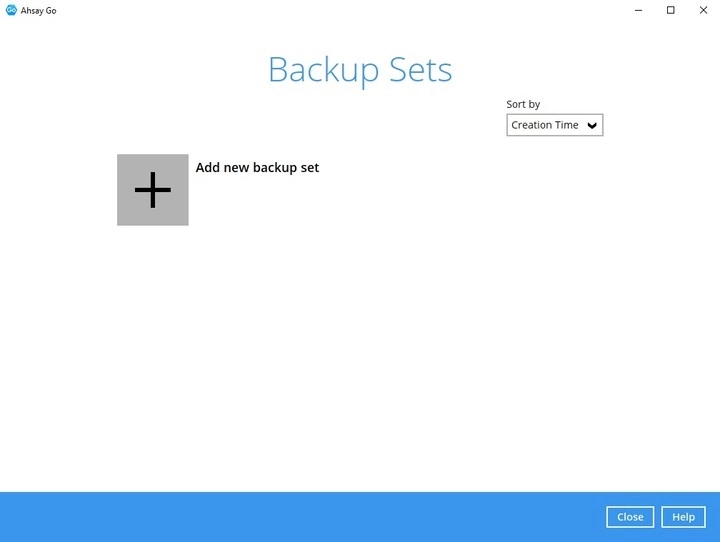
Click the "+" icon before "Add new backup set" to create a new backup set.
-
Provide a name for your new backup set. Select the “Backup set type” which is MySQL Backup then select a “Host type”.
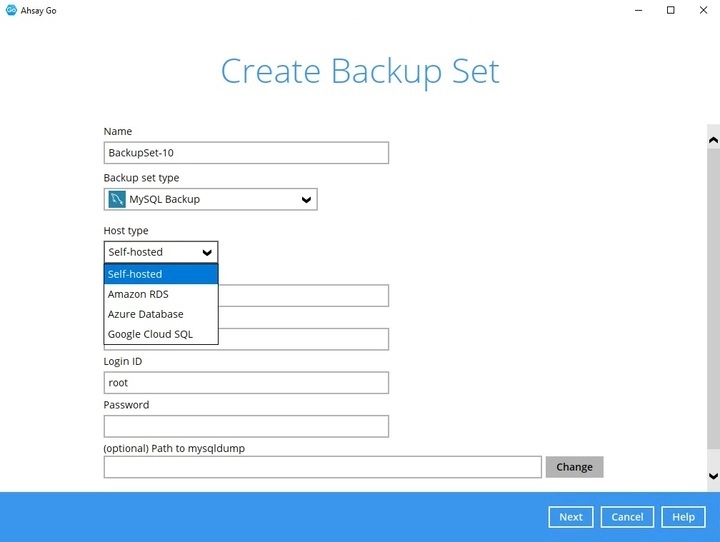
For Host type, there will be four options: Self-hosted, Amazon RDS, Azure Database, and Google Cloud SQL.
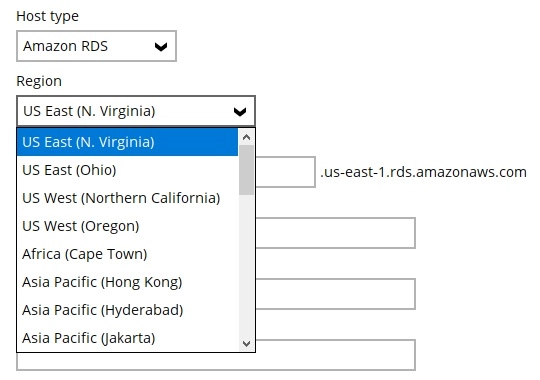
If Amazon RDS is selected, users will have to choose an appropriate Region. Below are the available Regions for Amazon RDS.
- US East (N. Virginia)
- US East (Ohio)
- US West (Northern California)
- US West (Oregon)
- Africa (Cape Town)
- Asia Pacific (Hong Kong)
- Asia Pacific (Hyderabad)
- Asia Pacific (Jakarta)
- Asia Pacific (Malaysia)
- Asia Pacific (Melbourne)
- Asia Pacific (Mumbai)
- Asia Pacific (Osaka-Local)
- Asia Pacific (Seoul)
- Asia Pacific (Singapore)
- Asia Pacific (Sydney)
- Asia Pacific (Tokyo)
- Canada (Central)
- Canada West (Calgary)
- Europe (Frankfurt)
- Europe (Ireland)
- Europe (London)
- Europe (Milan)
- Europe (Paris)
- Europe (Spain)
- Europe (Stockholm)
- Europe (Zurich)
- Israel (Tel Aviv)
- Middle East (Bahrain)
- Midde East (UAE)
- South America (Sao Paulo)
Enter the rest of the login information:
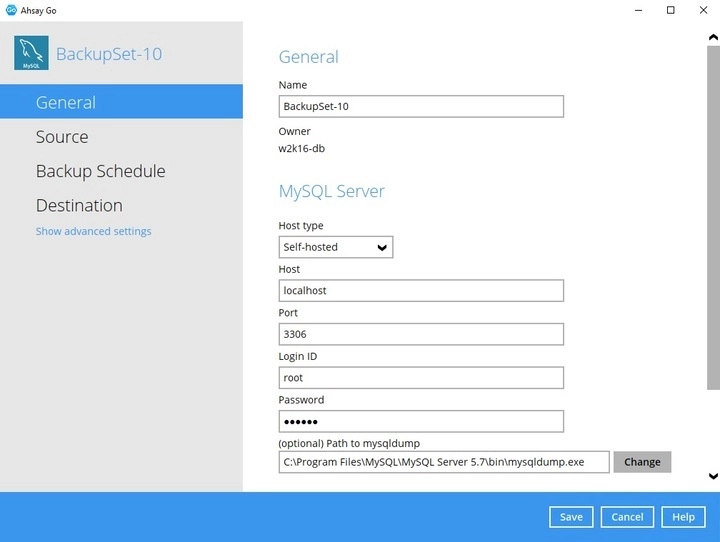
Host - this value is typically set to localhost or 127.0.0.1. If Amazon RDS was selected as the Host type, this section will always have the suffix of %region%.rds.amazonaws.com
Conversely, if Azure Database is selected, the suffix would be .mysql.database.azure.com
Port - set commonly to 3306
Login ID - ID used to login to MySQL.
Password - Password used to login to MySQL.
(optional) Path to mysqldump
Click Next to proceed.
-
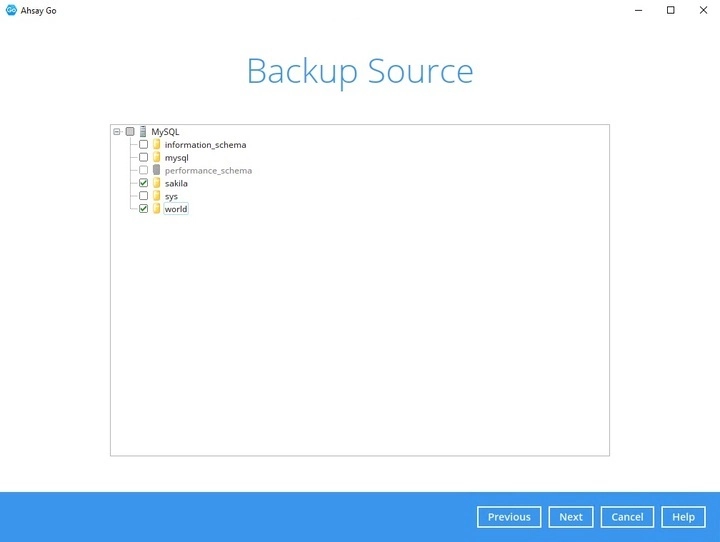
In the "Backup Source" menu, select the MySQL databases you would like to backup. Click Next to proceed.
-
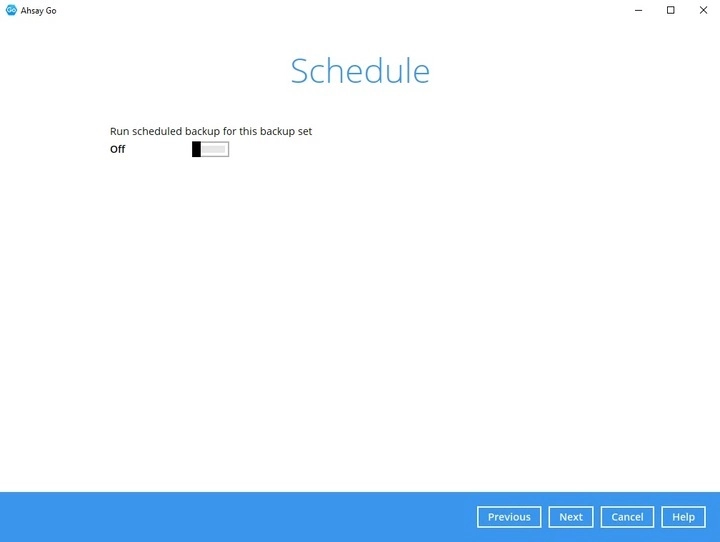
In the "Schedule" menu, you can configure a backup schedule for backup jobs to run automatically at your specified time interval. By default, the “Run scheduled backup for this backup set” option is off. You can create a backup schedule by sliding the switch to the right then click the + button. Click Next to proceed when you are done with the settings.
For details on how to configure the backup schedule settings, please refer to the Overview section.
-
In the “Destination” window, select the appropriate option from the “Backup mode” dropdown menu. The Ahsay Drive selected during account creation will already be available as a storage destination.
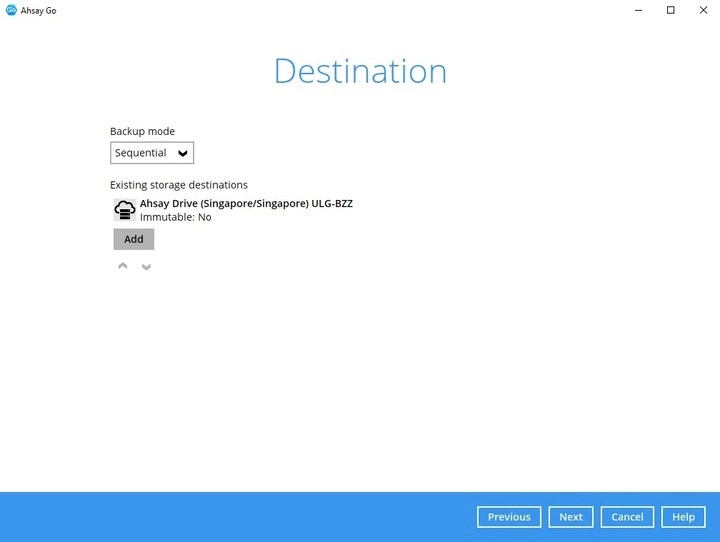
To add another backup destination, click Add then select the "Destination storage" then enter the name. Click OK then Next to proceed once done.
-
In the “Encryption” window, the default “Encrypt Backup Data” option is enabled with an encryption key preset by the system which provides the most secure protection. Click Next when you are done with the settings.
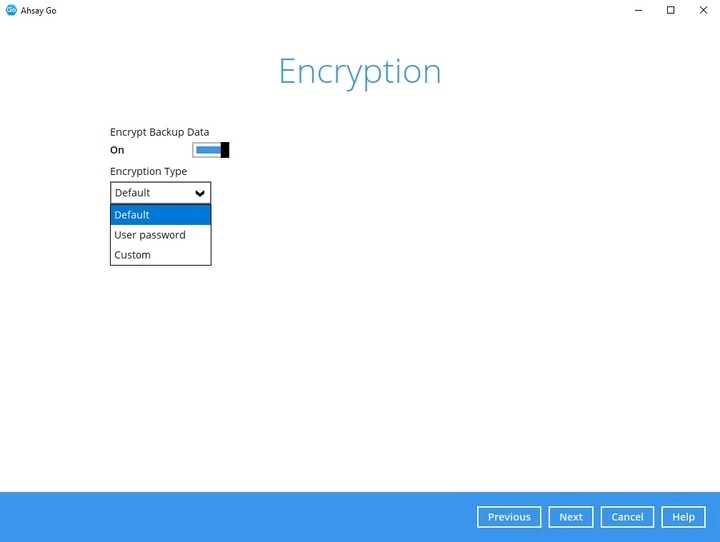
-
If you have enabled the Encryption Key feature in the previous step, the following pop-up window shows, no matter which encryption type you have selected.
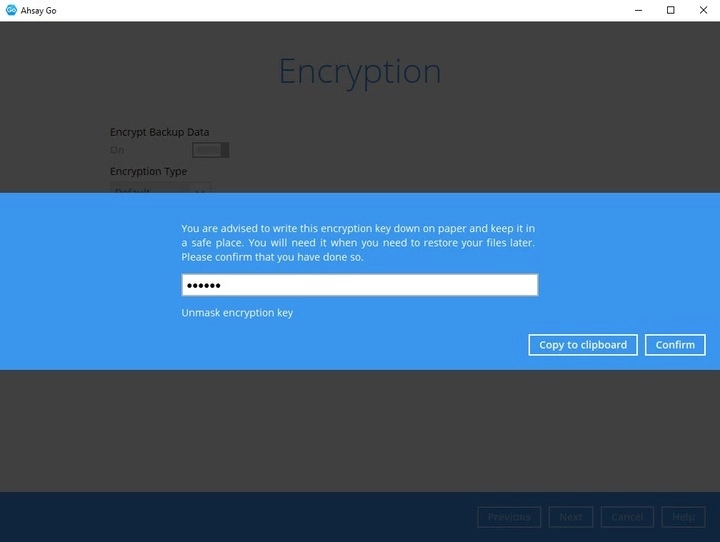
The pop-up window has the following three optoins to choose from:
-
Unmask encryption key - The encryption key is masked by default. Click this option to show the encryption key.
- Copy to clipboard - Click to copy the encryption key, then you can paste it in another location of your choice.
- Confirm - Click to exit this pop-up window and proceed to the next step.
-
-
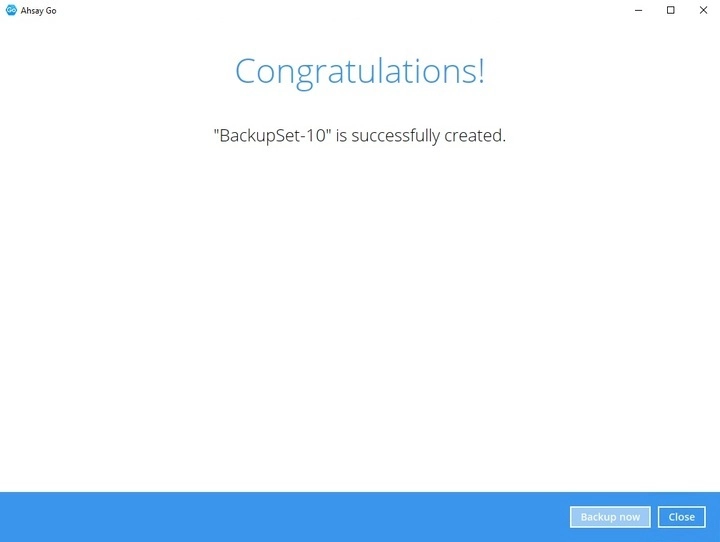
Backup set created.
-
To start a manual backup job, click on Backup now.
-
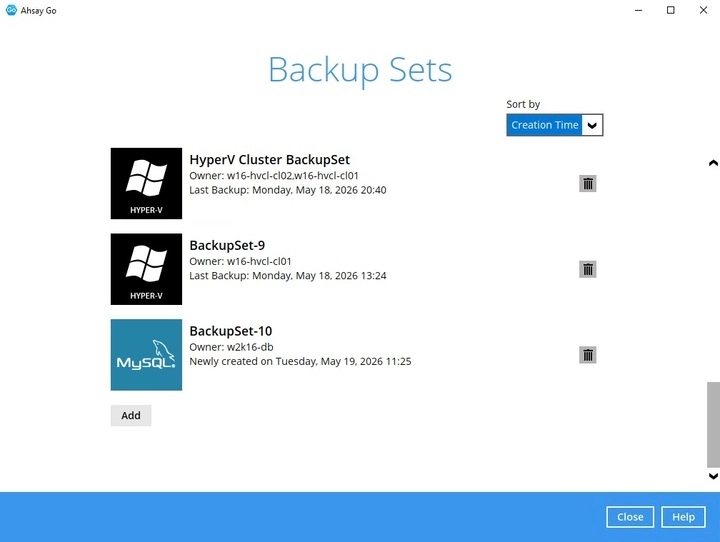
To verify the backup set settings, click on Close and then click on the MySQL backup set to complete the setup.
-
-
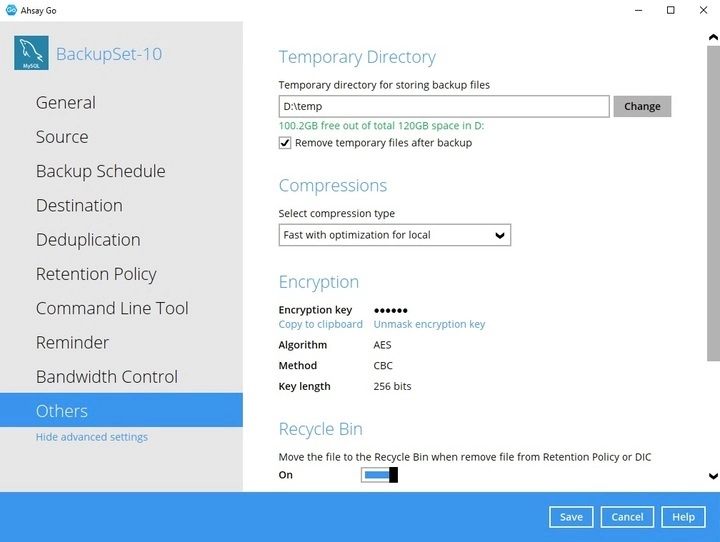
Based on Best Practices and Recommendations, it is highly recommended to change the "Temporary Directory". Select another location with sufficient free disk space other than:
Drive C:\Users\Administrator\temp (e.g. D:\temp)Open the Backup set then go to Others > Temporary Directory. Click Change to browse for another location.
-
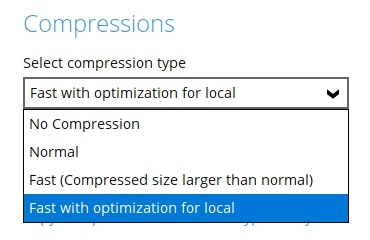
Optional: Select your preferred compression type. By default, the compression is Fast with optiomization for local.
Go to Others > Compressions. Select from the following list:
- No Compression
- Normal
- Fast (Compressed size larger than normal)
- Fast with optimization for local