

 AhsayCBS
Register Device for Mobile Backup and Restore
Open AhsayOBM/AhsayACB and go to Settings > Mobile Backup.
If there is no registered device, click Add.
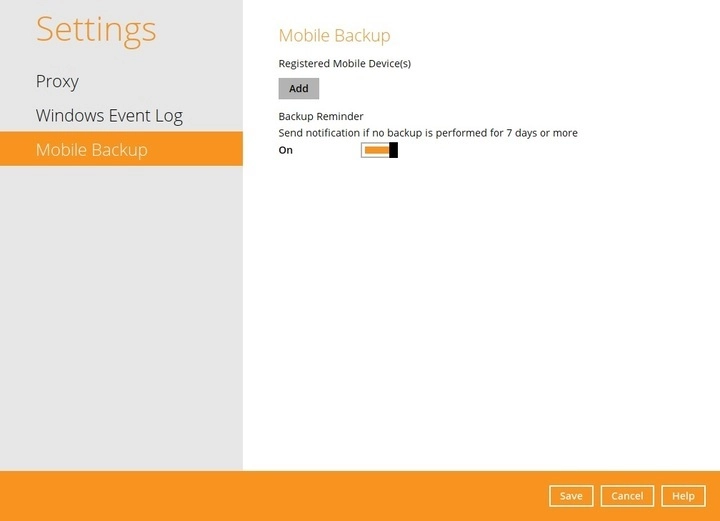
If there is already a device registered click Add or migrate device.
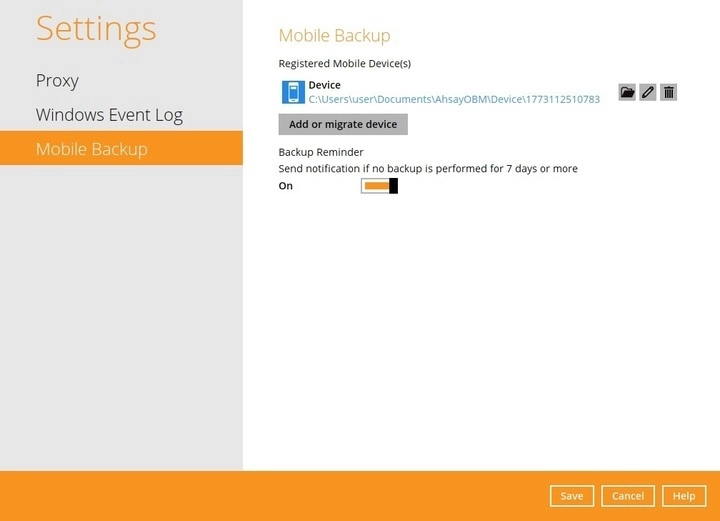
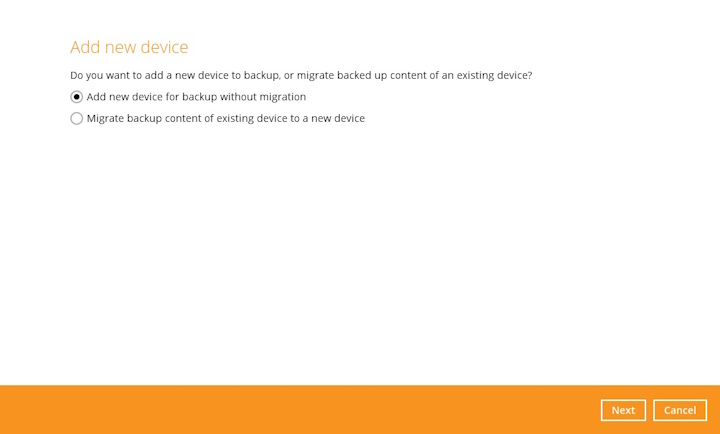
There are two options for adding a new device:
Add a new device for backup without migration
This will add a new device.
- Migrate backup content of existing device to a new device
- Adds a new device and migrate the old mobile settings to the replacement device.
- Removes the original device from Mobile Backup list in AhsayOBM/AhsayACB.
- If the original device still exists and the Ahsay Mobile app is still installed, then the mobile backup setting will be removed. Although the 2FA settings are retained on the original device, Ahsay Mobile app push notifications will be sent to the replacement device but the Ahsay Mobile app TOTP on the original device is still valid for use.
Add new device for backup without migration
Select Add new device for backup without migration then click Next.
Download and install the Ahsay Mobile app from Google Play Store for an Android device and from the App Store for an iOS device, then scan the QR code to complete the device registration for mobile backup feature.
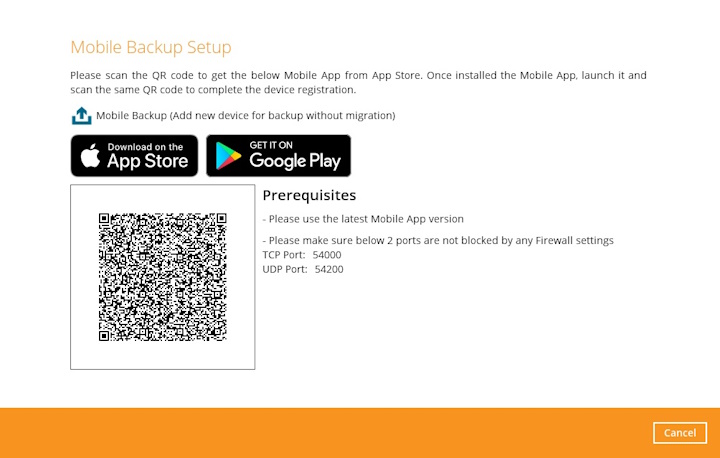
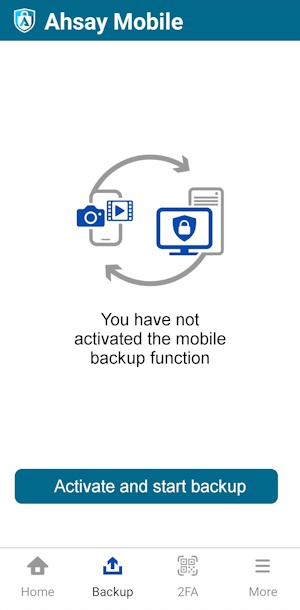
In the Ahsay Mobile app, go to Backup. Tap Activate and start backup link to scan the QR code on the AhsayOBM/AhsayACB screen.
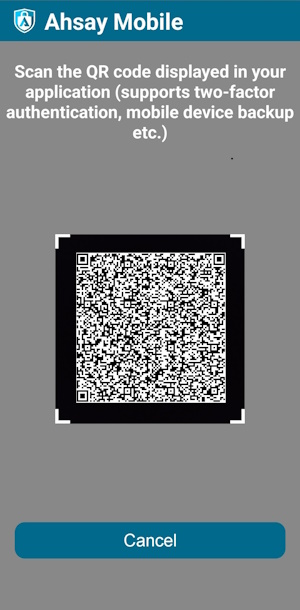
Scan the QR code on the AhsayOBM/AhsayACB screen. Otherwise, tap Cancel to return to the previous screen.
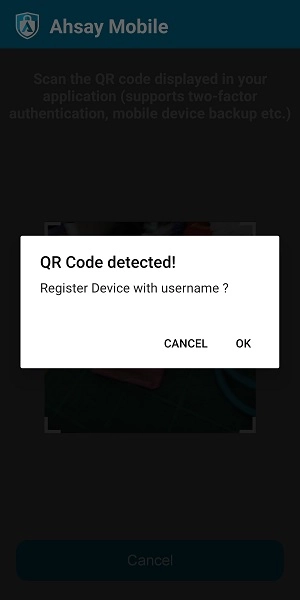
Once the “QR Code detected” prompt appears, tap OK to proceed. Otherwise, tap Cancel.
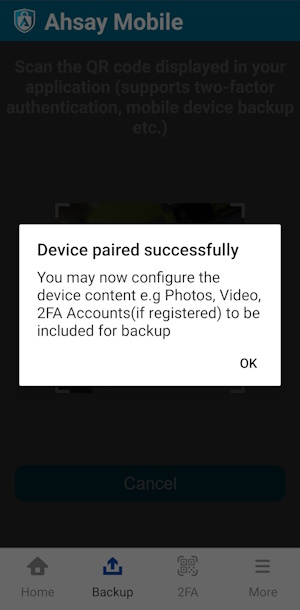
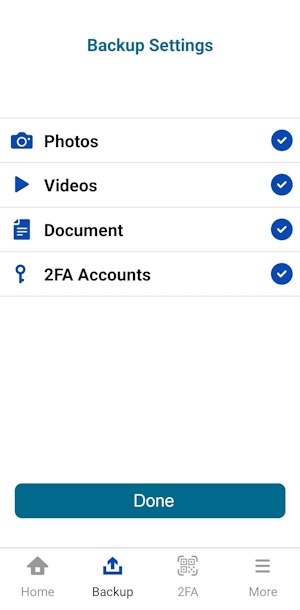
If done correctly, a prompt saying “Device paired successfully” will appear. Tap OK to proceed. Photos, videos, documents, and 2FA accounts are automatically selected for backup (you can deselect some of the options if needed). Tap Done to confirm the selection and return to the Backup screen.
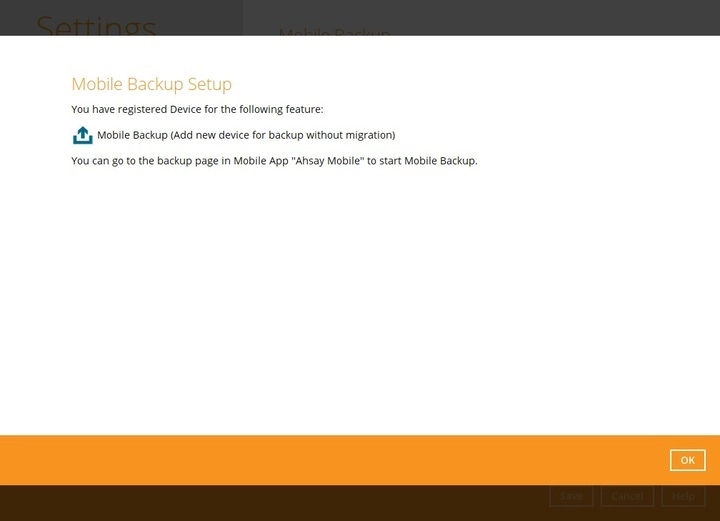
Mobile backup registration is successful in AhsayOBM/AhsayACB. In this example, the registered mobile device is “Device”.
Example: The folder directory is C:\Users\%WindowsAccountName%\Documents\AhsayOBM\Device\
Migrate backup content of existing device to a new device
Select Migrate backup content of existing device to a new device then click Next.
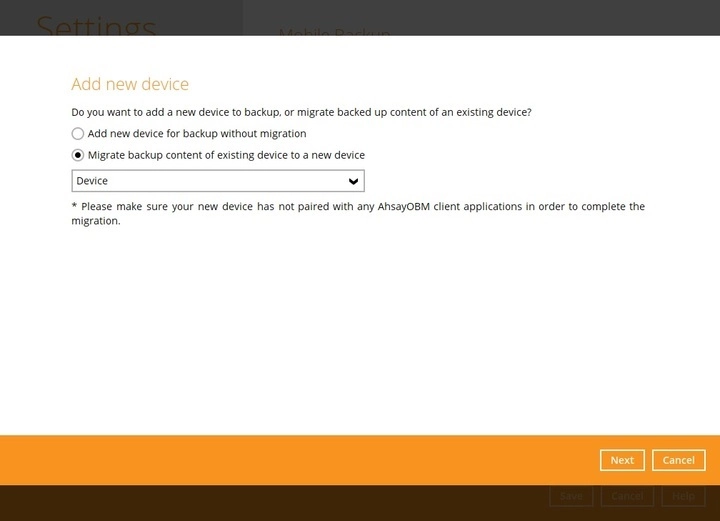
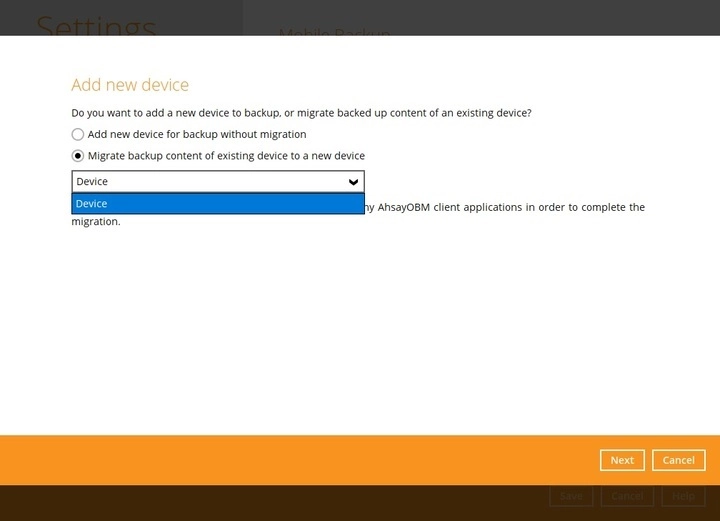
Choose an original device. The backed-up content of the selected device will be migrated to the replacement device. In this example, the original device “Device” is selected.
Make sure the replacement device has not been paired for mobile backup and 2FA with any of the Ahsay applications to complete the migration.
On the replacement device, download and install the Ahsay Mobile app from Google Play Store for an Android device and from the App Store for an iOS device, then scan the QR code to complete the device registration for mobile backup feature.
In the Ahsay Mobile app, go to Backup. Tap Activate and start backup link to scan the QR Code on the AhsayOBM/AhsayACB screen.
- Scan the QR Code on the AhsayOBM/AhsayACB screen. Otherwise, tap Cancel to return to the previous screen.
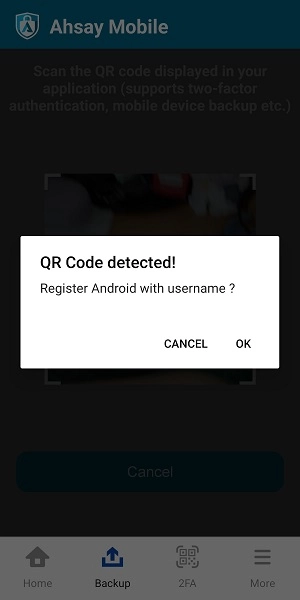
QR Code is detected, tap OK to proceed. Otherwise, tap Cancel.
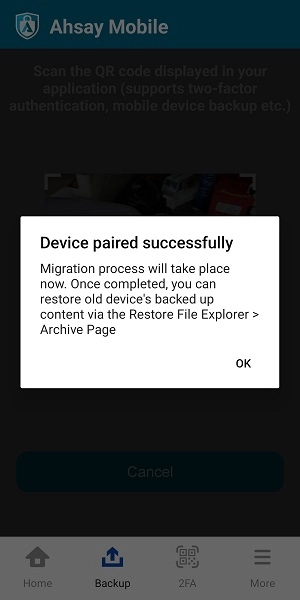
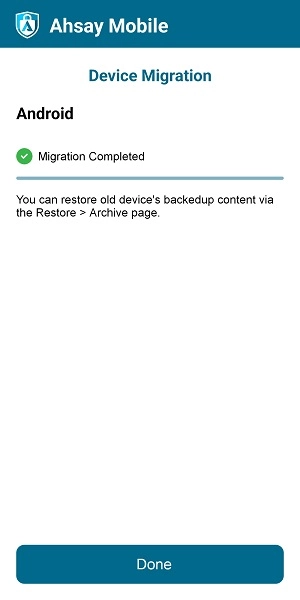
Replacement device is paired successfully, and migration of contents from “Device” to “Android” is completed, then click Done.
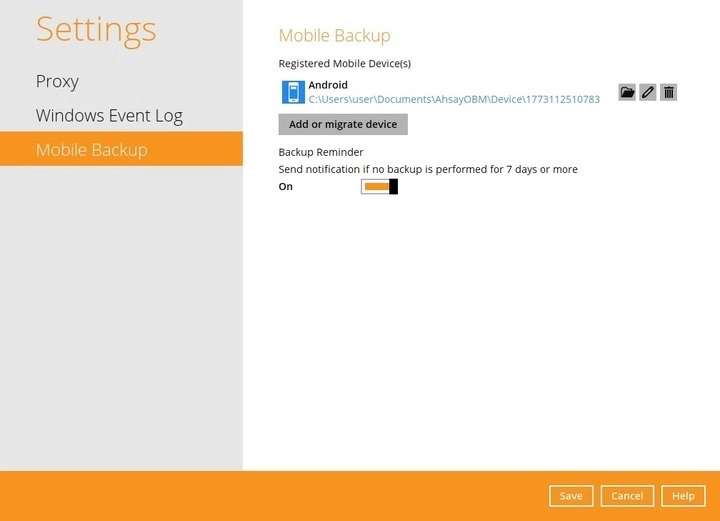
Mobile backup registration with migration is successful in AhsayOBM/AhsayACB. In this example, the registered replacement mobile device is “Android”.
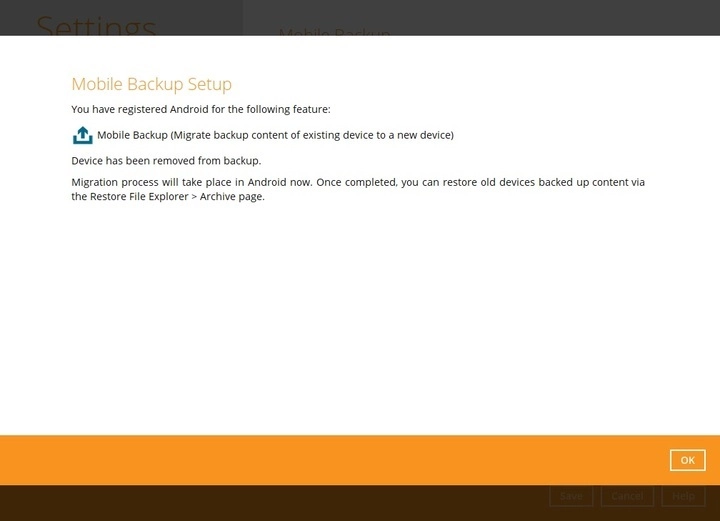
Example: The mobile backup path of the original device will remain unchanged, but the device name will be updated by the replacement device, (“Device” in this case) to “Android”.
Please refer to Update Connection Settings if you are experiencing problems locating the backup client application as there might be changes in the host name or IP address setting which might need updating.


- Although the examples are for AhsayOBM, the user interface for Settings > Mobile Backup is identical on AhsayACB. Thus, these instructions can also be applied to AhsayACB.
- Also, eventhough the screenshots used are from an Android device, the steps above still apply to iOS devices.