AhsayCBS
Ahsay Go - Microsoft Exchange Backup Job
The screenshots used for this guide are based on MS Exchange Server and will include screenshots for MS Exchange Mail Level if applicable.
-
Click the Backup icon.
-
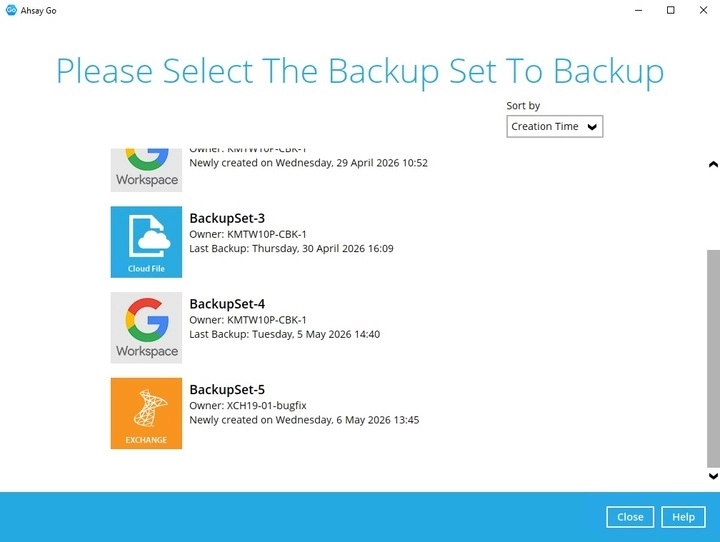
Select the backup set which you would like to start a backup for.
-
Select the backup set type. You can also modify the "Destinations" option.
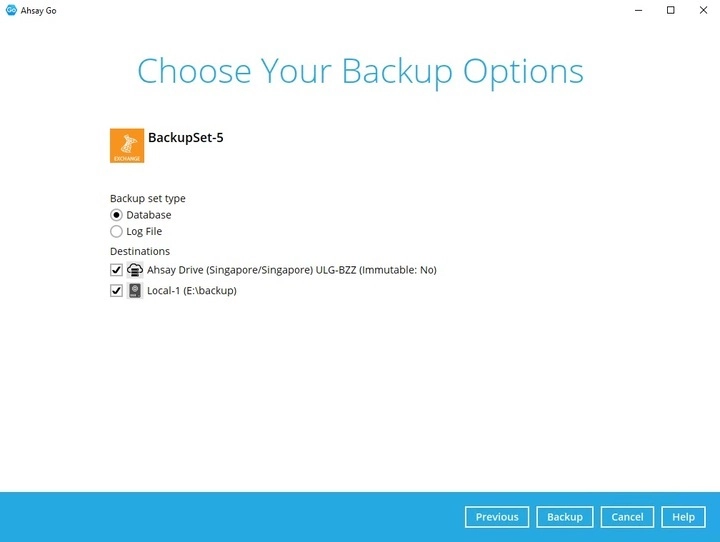
Backup Set Type
-
Database backup
Backs up the databases (EDB), transaction logs (LOG), checkpoint files (CHK), and then truncates the transaction logs for a specific database.
Exchange database will always backup in Full, Ahsay Go will request from the Exchange server to provide a full snapshot of the database. Deduplication will be used when generating delta to minimize the data uploaded in each backup. If deduplication is off, the full database will be backed up in each backup job.
-
Log File backup
Backs up the transaction logs (LOG) to record changes since the last full backup, and then truncates the transaction logs.
Transaction logs will always backup in Full. Deduplication will be used when generating delta to minimize the data uploaded in each transaction log backup. If deduplication is off, the full transaction log will be backed up in each backup job.
Selecting a backup set type is only for Exchange Server backup only. -
-
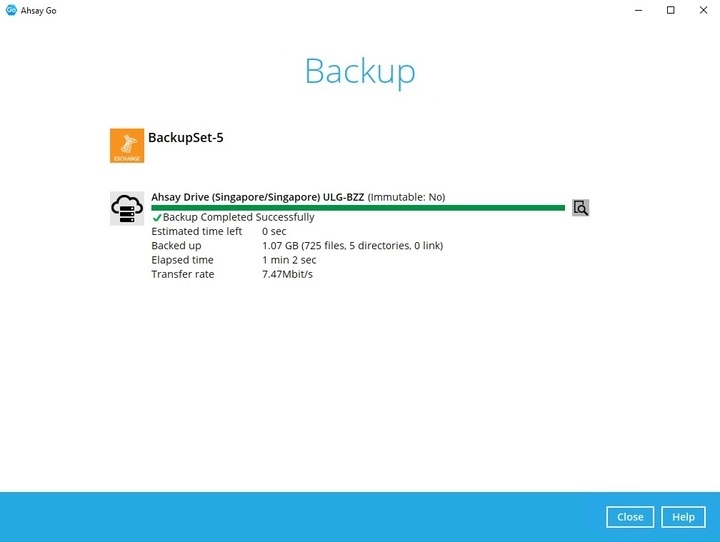
Once done with the settings, click the Backup button to start the backup job. Once finished, "Backup Completed Successfully" will be displayed.
-
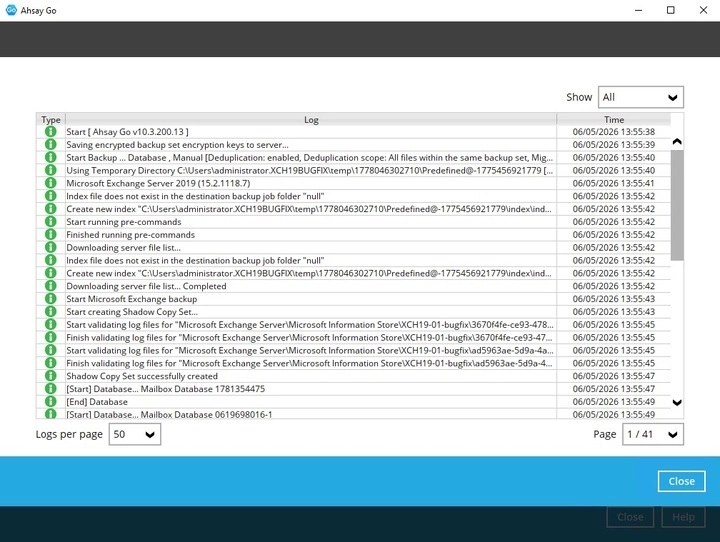
You may click the icon to the right of the progress bar to check the backup log. Once done checking the backup log, click Close to return to the previous screen.