

 AhsayCBS
Ahsay Go - MariaDB Restore
Automatic and Manual MariaDB Database Restore
Restore files from your backup destination and automatically apply them to the MariaDB database server in the original location or alternate location.
-
ONLY FOR AUTOMATIC RESTORE: Log in to MariaDB Server using MariaDB Command Line Client and verify the database instance is running.
Enter password: ******** Welcome to the MariaDB monitor. Commands end with ; or \g. Your MariaDB connection id is 32 Server version: 10.9.2-MariaDB maria.org binary distribution Copyright (c) 2000, 2018, Oracle, MariaDB Corporation Ab and others. Type 'help;' or '\h' for help. Type '\c' to clear the current input statement. MariaDB [(none)]> show databases; +--------------------+ | Database | +--------------------+ | information_schema | | mysql | | nation | | performance_schema | | sys | +--------------------+ 5 rows in set (0.001 sec) -
In the Ahsay Go main interface, click the Restore icon.
-
Select the backup set and destination.
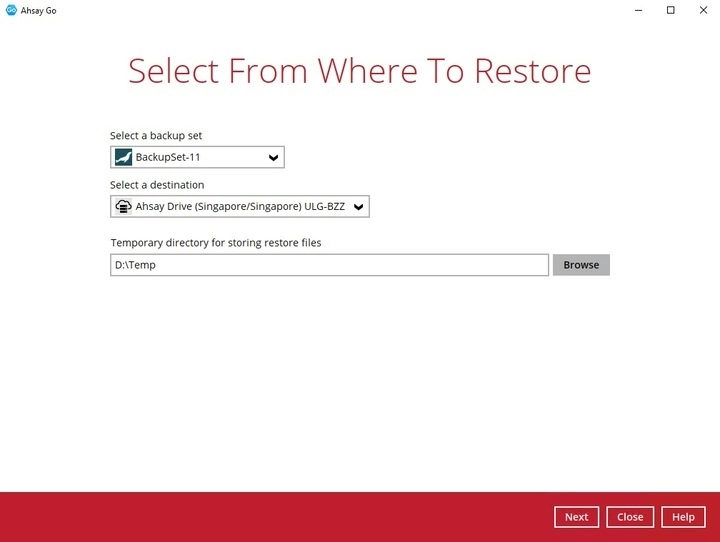
You can select the temporary directory for storing temporary files by clicking the Browse button.

-
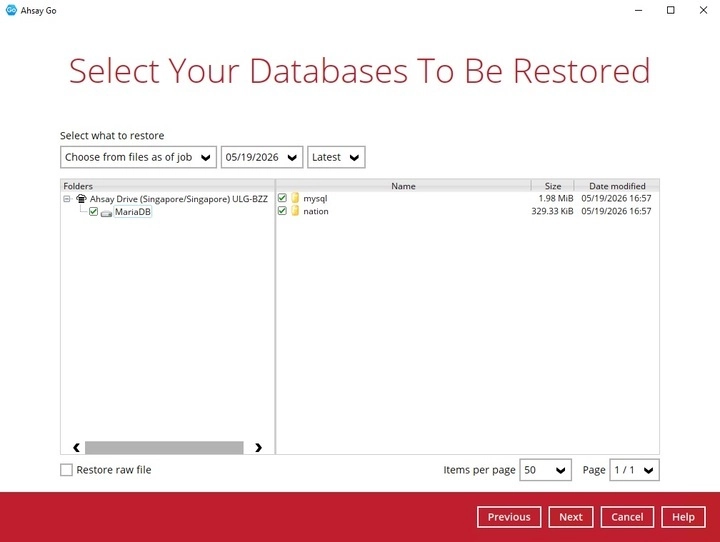
FOR AUTOMATIC RESTORE: Select to restore the MariaDB database(s) from a specific backup job, then select the database(s) that you would like to restore. Click Next to proceed.
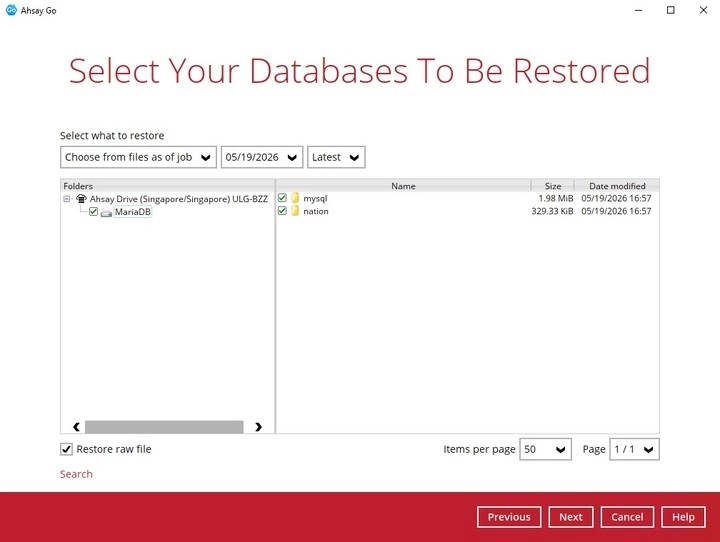
FOR MANUAL RESTORE: Select to restore the MariaDB database(s) from a specific backup job then select the database that you would like to restore and tick the Restore raw file option. Click Next to proceed.
-
Select to restore the MariaDB databases automatically or select the location path where you would like the raw file(s) to be saved for manual restore:
Automatic Restore
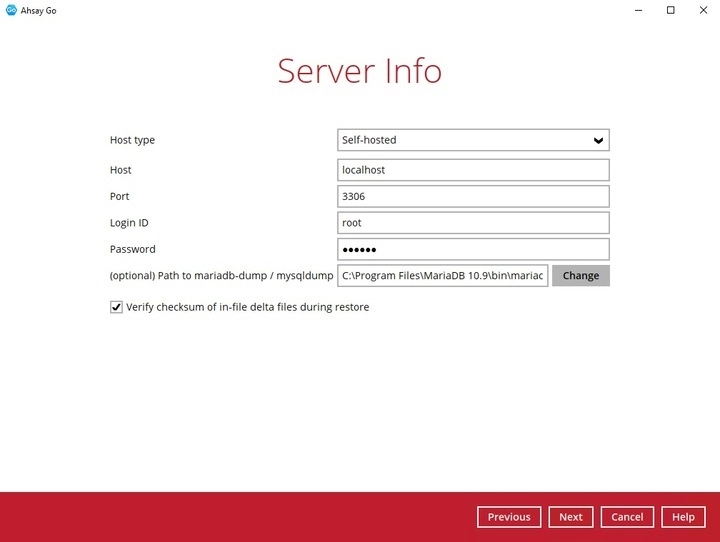
Specify the host type, host, port, login ID and password. The “Verify checksum” setting may also be modified, then click Next to proceed.
Specify a new name for the databases, then click Restore to start the automatic restoration of databases.
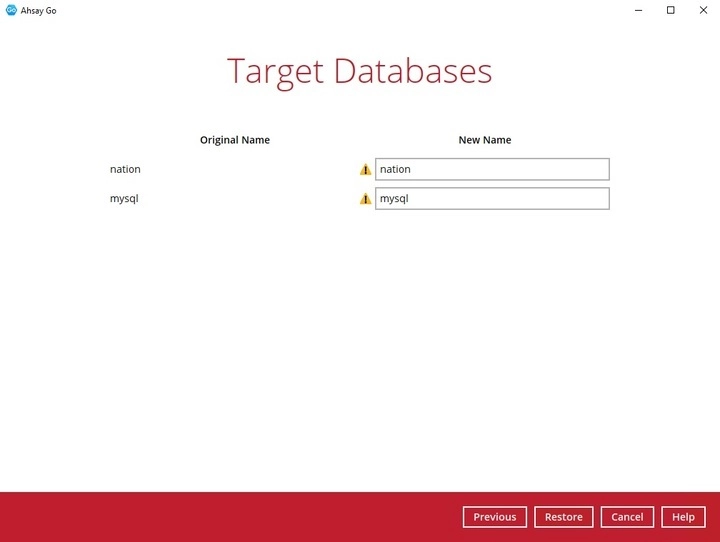
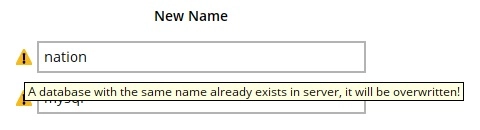
If the original name and the new name of the database is the same, the original database will be overwritten with the database to be restored and this warning message will be available.
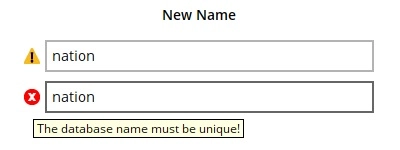
If there are identical new name for the databases, the restoration will not be allowed to proceed and this error message will be available.
Restore Raw File
ONLY FOR MANUAL RESTORE: Select the location on the local machine you wish to restore the MariaDB database files to. Click Restore to proceed.
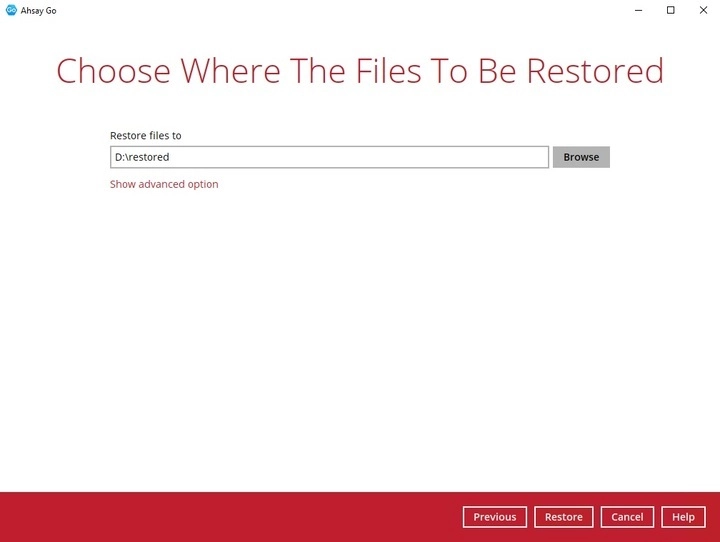
If you would like to modify the Verify checksum of in-file delta files setting, click Show advanced option.

Verify checksum of in-file delta files during restore
By enabling this option, the checksum of in-file delta files will be verified during the restore process. This will check the data for errors during the restore process and create a data summary of the in-file delta files which will be included in the report.
-
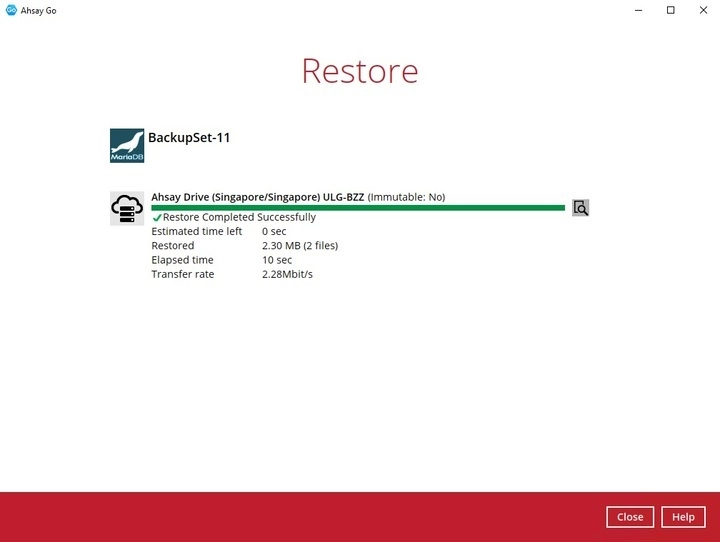
“Restore Completed Successfully” will be displayed when the restoration is completed.
-
FOR AUTOMATIC RESTORE: Using MariaDB Command Line Client, you can list the restored databases and tables.
Example: Listing the tables in the database using show tables.
MariaDB [(none)]> show databases;
+--------------------+
| Database 			 |
+--------------------+
| information_schema |
| mysql 			 |
| nation 			 |
| performance_schema |
| sys 				 |
+--------------------+
5 rows in set (0.001 sec)
MariaDB [(none)]> show tables in nation;
+----------------------+
| Tables_in_nation 	   |
+----------------------+
| continents 		   |
| countries 		   |
| country_languages    |
| country_stats 	   |
| guests 			   |
| languages 		   |
| region_areas 		   |
| regions 			   |
| vips 				   |
+----------------------+
9 rows in set (0.001 sec)
MariaDB [(none)]>
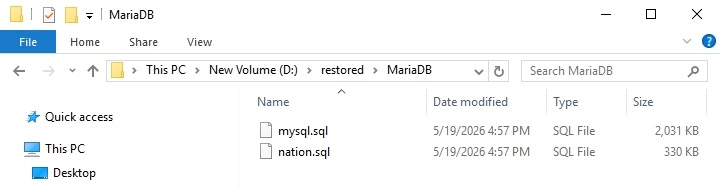
FOR MANUAL RESTORE: Check the location on the local machine to verify the MariaDB database files have been restored.
Example: Using Windows File Explorer
Recovering MariaDB Databases
-
Log in to MariaDB Server using MariaDB Command Line Client and verify the database instance is running.
Enter password: ****** Welcome to the MariaDB monitor. Commands end with ; or \g. Your MariaDB connection id is 69 Server version: 10.9.2-MariaDB mariadb.org binary distribution Copyright (c) 2000, 2018, Oracle, MariaDB Corporation Ab and others. Type 'help;' or '\h' for help. Type '\c' to clear the current input statement. MariaDB [(none)]> show databases; +--------------------+ | Database | +--------------------+ | information_schema | | mysql | | nation | | performance_schema | | sys | +--------------------+ 5 rows in set (0.001 sec) MariaDB [(none)]> -
Create the database names that needs to be recovered.
Example: nation
MariaDB [(none)]> create database nation; Query OK, 1 row affected (0.002 sec) -
Recover Databases.
Repeat the following steps for all databases you wish to restore.
MariaDB [(none)]> use nation; Database changed MariaDB [nation]> source D:\restored\MariaDB\nation.sql Query OK, 0 rows affected (0.000 sec) Query OK, 9 rows affected (0.015 sec) Records: 9 Duplicates: 0 Warnings: 0 -
Check the database status.
Example: Listing the tables in the database using "show tables".
MariaDB [(none)]> show databases;
+--------------------+
| Database 			 |
+--------------------+
| information_schema |
| mysql 			 |
| nation 			 |
| performance_schema |
| sys 				 |
+--------------------+
5 rows in set (0.001 sec)
MariaDB [(none)]> show tables in nation;
+----------------------+
| Tables_in_nation 	   |
+----------------------+
| continents 		   |
| countries 		   |
| country_languages    |
| country_stats 	   |
| guests 			   |
| languages 		   |
| region_areas 		   |
| regions 			   |
| vips 				   |
+----------------------+
9 rows in set (0.001 sec)