

 AhsayCBS
Restore File Explorer
Restore Features
These are the different options for the Restore feature:
- Select or Deselect 2FA Accounts
- Select All or Deselect All photos, videos and/or documents
- Select a few or Deselect a few photos, videos and/or documents
- View photos, videos and/or documents in separate tabs Recent, Archive or Deleted
Restore Main Page

| Restore Main Page | Description | |
|---|---|---|
| 1 |
|
In this example, there are no selected photos, videos, documents and/or 2FA accounts for restore yet. |
| 2 |
|
In this example, documents and 2FA accounts are selected and all 20 photos with a total size of 17.53MB and 10 videos with a total size of 148.72MB are selected for restore. Blue checkbox indicates all photos and/or videos are selected. |
| 3 |
|
In this example, documents and 2FA accounts are selected and only 5 photos with a total size of 4.078MB and 2 videos with a total size of 33MB are selected for restore. Orange checkbox indicates selected photos and/or videos. |
| 4 |
|
In this example, Videos and 2FA accounts are not selected and there are no items in Photos and Documents folders. This means that there are no backed up photos and documents to restore. Gray folder icons indicates no items in the folder. |


Restore File Explorer

A - Enlarge View Toggle
If enlarge view is enabled, then the images will be enlarged and there will be only 2 images per row.

If enlarge view is disabled, then there will be 4 images per row.

B - Type of File
This shows the type of file selected for restore.
- Photos
- Videos
- Document
C - Select all / Deselect all
If Select all is chosen, then all the photos, videos and/or documents will be selected with blue checkmarks on each photos, videos and/or document.
If Deselect all is chosen, then it will remove all the selected photos, videos and/or documents and there will be no blue checkmark on all photos, videos and/or documents.
D - Type of view
In All View the photos and/or videos are grouped by date.
In Album View the photos and/or videos are grouped per album.
While for document, there is only one view type, it is grouped by folder.
E - Image List
This shows the list of photos and/or videos that are ready for restore.
If there are too many selected photos and/or videos, there is a scroll bar on the right side to navigate the rest of the photos and/or videos.
F - Recent / Archive / Delete tabs View
Current tab
Backed up photos, videos and/or documents that are ready for restore.
Archive tab
Photos, videos and/or documents that have been deleted during backup when the Free-up space was enabled.
Delete tab
Backed-up photos, videos and/or documents but are now deleted from the device.
As long as the mobile device is not yet deleted in AhsayOBM/AhsayACB, photos and/or videos can be restored.


Follow the instructions below on how to select or deselect photos, videos and / or documents using the Restore File Explorer.
Go to Backup then tap Restore.

The steps that follow from here shall depend on what you wish to restore:
- Select all photos, videos and/or documents
- Deselect all photos, videos and/or documents
- Select a few photos, videos and/or documents
- Deselect a few photos, videos and/or documents
- View photos, videos and/or documents in Recent, Archive or Delete tabs
Select all photos, videos and/or documents
There are two ways to select all the photos, videos and/or documents:
OPTION 1
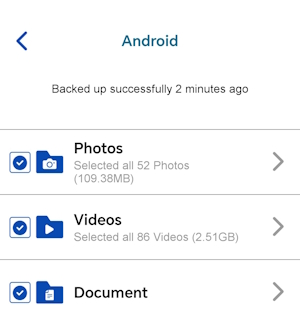
Tap the Photos, Videos and/or Document checkbox.
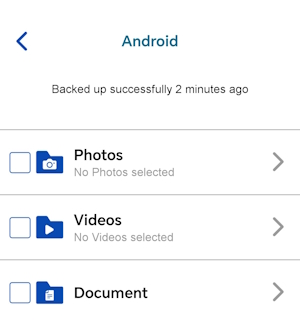
A blue checkbox indicates that all photos, videos and/or document are selected for restore with a corresponding total number of photos and videos and its total file size.
OPTION 2
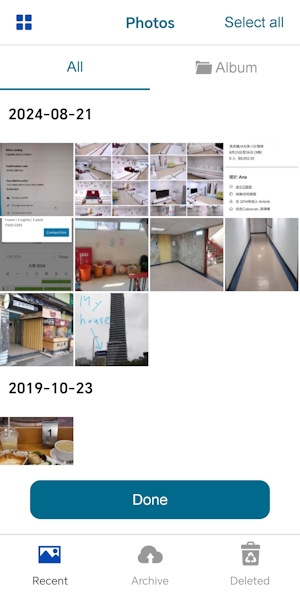
Tap the Photos, Videos or Document.
Choose from All or Album then tap Select all.
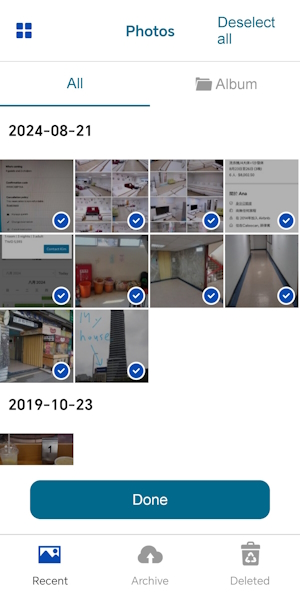
There will be a blue checkbox on each photo and / or video, or album that will indicate these items as being marked for restore. Items that do not have the checkmark will not be restored. Once done, tap Done.

Deselect all photos, videos and/or documents
There are two ways to deselect all the photos, videos and/or documents:
OPTION 1
Tap the blue/orange checkbox of either Photos, Videos or Document.
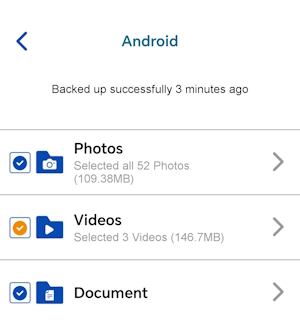
It will deselect all or the selected photos, videos and/or document for restore.
OPTION 2
Tap either Photos, Videos or Document.
Choose from All or Album then tap Deselect all.
There will be a blue checkbox on each photo and/or video, or album that will indicate these items as being marked for restore. Items that do not have the checkmark will not be restored. Once done, tap Done.
Select a few photos, videos and/or documents
Tap either Photos, Videos or Document.

Choose from All or Album.
Select your choice of photos, videos and/or documents for restoration by tapping on each wanted item. Once done, tap Done.

Deselect a few photos, videos and/or documents
Tap either Photos, Videos or Document.

Choose from All or Album.
When selecting your choice of photos, videos and/or documents for restoration, you can tap on each item once again to Deselect them. Once done, tap Done.

View photos, videos and/or documents in Recent, Archive or Deleted tabs
Tap either Photos, Videos or Document.
Select from the following tabs by tapping on Recent, Archive or Deleted. The tabs are located on the lower part of the screen. It will view photos and/or videos by each category in either All or Album views. While there is only one category for documents which is Internal Storage.
You can select all items or only some for restoration by category in this manner.
Sample view of All items under Recent tab.
Sample view of Album items under Recent tab.

Sample view of Internal Storage items under Recent tab.
