

 AhsayCBS
Run a Google Workspace Backup Job on AhsayOBM
To start a backup, follow the steps below:
-
Log in to AhsayOBM.
For instructions on how to do this, please refer to the AhsayOBM Login page.
-
Click the Backup icon on the main interface of AhsayOBM.
-
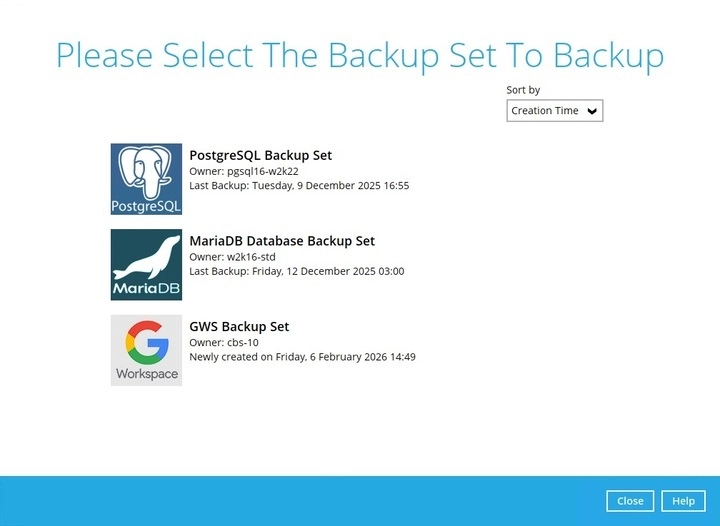
Backup sets can be sorted by Name or Creation Time. Select the backup set which you would like to start a backup for.
-
In the following page, select the Destinations to which you want to backup your data. Depending on the number of New Document Copy Destinations you added when creating the Backup Set, you may see multiple Google Drive accounts listed here.
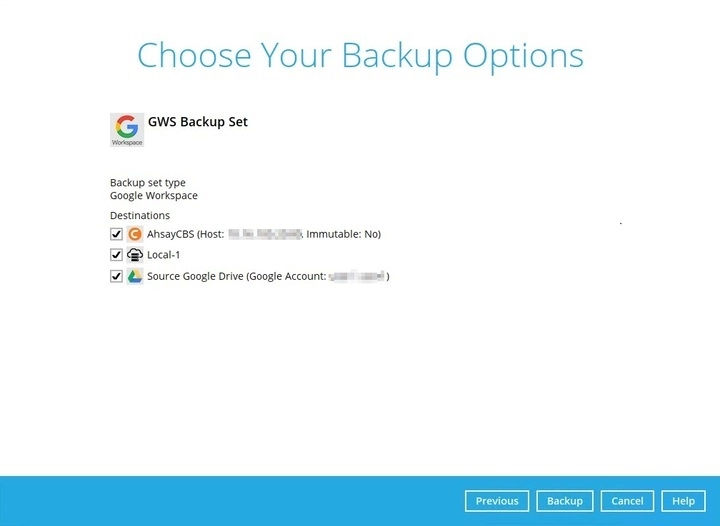
If you uncheck any New Document Copy Destination option, you will have to select at least one (1) traditional backup destination.
Unchecking any traditional backup destination would require you to have at least one (1) New Document Copy Destination selected.
For more information on Traditional and New Document Copy backup destinations, please refer to the Create a Google Workspace Backup Set page.
-
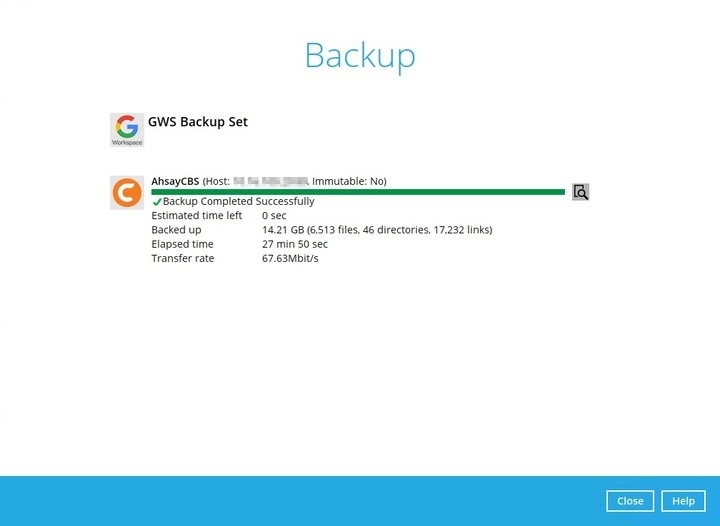
Click on Backup to start the backup job. Wait until it finishes.
-
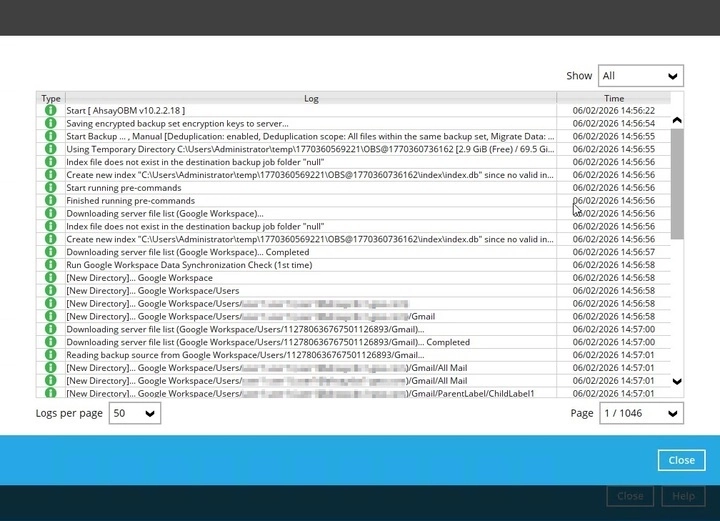
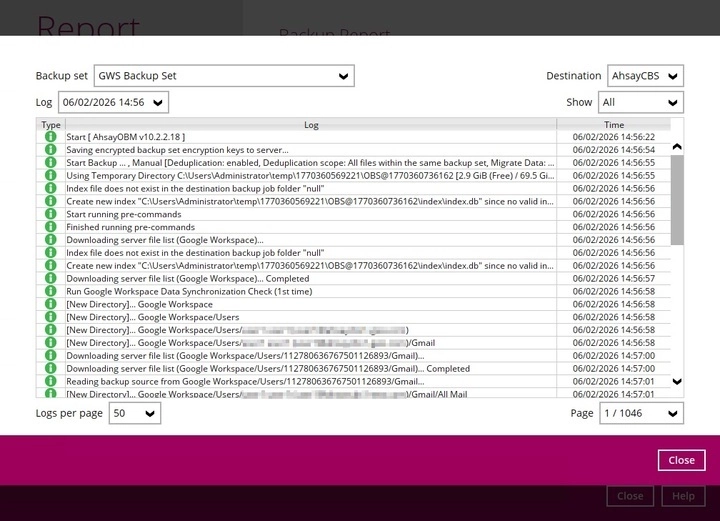
Check the log of your backup by clicking the "magnifying glass" icon. It will show you the log of your backup with corresponding date and time.
To view the backup report(s), go back to the AhsayOBM main interface, then click on Report<Backup
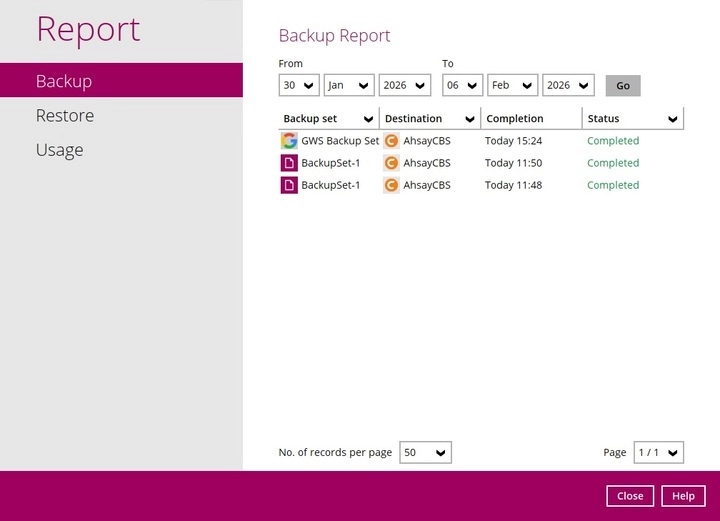
In the "Backup Report" page, you can see the backup set with corresponding destination completion date, time, and status.
Click the backup report and the summary of the backup will be displayed.
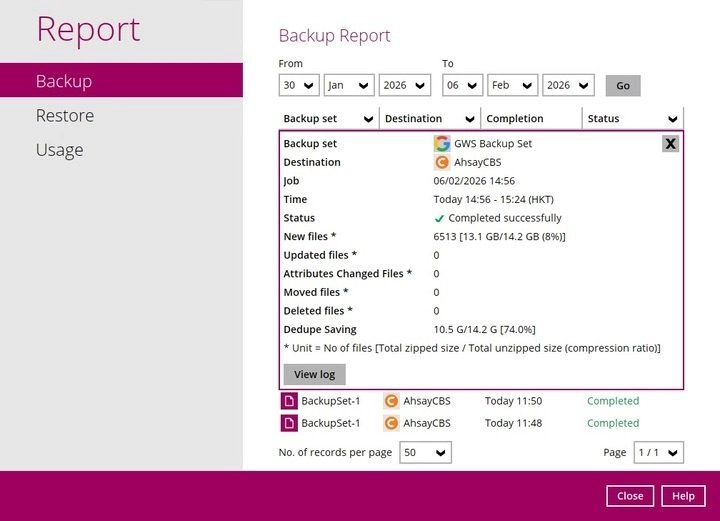
You can also click View Log; this will redirect you to the log summary of your backup.
You can also search for backup reports from a specific period of date. For example, we have the "From" date which is 30 Jan 2026, and the "To" date which is 06 Feb 2026. Click the Go button to generate the available reports.

If this is a valid range of dates, then backup report(s) will be displayed unless there were no backups run on the specified dates. A message of "No records found" will be displayed in such instances.


