

 AhsayCBS
Installing AhsayACB on macOS
Install Instructions
There are two installation methods available:
In cases where you are attempting to install to an unsupported Operating System, the installer will instead install v9 of AhsayACB onto the machine.
This pop-up message will appear upon running the installer. Click OK to proceed with the installation process as normal.

Online Installation using DMG Online Installer
Launch the online installation package file you have downloaded from the download section above.
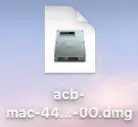
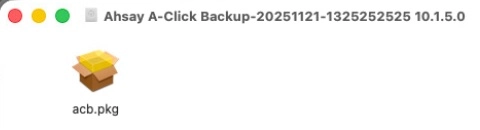
The Ahsay A-Click Backup window will appear. You will see another file named “acb.pkg.” Double-click on the “acb.pkg” file.
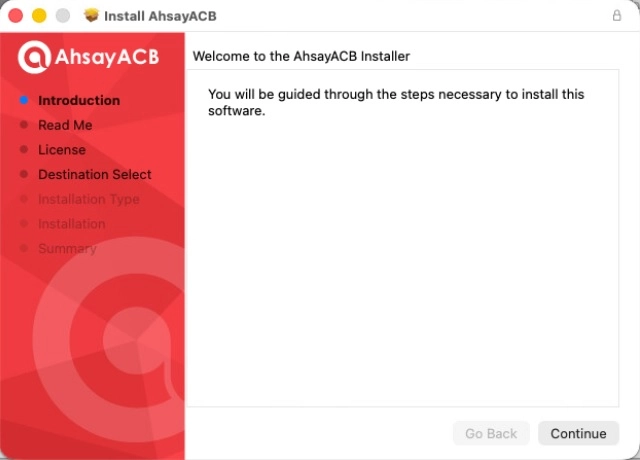
When the AhsayACB Installer wizard appears, click Continue to proceed.
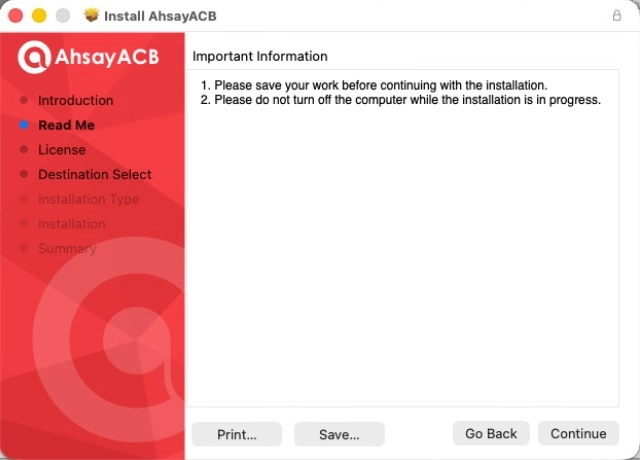
When the “Important Information” screen appears, read the information, then click Continue to proceed.
When the “Software License Agreement” appears, the agreement content will be displayed in English by default. If you prefer to read it in a different language, click the drop down button to change the language. After reading the agreement carefully, click Continue to proceed.
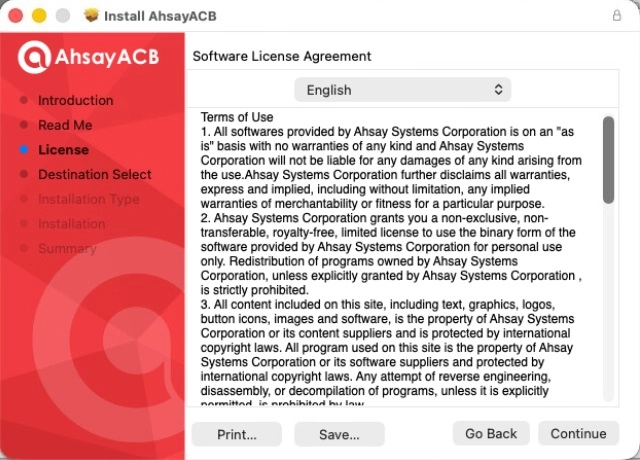
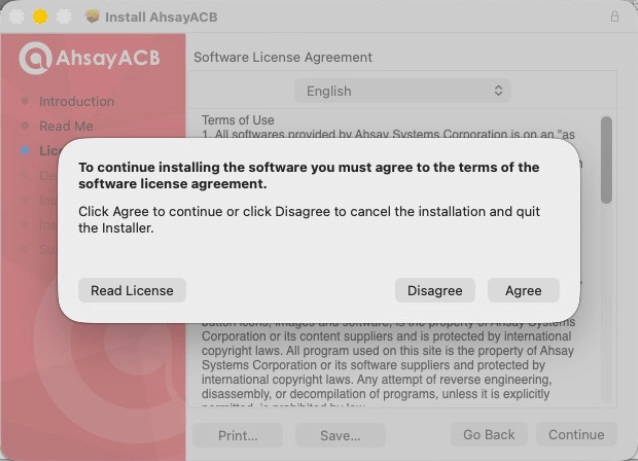
The following message will appear in a pop-up window. Click Agree to accept the software license agreement.
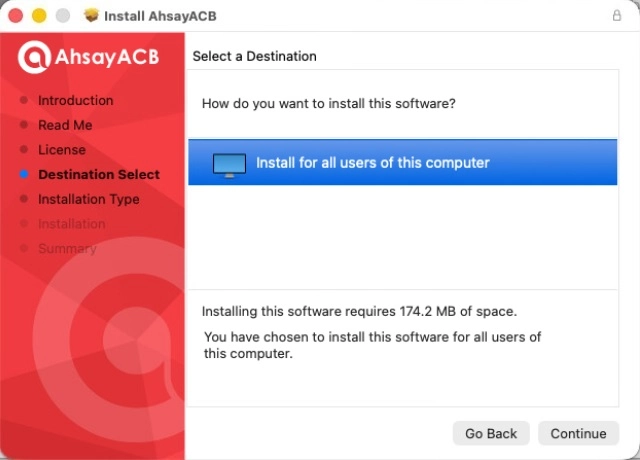
Click Continue to install for all users.
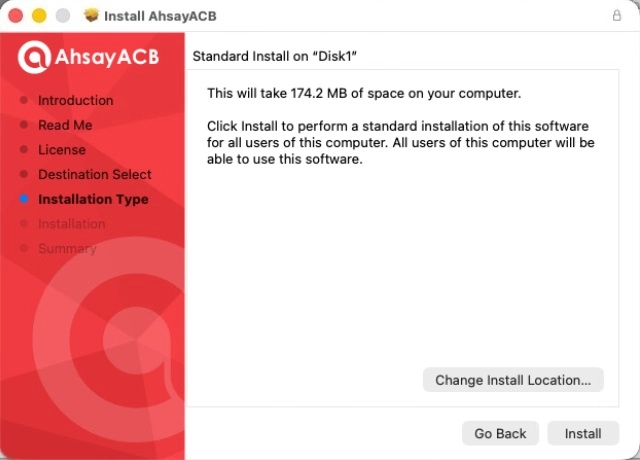
Click Install to start installing AhsayACB to the default location, i.e. “Disk1” in this example.
The following message will appear in a pop-up window. Enter your macOS login credentials. Then, click Install Software to proceed with the installation.
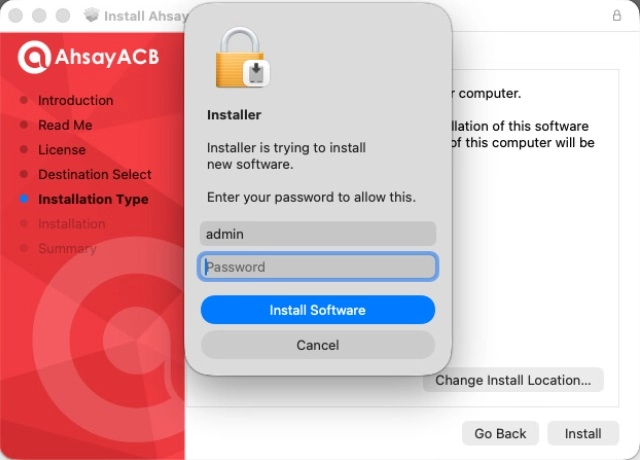
The pop-up windows on Steps 10, 11 and 12 are only applicable on macOS 10.15 or above. Otherwise, proceed to Step 12.
When the following pop-up window is displayed, click Allow to proceed.
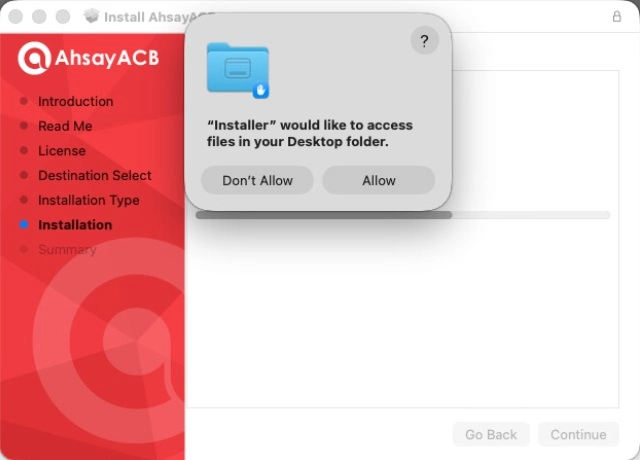
When the following pop-up window is displayed, click Allow to proceed.
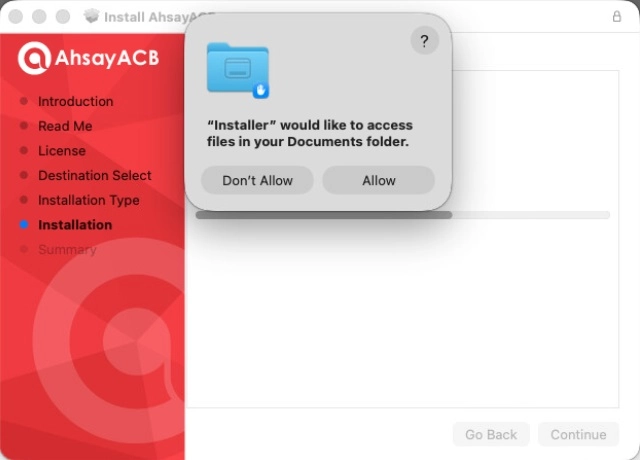
When the following pop-up is displayed, click Allow to continue with the installation.
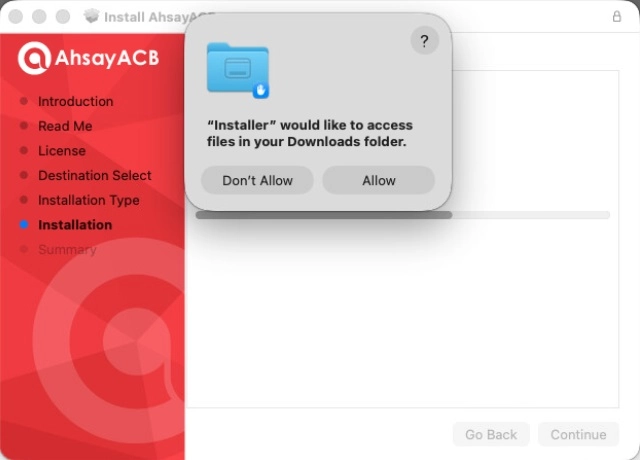
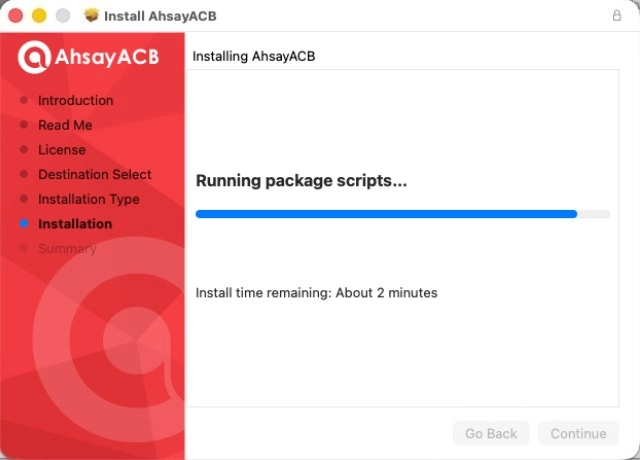
Wait until the installation process is finished.
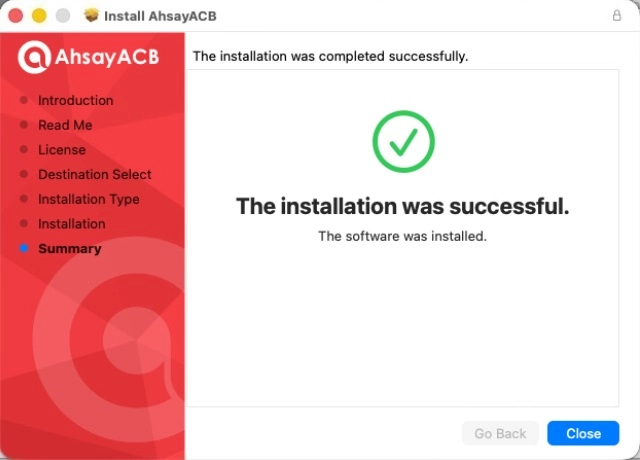
You will see the following screen when the installation of AhsayACB is completed.


Offline Installation using ZIP Offline Installation
Open the downloads folder where a new folder named “acb-mac” will be created. Open the folder to access the installation package file.

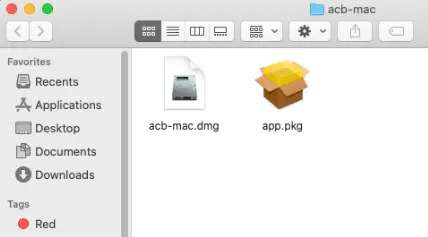
Double-click on the acb-mac.dmg
Follow steps 2-13 in the previous section

